

What is Email Testing?
Email testing lets you run evaluators against agents that communicate via email. Cekura acts as the user, exchanges emails with your agent, and evaluates the full conversation — no phone numbers or API keys needed beyond the agent’s email address. Use email testing for:- Agents that handle support tickets, inquiries, or outreach via email
- Validating reply quality, threading, and tone
- Testing both inbound flows (agent replies to incoming emails) and outbound flows (agent initiates contact)
Setting Up Email Testing
1
Add the agent's email address
In Agent Settings → Connections, expand the Email section and enter the email address your agent monitors.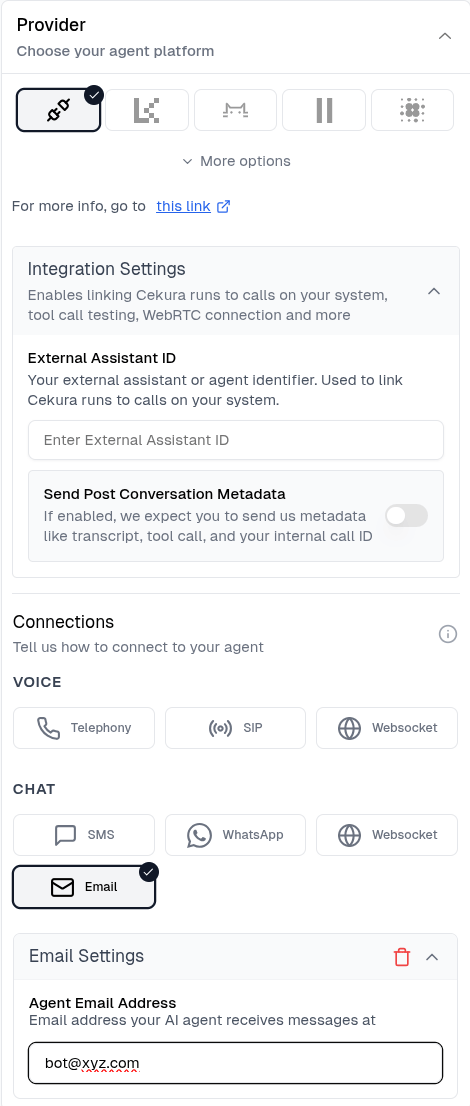
2
Run with Email
Go to Evaluators, select your evaluator, and click Run.In the Configure Run dialog, select Email under CHAT. The address pre-fills from agent settings — override it if needed for this run.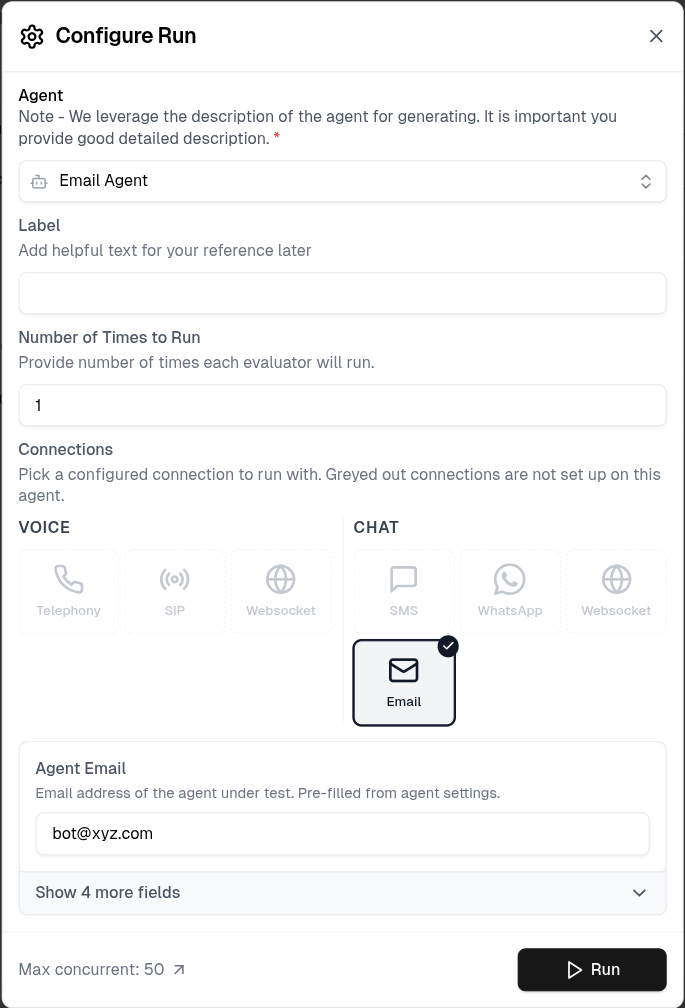
Inbound vs Outbound
For outbound agents, the run response includes an
inbound_email address (e.g. run-123@veliitroee.resend.app). Configure your agent to email this address to trigger the conversation.
How It Works
- Cekura sends the first email (inbound mode) to your agent’s address using the evaluator’s first message
- Your agent replies to the test address embedded in the reply-to header
- Cekura receives the reply via inbound webhook, strips quoted history, and generates the next testing message
- The loop continues until the conversation ends naturally or the timeout is reached (10 minutes per reply)
Tool Support
Timeouts
If no reply arrives within 10 minutes, the run ends withemail-timeout. This is intentional — email is asynchronous and slower than SMS or voice.
API Reference
Run Evaluator Email
POST /test_framework/v1/scenarios/run_scenarios_email/Next Steps
- WhatsApp Testing — text-based testing via WhatsApp
- Test Profiles — inject user identity into email conversations
- Custom Metrics — validate reply content and tone