

What is SMS Testing?
SMS testing allows you to test scenarios where your voice agent sends or receives text messages during phone calls. This is useful for testing:- OTP (One-Time Password) verification
- Sending confirmation codes or links
- Receiving information via text during a call
- Multi-channel communication workflows
How SMS Testing Works
Two-Way SMS Communication
During a test call: Testing Agent (Evaluator) can:- Send SMS to the main agent
- Receive SMS from the main agent
- Receive SMS from the testing agent during the call
- Send SMS to the testing agent
Important: SMS messages can only be received if sent to/from the same phone number being used in the active call. This ensures messages are correctly associated with the ongoing conversation.
Enabling the Send SMS Tool
To enable SMS functionality for your testing agents:1
Access Evaluators
Click on the Evaluators tab and select the evaluator you want to configure.
2
Enable Send SMS Tool
Scroll to the Tools section, find Send SMS in the list of available tools, and toggle the switch to enable it.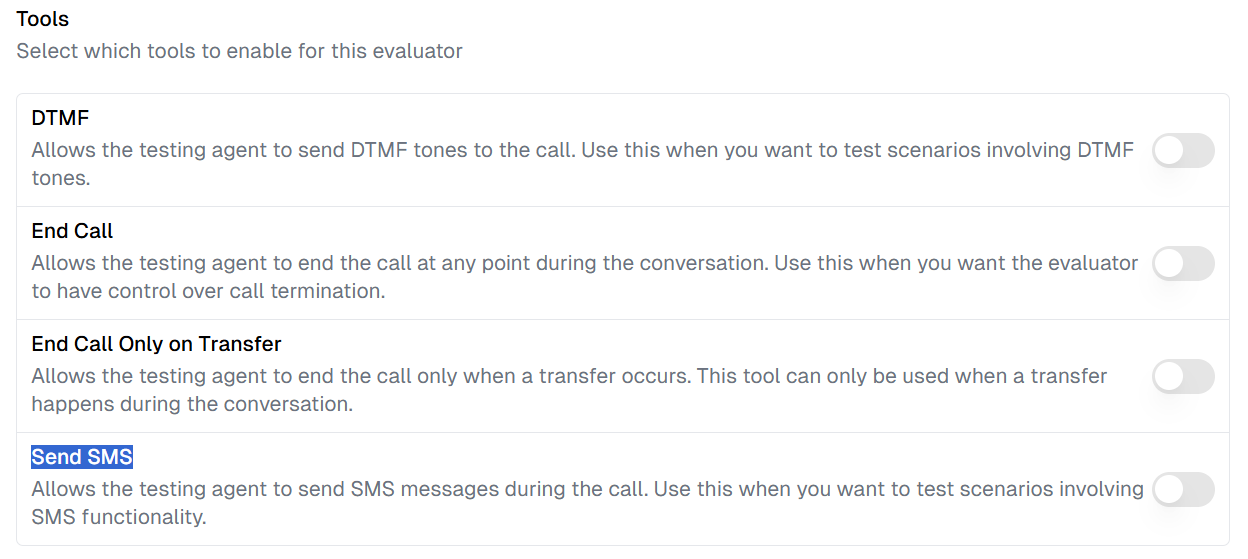
Available Testing Tools
When configuring your evaluator, you have access to these tools:Example: OTP Verification
Here’s a simple example of testing an agent that sends verification codes via SMS. Evaluator Instructions:- Testing agent calls and requests to update policy
- Main agent says: “I’ll send you a verification code”
- Main agent sends SMS with OTP code
- Testing agent receives the SMS and reads the code
- Main agent verifies the code and proceeds
How SMS Appears in Transcripts
When an SMS is sent during the call, it appears in the transcript as a Function Call: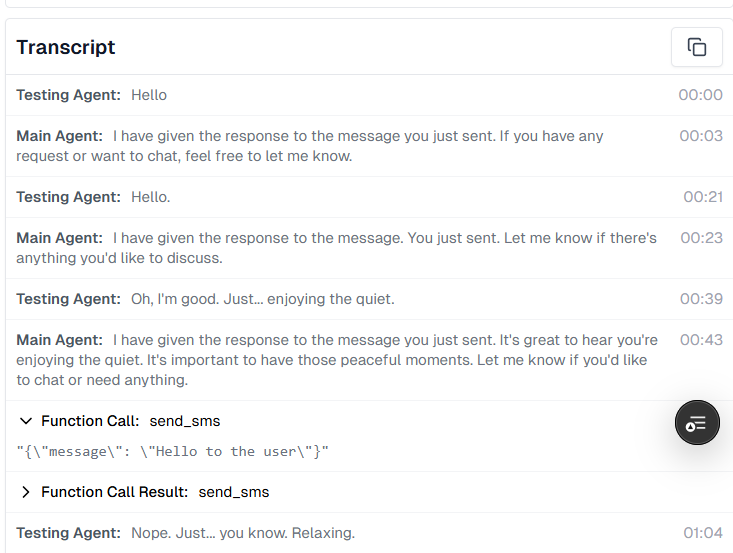
- The Function Call section shows
send_smswith the message content - The Function Call Result confirms the SMS was sent
- This helps you track all SMS activity during the test
How Main Agents Handle SMS
Receiving SMS
When your main agent receives an SMS during a call, the message is automatically:- Injected into the LLM context as:
[User SMS]: <message content> - Added to the transcript for your review
- Available for the agent to use in its response
Sending SMS
Your main agent can send SMS when configured with SMS capabilities. The SMS will appear in the transcript as a function call, just like in the example above.SMS Filtering
SMS messages are only delivered to the active call when:- Sent to/from the call’s phone number
- There’s an active call session
- The direction is correct (user ↔ agent)
Best Practices
1. Enable Selectively
Only enable the Send SMS tool for evaluators that need to test SMS functionality.2. Clear Instructions
Be explicit about SMS expectations in your evaluator instructions:3. Validate Content
Use metrics to verify SMS messages contain correct information (codes, links, data).4. Check Transcripts
Review the Function Call sections in transcripts to confirm SMS was sent/received correctly.Next Steps
- Learn about Test Profiles for identity testing
- Explore Personality for realistic test scenarios
- Review Custom Metrics for SMS validation