

What is DTMF Testing?
DTMF (Dual-Tone Multi-Frequency) testing allows you to simulate phone keypad button presses during test calls. This is essential for testing:- IVR (Interactive Voice Response) navigation
- Menu selection scenarios
- Account number or PIN entry
- Call transfer requests (“Press 1 for sales”)
- Any interaction requiring keypad input
Two Ways to Use DTMF
1. Via Evaluator Tools
Enable DTMF tools on your evaluators to give them the ability to send or receive button presses during calls. Send DTMF: Evaluator sends button presses to the main agent (testing IVR navigation) Receive DTMF: Main agent sends button presses, evaluator receives them2. Via Structured Tests
Use the<dtmf> tag in Structured Tests to send specific button sequences at precise moments during the conversation.
Enabling DTMF Tools
To enable DTMF functionality for your testing agents:1
Access Evaluators
Click on the Evaluators tab and select the evaluator you want to configure.
2
Enable DTMF Tools
Scroll to the Tools section, find Send DTMF or Receive DTMF in the list of available tools, and toggle the switch to enable it.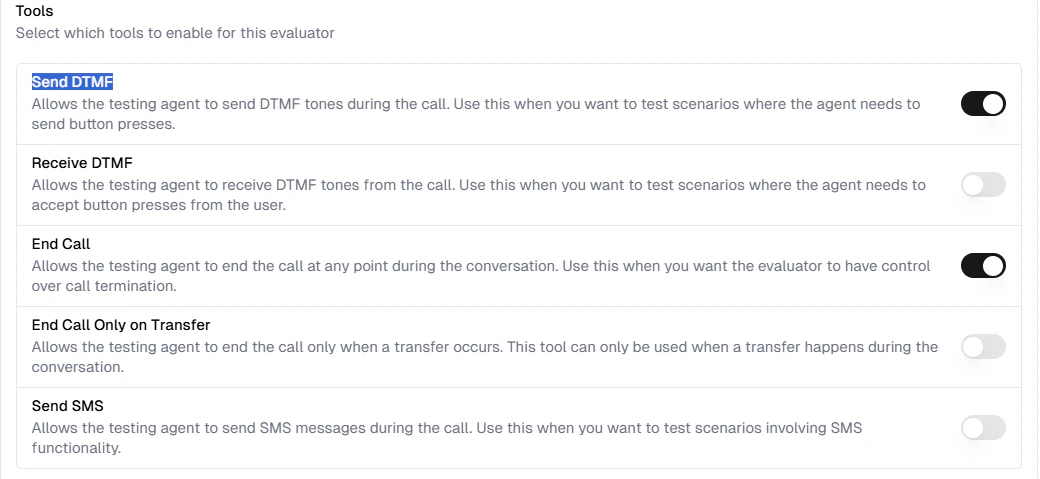
Available DTMF Tools
When Send DTMF is enabled, the evaluator can intelligently decide when to press buttons based on the conversation context.
Controlling which digit is pressed
To specify which digit the testing agent should press, add explicit instructions to your evaluator. For example:<dtmf> tag in Structured Tests instead — see the section below.
Using the DTMF Tag in Structured Tests
The<dtmf> tag allows you to send specific button sequences at exact moments in your test scenarios.
Syntax
Parameters
- digits: The buttons to press (valid characters:
0-9,*,#,A-D)
<dtmf> tag works with all TTS providers (Cartesia, ElevenLabs, etc.)
Example Scenario
Here’s a practical example of testing an agent that requires menu navigation: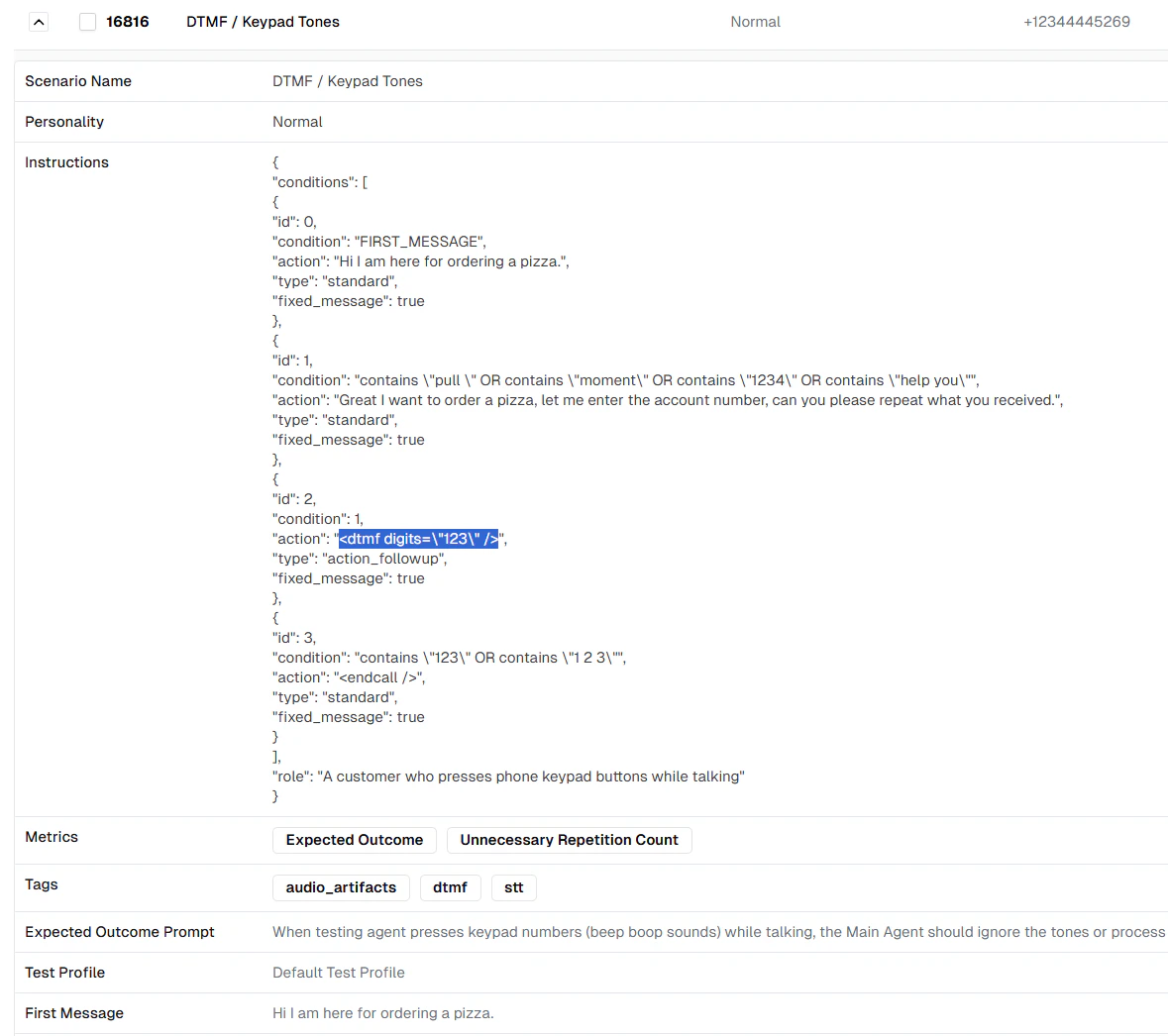
- Evaluator starts the conversation
- When the agent asks for account number, evaluator responds
- Immediately after, the
<dtmf>tag sends “123” via keypad - Agent confirms receiving “123” and the call ends
Combining DTMF with Text
You can combine DTMF tags with text messages:*99 button sequence.
DTMF-Only Actions
To send button presses without speaking:Digits from a Test Profile
When the digits are caller data rather than a menu choice — an account number, a PIN, a date of birth — reference the test profile instead of hardcoding them, so one evaluator covers every profile you run it with:4711 2200 dials 47112200.
The key must exist in the caller variables of the test profile the run uses. If it
does not, no tones are sent for that action and the call continues.
Valid DTMF Characters
The following characters are supported for DTMF tones:Common Use Cases
1. IVR Menu Navigation
Test agents that navigate phone menus:2. Account Number Entry
Test multi-digit input scenarios:3. PIN Verification
Test secure input flows:4. Transfer Requests
Test call transfer scenarios:5. Star Codes
Test special IVR functions:How DTMF Appears in Transcripts
When DTMF tones are sent during a call, they appear in the transcript for tracking:- Via Tool: Shows as a function call with the digits sent
- Via Tag: Automatically recorded in the conversation flow
- Received DTMF: Shown as user input in the transcript
Best Practices
1. Enable Tools Selectively
Only enable Send/Receive DTMF tools for evaluators that need to test DTMF functionality.2. Use Structured Tests for Precise Timing
When you need exact control over when buttons are pressed, use the<dtmf> tag in Structured Tests rather than relying on the LLM to decide.
3. Clear Instructions
When using DTMF tools (not tags), be explicit in your evaluator instructions:4. Test Both Scenarios
Test both sending DTMF (evaluator → agent) and receiving DTMF (agent → evaluator) to ensure bidirectional functionality works correctly.5. Validate with Metrics
Use metrics to verify:- Agent correctly recognizes DTMF input
- Agent responds appropriately to button presses
- Navigation flows work as expected
Next Steps
- Learn about Test Profiles for comprehensive testing
- Explore Conditional Actions for advanced scenarios
- Review Custom Metrics for DTMF validation