

Overview
Cekura tests Genesys Cloud voice agents over the phone. Cekura dials the number that routes to your Genesys flow, runs the scenario as a simulated caller, and then connects to your Genesys Cloud org to fetch that conversation. The result shows the transcript produced by Genesys Speech and Text Analytics, alongside the conversation’s wrap-up codes, summary, and any Agent Copilot knowledge-article suggestions.Genesys Cloud connects over telephony only. Cekura enables the telephony connection automatically once the Genesys credentials are saved.
Prerequisites
- A Genesys Cloud organization with Speech and Text Analytics voice transcription enabled for the queue or flow you want to test. Without transcription, Genesys has no transcript for Cekura to import.
- A phone number in Genesys that routes to the flow or bot under test.
- A Genesys Cloud OAuth client using the Client Credentials grant (created below).
Create an OAuth client in Genesys Cloud
1
Create a role for Cekura
In Genesys Cloud, go to Admin → People & Permissions → Roles / Permissions and create a role that can read conversations. At minimum it needs:
- Analytics → Conversation Detail → View (find conversations by time window and phone number)
- Conversation → Communication → View (read conversation details)
- Speech and Text Analytics → Data → View (download the transcript)
2
Add the OAuth client
Go to Admin → Integrations → OAuth and click Add Client. Set the Grant Type to Client Credentials, assign the role from the previous step, and save.
3
Copy the credentials
Copy the Client ID and Client Secret. The secret is shown once, so store it before leaving the page.
4
Note your region
Your region is the Genesys Cloud domain you log in to, for example
mypurecloud.com, usw2.pure.cloud, cac1.pure.cloud, mypurecloud.ie, or apne2.pure.cloud.Enter only the domain. Do not include https://, api., or login..Connect Genesys in Cekura
1
Select Genesys
In Cekura, go to Agents, create an agent, and select Genesys as the provider. If you don’t see it, click More options to expand the full provider list.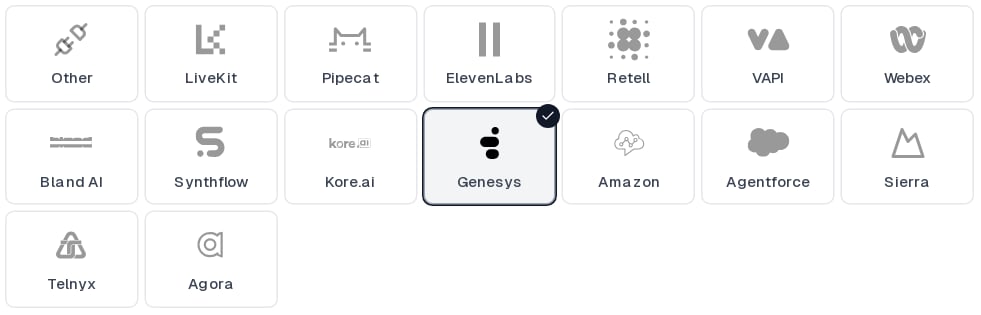
2
Enter the Genesys credentials
Fill in the three fields: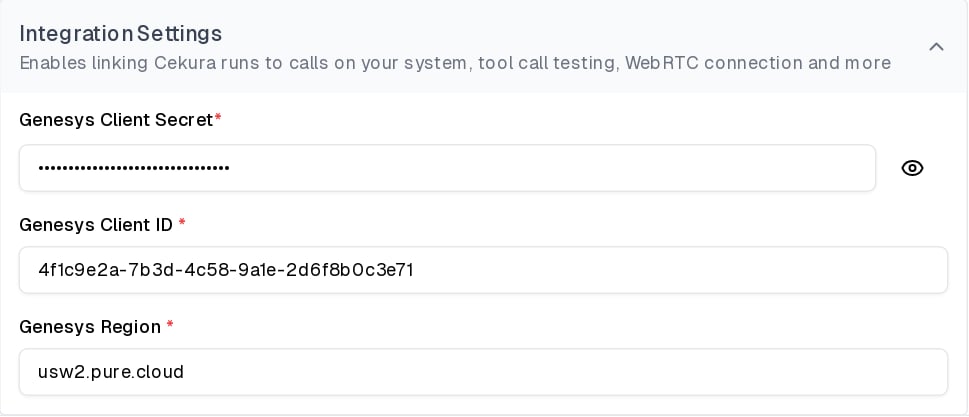
3
Add the phone number
Under Telephony Settings, enter the Genesys phone number that routes to the flow you want to test. Telephony is the only connection type for Genesys and is enabled automatically. Leave Inbound on so Cekura dials your number.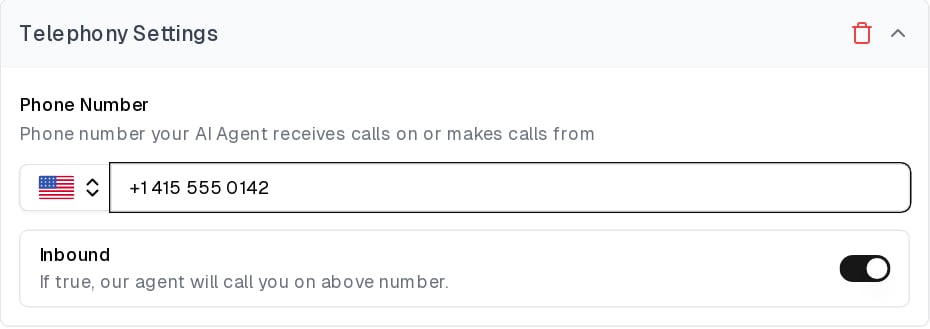
4
Save the agent
Save the agent. The secret field shows API Key Configured once it is stored; use Update to rotate it later.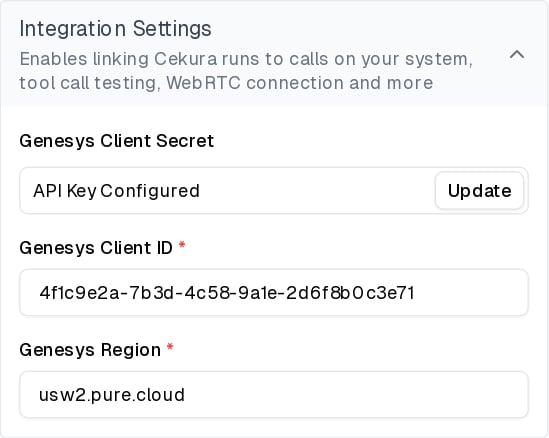
Run a test
Open an evaluator, click Run, and start the run using the Telephony connection. Cekura dials your Genesys number and plays the scenario as the caller. When the call ends, Cekura:- Waits for Genesys Speech and Text Analytics to finish processing the conversation. This usually takes a minute or two.
- Searches your Genesys org for conversations that started around the same time and involved the phone number Cekura used.
- Confirms the match by comparing the call duration and the conversation content, so parallel test calls to the same number are each paired with the right Genesys conversation.
- Downloads the transcript and attaches the Genesys conversation ID to the result.
If Cekura cannot find a matching conversation, the result keeps Cekura’s own transcript of the call. See the troubleshooting section below.
Troubleshooting
- Authentication fails: check that the region is only the domain (for example
usw2.pure.cloud), and that the OAuth client uses the Client Credentials grant with a role assigned. - No Genesys transcript on the result: make sure voice transcription is enabled in Speech and Text Analytics for the queue or flow that handled the call, and that the role can view Speech and Text Analytics data.
- Conversation not matched: Cekura matches on the phone number it dialed from and the call’s start time. Confirm the number under Telephony Settings routes to the flow you tested, and that the Genesys conversation shows the Cekura number as the caller.
Configure through the API
When creating or updating an agent through the API, set the provider togenesys and pass the credentials:
genesys_client_secret_configured field to check whether one is stored.