

Overview
Cekura can simulate calls against any voice agent that exposes a raw-PCM WebSocket endpoint. Instead of going through a vendor SDK, Cekura dials yourwss:// URL directly and exchanges 16 kHz mono PCM audio as binary WebSocket frames using the CHIRP protocol.
Use Websocket Simulations when:
- Your agent has no phone number and you don’t want to use a vendor SDK.
- You already operate a real-time audio pipeline and want lower-latency bidirectional streaming.
- You’re building a custom voice stack or research prototype that handles raw PCM natively.
- How to test — configure your agent and trigger runs from the dashboard or the API.
- Protocol details — the full CHIRP wire format, for teams implementing the server side.
- How to test
- Protocol details
- Dashboard
- Code
Run tests directly from the dashboard against your CHIRP WebSocket endpoint.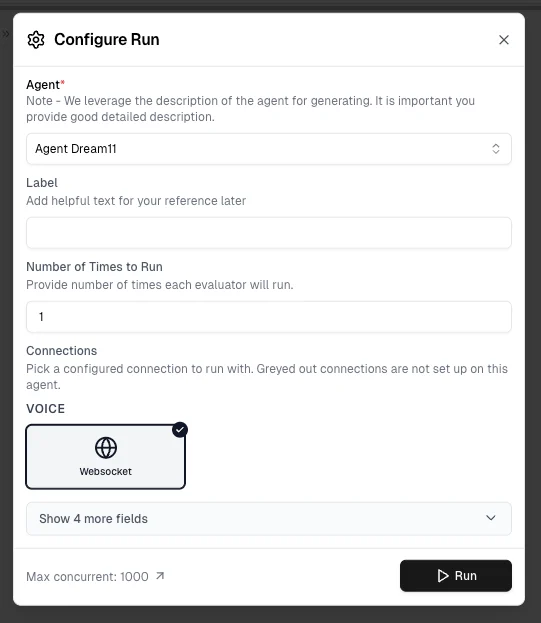
1
Configure Chirp credentials
Open your agent settings, pick Chirp in the provider grid, and fill in the WebSocket URL (and optional Basic Auth):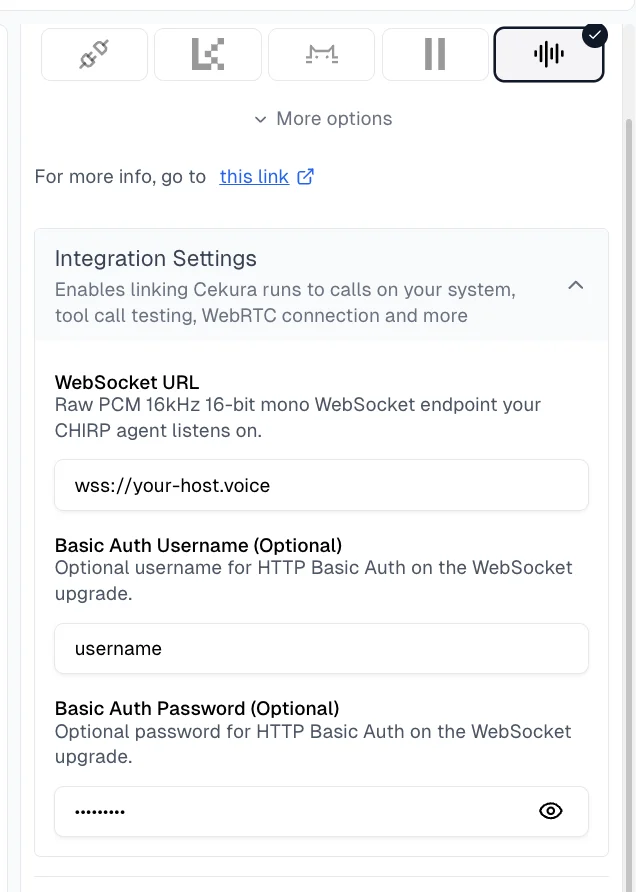
- WebSocket URL — The
wss://(orws://) endpoint your agent listens on. Cekura connects directly to this URL.
- Basic Auth Username
- Basic Auth Password
Authorization: Basic <base64(user:pass)> header on the WebSocket upgrade. Leave them empty if your endpoint is unauthenticated.Your endpoint must speak raw
pcm_s16le audio at 16 kHz mono, framed as WebSocket binary messages. See Protocol details above for the full handshake, message types, and barge-in semantics.2
Run tests from the dashboard
- Select scenarios for your agent and click Run.
- With Chirp configured, you will see Websocket option under VOICE options in Configure Run dialog.
- Select Websocket and click Run.
- Open a WebSocket to your configured URL with the Basic Auth header (if set)
- Stream 16 kHz mono PCM audio to your agent and play your agent’s audio back
- Capture the conversation, transcribe it, and run your evaluators against the result
3
View results
Results appear in your dashboard like any other run — status, metrics, transcripts, and audio playback are all available. Failed connections are surfaced via run status: