

Overview
Cekura tests Kore.ai voice agents over the phone. Cekura dials the number attached to your Kore.ai agent, runs the scenario as a simulated caller, and then uses the Kore.ai public APIs to find that session and fetch its conversation history. The result shows the transcript as recorded by Kore.ai, with every tool or service call the agent made shown inline as a function call. Kore.ai offers two products, and Cekura supports both under the same Kore.ai provider. Pick the one your agent runs on with the Platform setting:
Existing Kore.ai agents are on the XO platform and keep working unchanged. Follow the XO Platform section or the Agent Platform (Artemis) section depending on your setup.
This guide covers voice testing over telephony. Kore.ai chat testing is available for XO Platform agents only, using a separate Web Client API key under Kore.ai Chat Settings, and is not covered here. Artemis agents are tested over voice only.
XO Platform
Prerequisites
- A Kore.ai Contact Center AI app on the XO Platform, with the flow you want to test.
- A phone number added to that app and attached to the flow.
- An API scope mapping for the app (created below) that lets Cekura read sessions, chat history, and debug logs.
Set up Kore.ai
1
Create the app
In the Kore.ai XO Platform, create a Contact Center AI app (or open the one that already contains your voice flow).
2
Attach a phone number to your flow
Open Telephony for the app, add a phone number, and attach the flow you want to test. This is the number Cekura will dial.
3
Create an API scope mapping
Open Dev Tools → API Scopes and create a new mapping for the app. Set the JWT signing algorithm to HS256 and enable these scopes:
Other signing algorithms are not supported. Cekura signs its requests with HS256 using the client secret from this mapping.
4
Copy the credentials
From the mapping, copy the Client ID and Client Secret. Also copy the App ID of the app (it starts with
st-; the Client ID starts with cs-). Store the secret before leaving the page.Connect Kore.ai in Cekura
1
Select Kore.ai
In Cekura, go to Agents, create an agent, and select Kore.ai as the provider. If you don’t see it, click More options to expand the full provider list.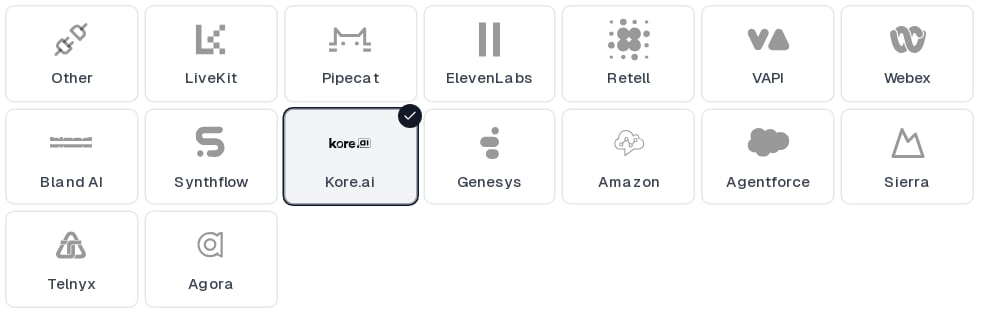
2
Enter the Kore.ai credentials
Fill in the fields under Integration Settings: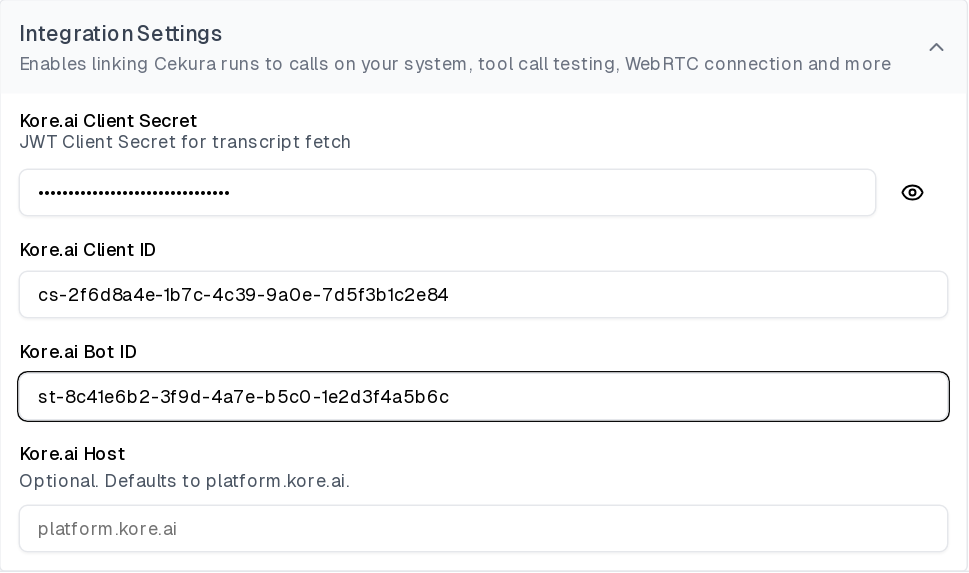
3
Add the phone number
Under Connections, turn on Telephony, then enter the Kore.ai phone number attached to your flow under Telephony Settings. Leave Inbound on so Cekura dials your number.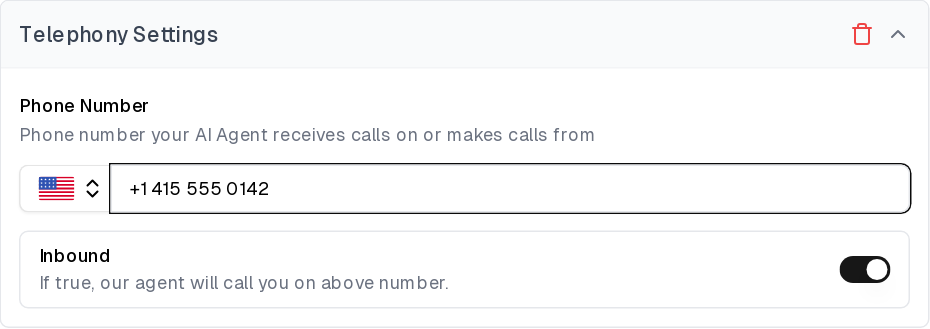
4
Save the agent
Save the agent. The secret field shows Client Secret Configured once it is stored; use Update to rotate it later.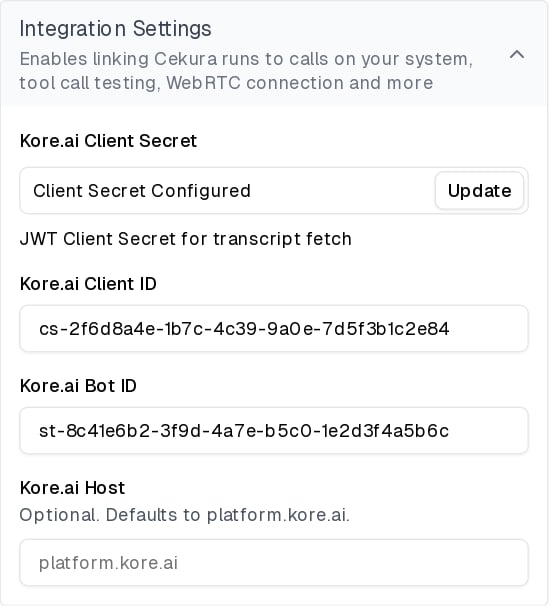
Run a test
Open an evaluator, click Run, and start the run using the Telephony connection. Cekura dials your Kore.ai number and plays the scenario as the caller. When the call ends, Cekura:- Looks up the app’s sessions that started within a short window around the time Cekura placed the call.
- Fetches the chat history of each candidate and confirms the match by comparing timing and conversation content, so parallel test calls to the same number are each paired with the right Kore.ai session.
- Fetches the debug logs for the matched session.
- Replaces its own transcript with the Kore.ai one and attaches the Kore.ai session ID to the result.
If Cekura cannot find a matching session, the result keeps Cekura’s own transcript of the call. See the troubleshooting section below.
Troubleshooting
- Authentication fails: check that the API scope mapping uses HS256, and that the Client ID and Client Secret come from the same mapping. The Bot ID must be the App ID (
st-...) of the app that owns the mapping. - No Kore.ai transcript on the result: make sure the mapping has the App Sessions and Chat History scopes, and that the number under Telephony Settings is the one attached to the flow you tested.
- Transcript present but no Function Call entries: add the Debug Logs scope to the mapping. Without it Cekura still imports the conversation but cannot see the flow’s service-node calls.
- Host errors: if you set Kore.ai Host, enter only the domain, for example
platform.kore.ai.
Configure through the API
When creating or updating an agent through the API, set the provider tokoreai and pass the credentials:
"host" to koreai_data only if your account runs on a dedicated Kore.ai host. The response never returns the secret. Use the read-only koreai_client_secret_configured field to check whether one is stored.
Agent Platform (Artemis)
Kore.ai Agent Platform agents are LLM-driven: a supervisor agent identifies the caller, routes to specialised sub-agents, calls tools, and may transfer the call to a human queue. Cekura pairs the test call with the Agent Platform session, imports its transcript and tool calls, and keeps the session’s LLM usage with the result.Prerequisites
- A Kore.ai Agent Platform project containing the voice agent you want to test, reachable on a phone number.
- The host your project runs on, for example
ind-agents.kore.ai. Enter the domain only, withouthttps://. - A project-bound API key for that project with the
session:readandanalytics:readpermissions. Ask your Kore.ai administrator to issue one; it starts withabl_. - If Cekura dials from its own numbers, make sure the Kore.ai project accepts calls from them. Kore.ai only creates a session once the call reaches the agent, so an IVR or allow-list in front of it must let the Cekura number through.
Connect Kore.ai Agent Platform in Cekura
1
Select Kore.ai
In Cekura, go to Agents, create an agent, and select Kore.ai as the provider. If you don’t see it, click More options to expand the full provider list.
2
Switch the platform to Artemis
Under Integration Settings, set Platform to Artemis. The XO fields are replaced by the Agent Platform fields:
Switching platforms does not delete the other platform’s credentials. An agent can hold both sets, and Platform decides which one Cekura uses.
3
Add the phone number
Under Connections, turn on Telephony, then enter the phone number that reaches your Agent Platform agent under Telephony Settings. Leave Inbound on so Cekura dials your number.
4
Save the agent
Save the agent. The key field shows API Key Configured once it is stored; use Update to rotate it later.
Run a test
Open an evaluator, click Run, and start the run using the Telephony connection. Cekura dials your number and plays the scenario as the caller. When the call ends, Cekura:- Lists the project’s voice sessions that started between 30 seconds before Cekura placed the call and 60 seconds after it ended. Kore.ai indexes a finished session a few seconds after the call, so Cekura retries for up to two minutes if nothing is there yet.
- Fetches each candidate’s conversation history and confirms the match by comparing timing and conversation content, so parallel test calls to the same number are each paired with the right session.
- Handles transferred calls. If the agent handed the caller to a human queue, Kore.ai’s session covers only the middle of the call: it starts after the IVR and ends at the transfer. Cekura places that slice on its own timeline and matches it against the same stretch of its transcript, so the session is still paired even though the two transcripts differ in length.
- Fetches the matched session’s tool calls, failed LLM and tool calls, and per-call LLM usage, and attaches the session ID to the result.
Kore.ai’s session ends when the agent transfers the call. Anything the caller hears after that, such as queue announcements or a human agent, is not in the Kore.ai transcript. Cekura’s own recording still covers the full call.
Troubleshooting
- Authentication fails: the API key is invalid, expired, or missing the
session:readoranalytics:readpermission. Kore.ai returns the same error for a key bound to a different project, so also check Kore.ai Project ID. - No Kore.ai transcript on the result: confirm the call reached the agent. Kore.ai does not create a session for a call that ended in the IVR or was rejected by an allow-list, and the result then keeps Cekura’s own transcript.
- Transcript stops early: the agent transferred the call. Kore.ai logs nothing after a transfer; see the note above.
- Chat runs are refused: Agent Platform agents can only be tested over voice. Switch Platform to XO if you need Kore.ai chat testing.
- Host errors: enter only the domain, for example
ind-agents.kore.ai.
Configure through the API
Artemis uses the samekoreai provider. Set "platform": "artemis" and pass the Agent Platform credentials inside koreai_data:
provider.credentials.config:
platform accepts xo (the default when omitted) or artemis. Updates merge into the stored configuration, so a later request can send only the keys that change, and switching platform keeps the other platform’s credentials in place. The response never returns the key. Use the read-only artemis_api_key_configured field inside koreai_data to check whether one is stored.