

Overview
Test your SIP (Session Initiation Protocol) based agents directly through Cekura’s agents, bypassing traditional telephony networks. This provides enhanced control, reduced latency, and access to rich call metadata through custom headers.What is SIP?
SIP (Session Initiation Protocol) is a signaling protocol used for initiating, maintaining, and terminating real-time communication sessions. Unlike traditional PSTN calls that route through telephone networks, SIP enables direct IP-based communication between endpoints.How SIP Testing Works on Cekura
When you run a SIP test, the flow works as follows:- SIP Invite: Cekura sends a SIP INVITE request to your agent’s SIP endpoint
- Header Injection: Cekura automatically injects custom headers with test metadata
- Session Negotiation: SIP protocols negotiate audio codecs, media parameters, and connection details
- Media Stream: Direct RTP (Real-time Transport Protocol) audio streams are established
- Call Handling: Your agent processes the call with full access to SIP headers and metadata
- Results Collection: Cekura captures audio, transcripts, and evaluation metrics
Custom Headers
Cekura injects headers into every SIP INVITE request to provide metadata and enable advanced functionality.Default Headers
Cekura automatically injects critical headers into every SIP INVITE request to link the call session to the test run:- Track which test scenario triggered the call
- Link calls with specific test runs
- Extract metadata for debugging and analysis
- Enrich simulation evaluations programmatically
User-Defined Custom Headers
You can add additional custom headers through test profiles. When a test profile is attached to a scenario or run, your custom headers are sent alongside the default headers in the SIP INVITE request. Requirements:- Put custom headers in the test profile’s
information.main_agent_variablessection (these reach the agent under test; values intesting_agent_variablesstay on the simulator and are not sent over the wire). - Header keys must start with
"X-"(e.g.,"X-Auth-Token","X-Customer-Type") - Only keys with the
"X-"prefix frommain_agent_variablesare included as SIP headers
- Default headers:
X-Run-Id,X-Scenario-Id,X-Result-Id - Custom headers:
X-Auth-Token,X-Customer-Tier,X-Account-Type - Note:
customer_nameis intesting_agent_variablesso it is NOT sent as a SIP header. Keys intesting_agent_variablesstay on Cekura’s simulator only.
- No-code
- Code
Test your SIP-based agents directly from the frontend without writing code.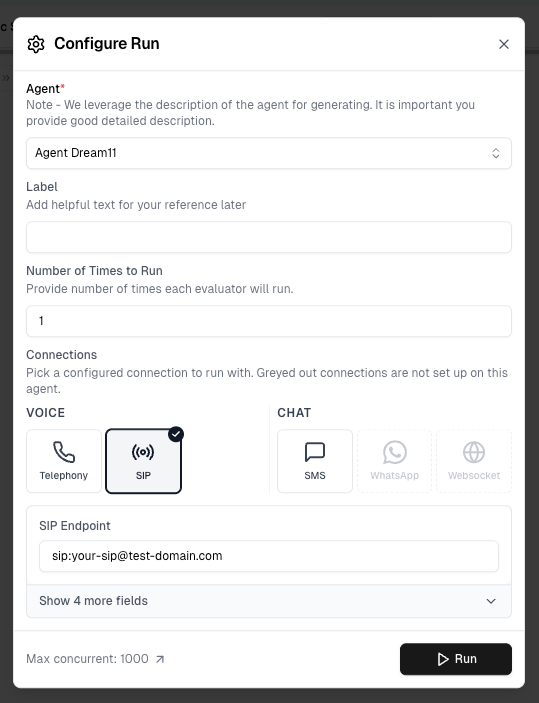
1
Configure SIP endpoint
Go to your agent settings and configure the SIP endpoint: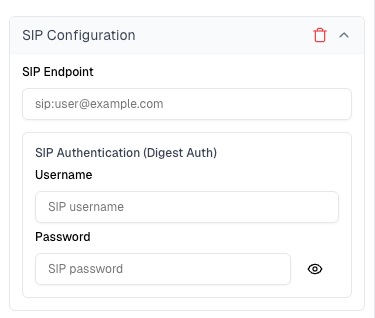
- SIP Endpoint: The SIP URI where your agent receives calls (e.g.,
sip:agent@yourdomain.comorsip:192.168.1.100:5060)
- Username: Digest authentication username (only required if your SIP endpoint uses digest authentication)
- Password: Digest authentication password (only required if your SIP endpoint uses digest authentication)
Your SIP endpoint can be either publicly accessible or a private endpoint secured with digest authentication. If using digest authentication, provide the username and password credentials configured on your SIP server.
If your SIP endpoint is behind a firewall, you will need to whitelist Cekura’s outbound IP addresses so that SIP INVITE requests can reach your server. See IP Whitelisting for the current IP list.
2
Run tests from frontend
- Select scenarios and run tests using the UI.
- Click Run to open the Configure Run dialog. Under Connections, select SIP under the VOICE section.
- Confirm your SIP endpoint, then click Run.
- Sends SIP INVITE requests to your configured endpoint
- Injects custom headers (
X-Run-Id,X-Scenario-Id,X-Result-Id) - Executes test scenarios
- Captures audio and transcript data
- Evaluates metrics in real-time
3
View results
Results appear in your dashboard.
Track test status, metrics, conversation details, and other details.