

What is WhatsApp Testing?
WhatsApp testing allows you to test your conversational agents through WhatsApp messages. This provides a text-based alternative to voice testing, making it faster and more cost-effective for workflow validation. WhatsApp testing is useful for:- Testing conversation logic and flow without voice calls
- Validating agent responses and decision-making
- Quick iteration on agent behavior
- Cost-effective bulk testing scenarios
Template Message: Due to WhatsApp’s 24-hour conversation window constraints, you may see a template message at the beginning of conversations: “Thank you for your order. Your order ID is xyz and has been received successfully.” This opens the conversation window and allows the test to proceed.
Setting Up WhatsApp Testing
1
Configure Agent Settings
In your agent settings, go to Provider tab in right side, in the Connection section, select WhatsApp under CHAT.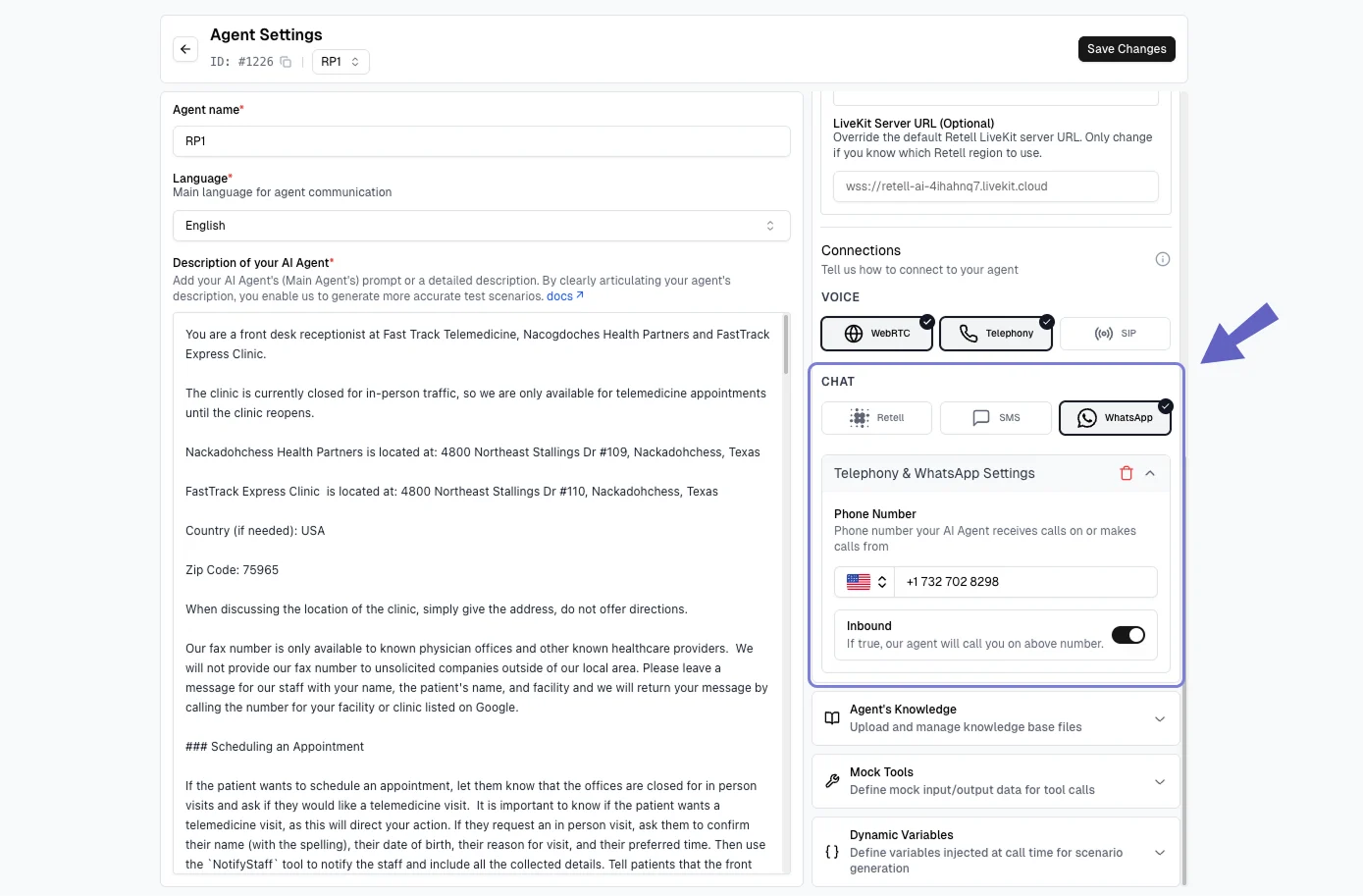
2
Add Phone Number
In the Phone Number section, add the WhatsApp-enabled phone number for the agent.
3
Run with WhatsApp
Head to Evaluators, select your evaluator, and click Run.In the Configure Run dialog, select WhatsApp and click Run to start your test.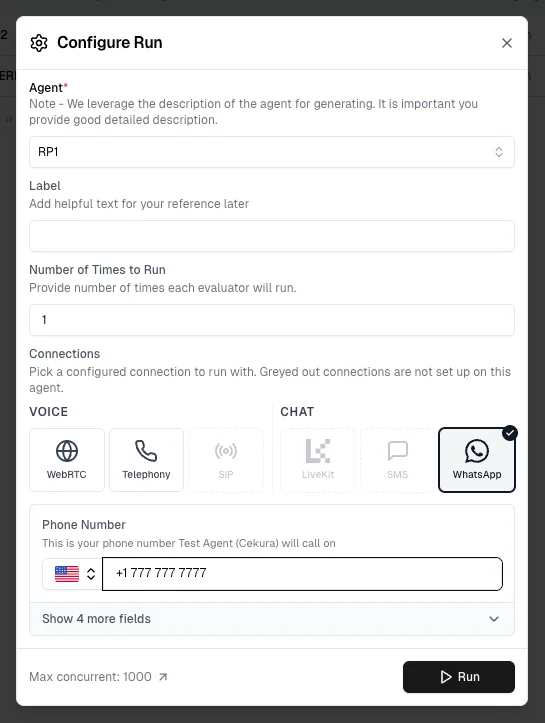
Tool Support
When testing via WhatsApp, the following tools are available:Example Use Cases
Customer Support:Timeouts and Behavior
WhatsApp tests automatically end after a timeout period if no response is received. The timeout is configured in your project settings. When a timeout occurs, it appears in the transcript as:Main agent-whatsapp-timeout
Best Practices
- Use for Workflow Testing - Ideal for validating conversation logic without voice overhead
-
Write Clear Instructions - Be specific in evaluator prompts:
- Verify WhatsApp is Enabled - Ensure your phone number has WhatsApp enabled before testing
- Monitor Results - Review transcripts via the Results API to verify conversation flow
Troubleshooting
Test timeout occurred
Test timeout occurred
Solutions:
- Check timeout settings in project configuration
- Verify phone number is correctly configured
- Ensure the phone number has WhatsApp enabled
WhatsApp not enabled
WhatsApp not enabled
Solutions:
- Verify WhatsApp is enabled for your phone number
- Ensure the phone number is correctly added in agent settings
No messages received
No messages received
Solutions:
- Verify the phone number is WhatsApp-enabled
- Check that the phone number is correctly configured in agent settings
- Confirm the number format is correct
Next Steps
- Learn about SMS Testing for voice-based text testing
- Explore Test Profiles for identity-based testing
- Review Custom Metrics for conversation validation
- Check Results API for viewing test outcomes