

Before You Get Started
Important: Before setting up a workflow, ensure your agent is properly configured with scenarios in the Cekura dashboard.
Finding Your Agent ID
Using the Dashboard
Using the Dashboard
- Log in to your Cekura dashboard
- Navigate to the Agents section
- Select your agent
- Copy the Agent ID displayed in the agent details
Using the API
Using the API
You can retrieve your agent ID programmatically using the Cekura API:The response will include your agent ID in the
id field.Using Tags vs Scenario IDs
You can run tests in two ways:Using Scenario IDs
Run specific scenarios by their IDs. Use this when you want to test exact scenarios.
Using Tags
Run all scenarios with specific tags. Use this when you want to test groups of scenarios (e.g.,
smoke-test, critical).Step-by-Step Tutorial
1
Create Workflow File
In your repository, create a file at
.github/workflows/test-agents.yml:2
Configure Variables & Secrets
Go to your repository → Settings → Secrets and variables → ActionsAdd Secret (API Key):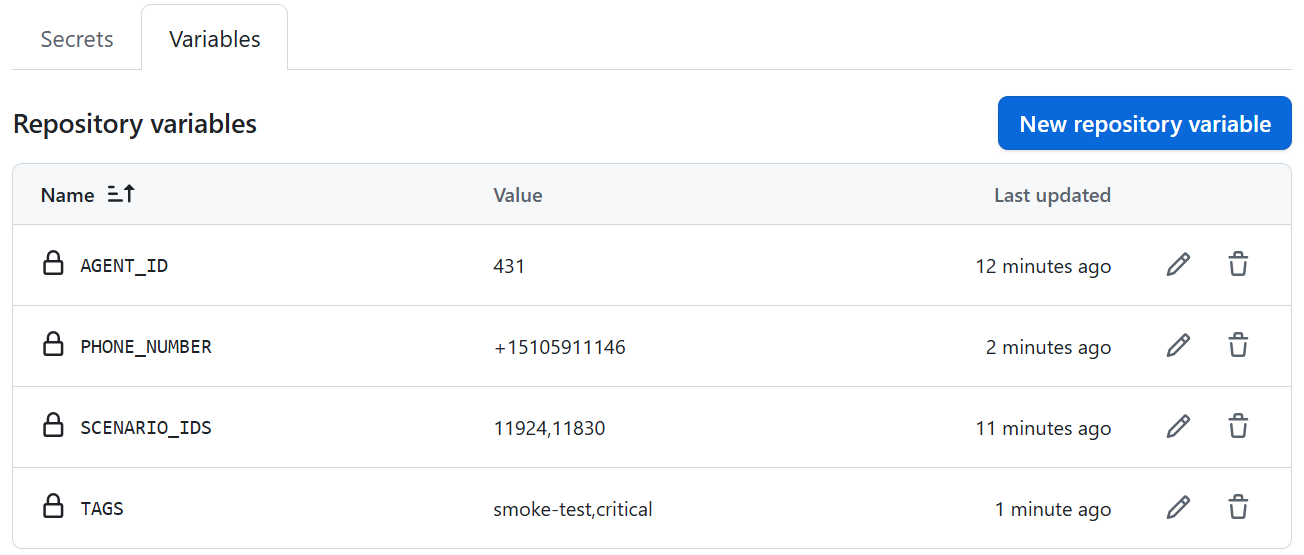
- Click New repository secret
- Name:
CEKURA_API_KEY - Value: Your API key from the Cekura dashboard
- Click the Variables tab
- Click New repository variable
- Add required variables:
AGENT_ID- Your agent ID (required)
- Add one or both of the following:
SCENARIO_IDS- Comma-separated scenario IDs (e.g.,123,456,789)TAGS- Comma-separated tags (e.g.,smoke-test,critical)
- Optionally add:
PHONE_NUMBER- Outbound phone number for testing (e.g.,+1234567890)
3
Start Test Run
To test your workflow, make a change to your codebase and raise a pull request. This will trigger the workflow automatically.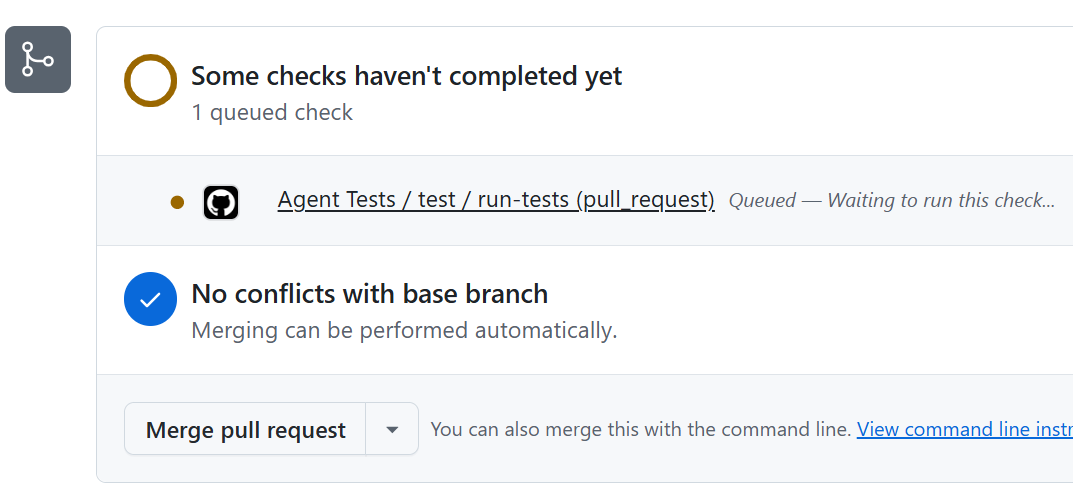
4
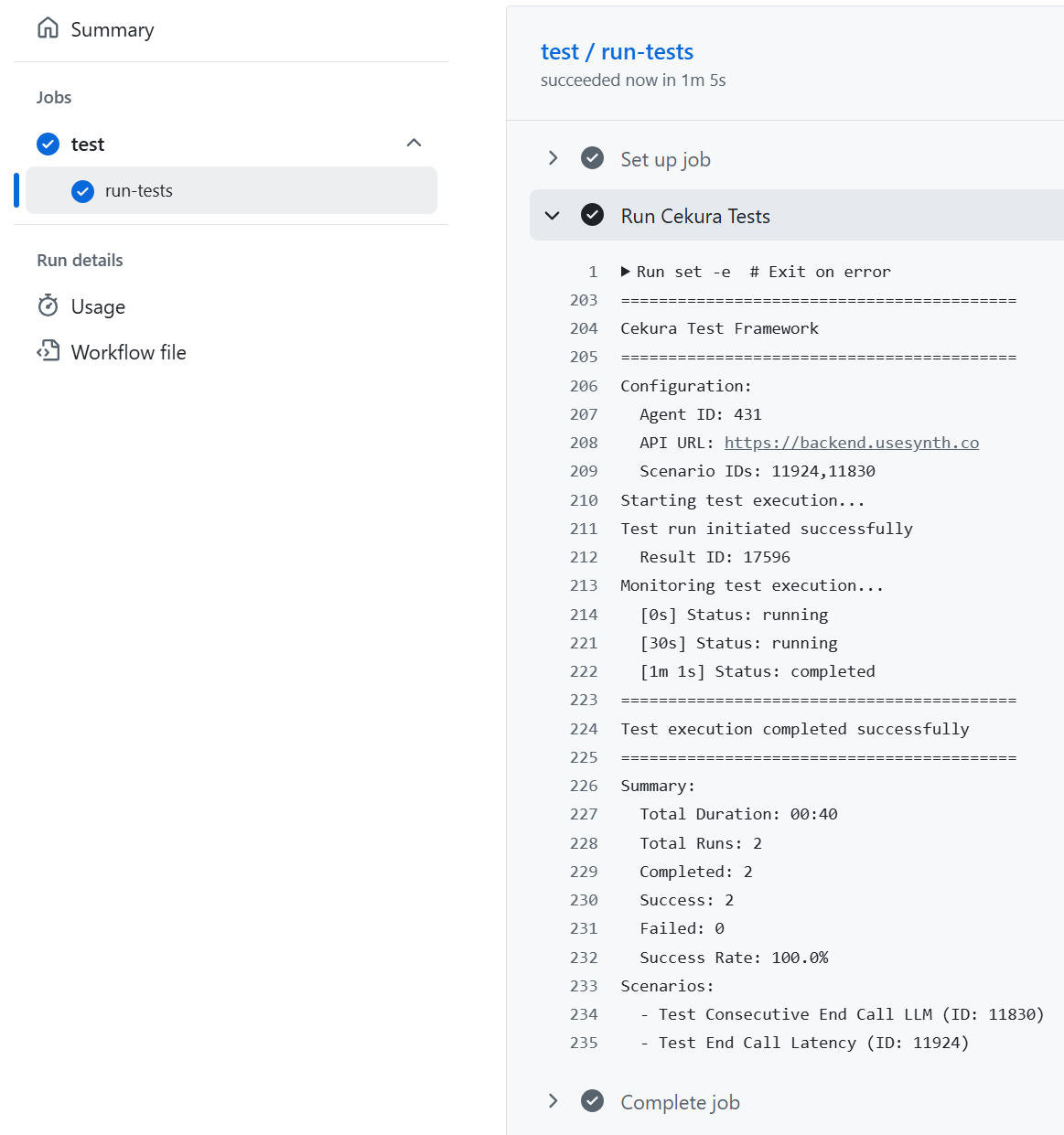
Monitor Workflow
- Go to your repository on GitHub
- Click the Actions tab
- You’ll see your workflow running
- Click on the workflow run to see detailed logs
Advanced Usage
Different Triggers
Run on Push Only
Run on Push Only
Run on Pull Request Only
Run on Pull Request Only
Manual Trigger
Manual Trigger
For more information about workflow triggers and events, check out the GitHub Actions official documentation.
Environment-Specific Testing
Test different environments (staging, production) with separate secrets:Testing with Phone Numbers
When testing agents that make outbound calls, you can specify a phone number:Execution Modes
execution_mode picks how the scenarios reach your agent. It defaults to voice.
livekit_data accepts agent_name, url and config; pipecat_data accepts pipecat_agent_name, config and room_properties. Both override the agent’s saved connection settings for that run only. Do not put LiveKit or Pipecat Cloud credentials in the workflow.
Action Inputs
*Provide
scenario_ids or tags (or both) for voice and text; livekit_v2 and pipecat_v2 require scenario_ids.
Action Outputs
When the Action Passes
The action polls the result every 30 seconds until it iscompleted, failed, timeout or cancelled, then writes a summary to the job and:
- passes when the result is
completedand every run passed; - fails otherwise — a run that failed its checks, errored, never connected or timed out counts as not passed, and so does a result that ends
failed,timeoutorcancelled.
timeout seconds, the action ends its active calls, writes the result ID and a shareable link to the job summary, and fails the step. Result statuses and gating explains each status and count.
Cancelling and job timeouts
If the workflow is cancelled, or the job hits itstimeout-minutes, the action:
- asks Cekura to end the result’s active calls, so no runs are left going in the background;
- still writes the result ID to the job summary and sets the
result_idoutput, so you can open the result in Cekura; - adds a shareable link (and the
result_urloutput) if Cekura answers within GitHub’s few-second cancellation window.
Example with All Options
Running Many Groups Under One Concurrency Limit
To run several agents’ scenarios from one step, use therun-batch action. A group can also have several legs that must run at the same time, each as its own result, such as the caller and the transfer target of a warm transfer, or the parties of a 3-way call. You set a single concurrency, and the action starts groups only while their calls fit under it, so you don’t need a matrix or a job per batch.
- Single-agent group (
agent_id+scenario_ids): runs as one result. It reservesscenarios × frequencycalls, or the wholeconcurrencyif that is smaller, and Cekura runs no more than that many at once. - Group with
legs(two or more): the legs are matched by position, so scenario i of every leg forms set i, and every leg needs the same number of scenarios. Repeat an ID to reuse a scenario. Each set starts one result per leg together, in separate contexts, and counts as one call per leg.frequencyrepeats the whole set rather than the runs inside each result. A leg’s optionalnamelabels it in the summary; keys set on the group, such asagent_id, are defaults for every leg. - Scheduling: groups start in the order listed, each one only when its calls fit in what is left of
concurrency. A group’s calls are freed when its result finishes. Setdry_run: trueto validate the batch and print the plan without placing calls. - Job summary: one row per result, with links, plus every run that did not pass and why. The step passes only when every run in every result passed. The
passed,total_runs,passed_runsandresult_idsoutputs carry the same totals. - Cancelling or timing out: ends every active result’s calls and skips the groups that have not started.
Keep
concurrency at or below your organization’s Cekura concurrency limit, minus any other runs (schedules, other workflows) that share it. Above that limit Cekura queues the extra results, so calls wait in the queue and the legs of a set may not start at the same time.batch accepts JSON or YAML (YAML needs PyYAML on the runner), or use batch_file. The run-batch README lists every key and input.
Troubleshooting
Workflow Not Found
Workflow Not Found
Make sure your workflow file is:
- Located in
.github/workflows/directory - Pushed to your repository (workflows don’t run from local files)
- Named with
.ymlor.yamlextension
Secrets Not Working
Secrets Not Working
Common secret issues:
- Secret names are case-sensitive - must match exactly
- Secrets must be added in Settings → Secrets and variables → Actions
- Forked repos can’t access secrets from the parent repository
Workflow Runs But Tests Fail
Workflow Runs But Tests Fail
Check these in your workflow logs:
- API key is valid and has correct permissions
- Agent ID and Scenario IDs are correct
- Scenario IDs format: comma-separated with no spaces (e.g.,
123,456,789) - Try increasing timeout with
timeout: '7200'parameter
Variables Not Found
Variables Not Found
Make sure you’re using Variables (not Secrets) for Agent ID and Scenario IDs:
- Go to Settings → Secrets and variables → Actions → Variables tab
- Variables are referenced with
vars.VARIABLE_NAME - Secrets are referenced with
secrets.SECRET_NAME