

Video Tutorial
Watch this video to see the Retell integration in action:Prerequisites
- A Cekura account
- A deployed Retell Assistant.
- Your Retell API Key.
- The Retell Assistant ID of the voice agent you wish to test.
Testing with Retell
This guide walks you through setting up and testing your Voice AI agents built on the Retell platform using Cekura. By linking your Retell Assistant to Cekura, you can run automated test suites, analyze call performance, and ensure agent quality.Configure automatically
1
Select Retell
In Cekura, go to Agents, create an agent, and select Retell as the provider.
2
Enter your Retell credentials
Enter the Retell voice or chat Agent ID and your Retell API key. Cekura detects the agent type automatically.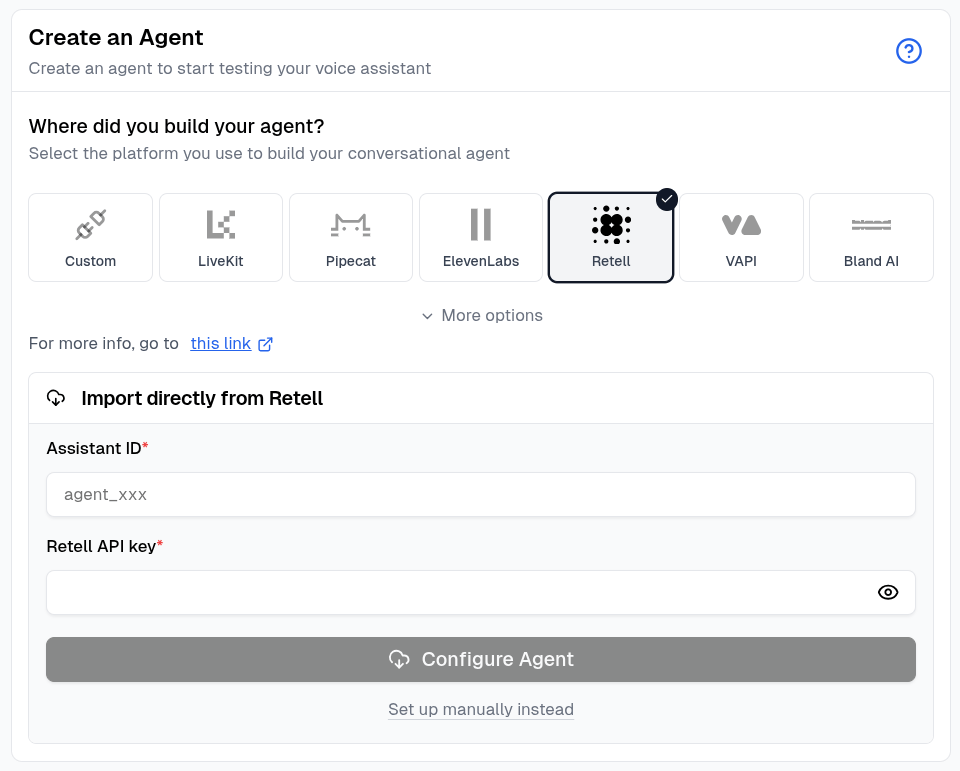
3
Configure the agent
Click Configure Agent. Cekura imports the available name, prompt or conversation flow, language, start-speaker behavior, phone number, tools, dynamic variables, and knowledge base.
4
Review the connection
When the import finishes, open the agent and confirm the imported settings before running an evaluator.
Retell voice and chat agents use separate Agent IDs. Import the ID for the connection you want to test. To configure either connection manually, click Set up manually instead.
Integration Features
The Retell integration includes these automation features:- Auto-Sync Prompt: Automatically syncs your agent’s prompt from Retell.
- Mock Tools: Fetch and mock all tools in your Retell agent with one click. Test tool integrations without hitting production endpoints.
- Auto-Fetch Calls: Pulls production calls from Retell every 30 seconds so call data is available for analysis.
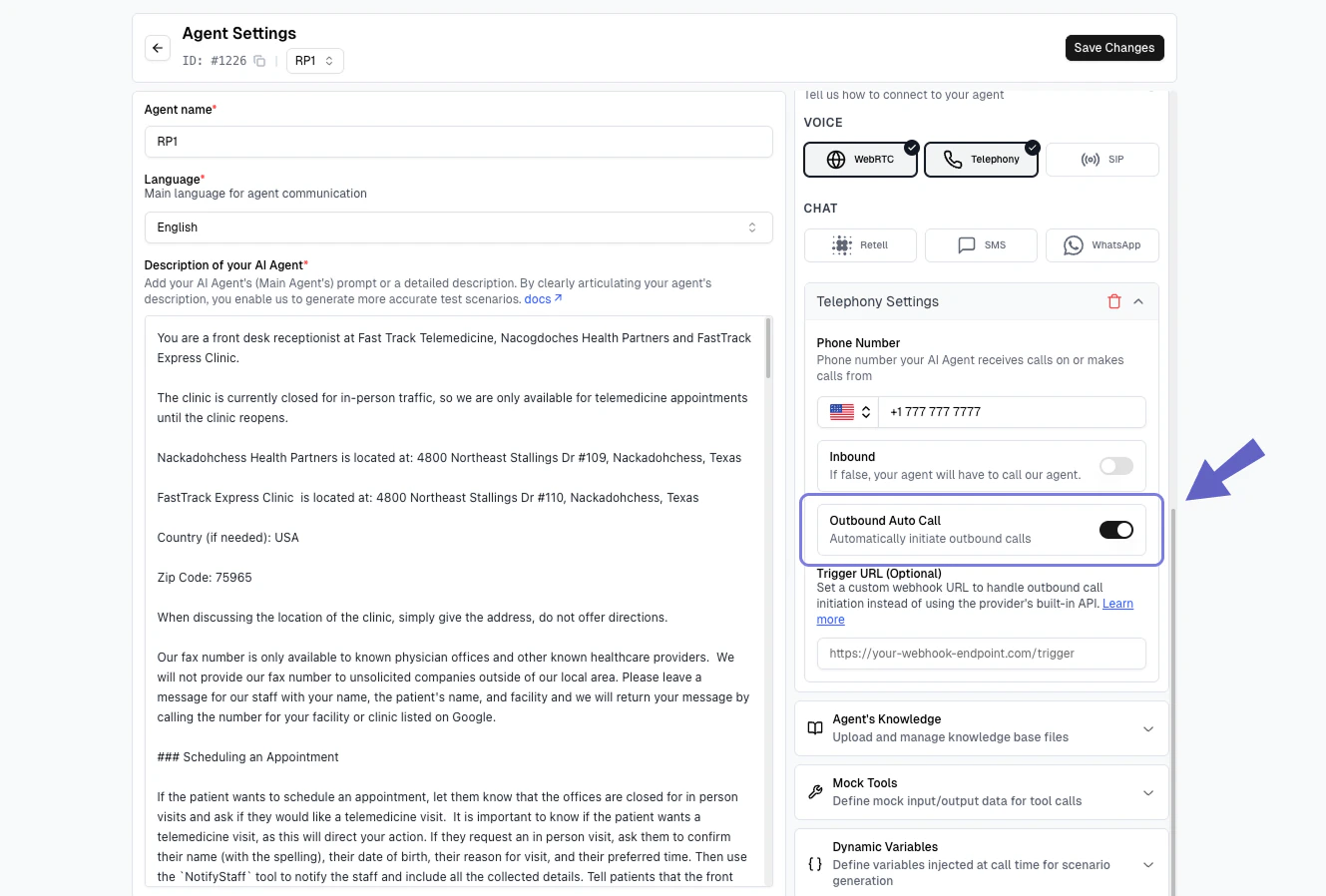
- Auto-Outbound Call: Initiates outbound calls to your Retell agent automatically—no testing scripts required.
- Voice
- Chat
- WebRTC
Test your Retell voice agents with automated call simulation.
1
Create a New Agent
- Navigate to the Agents section using the side navigation bar.
- Click the Create Agent button in the top right, or click Create your first agent if you’re new.
-
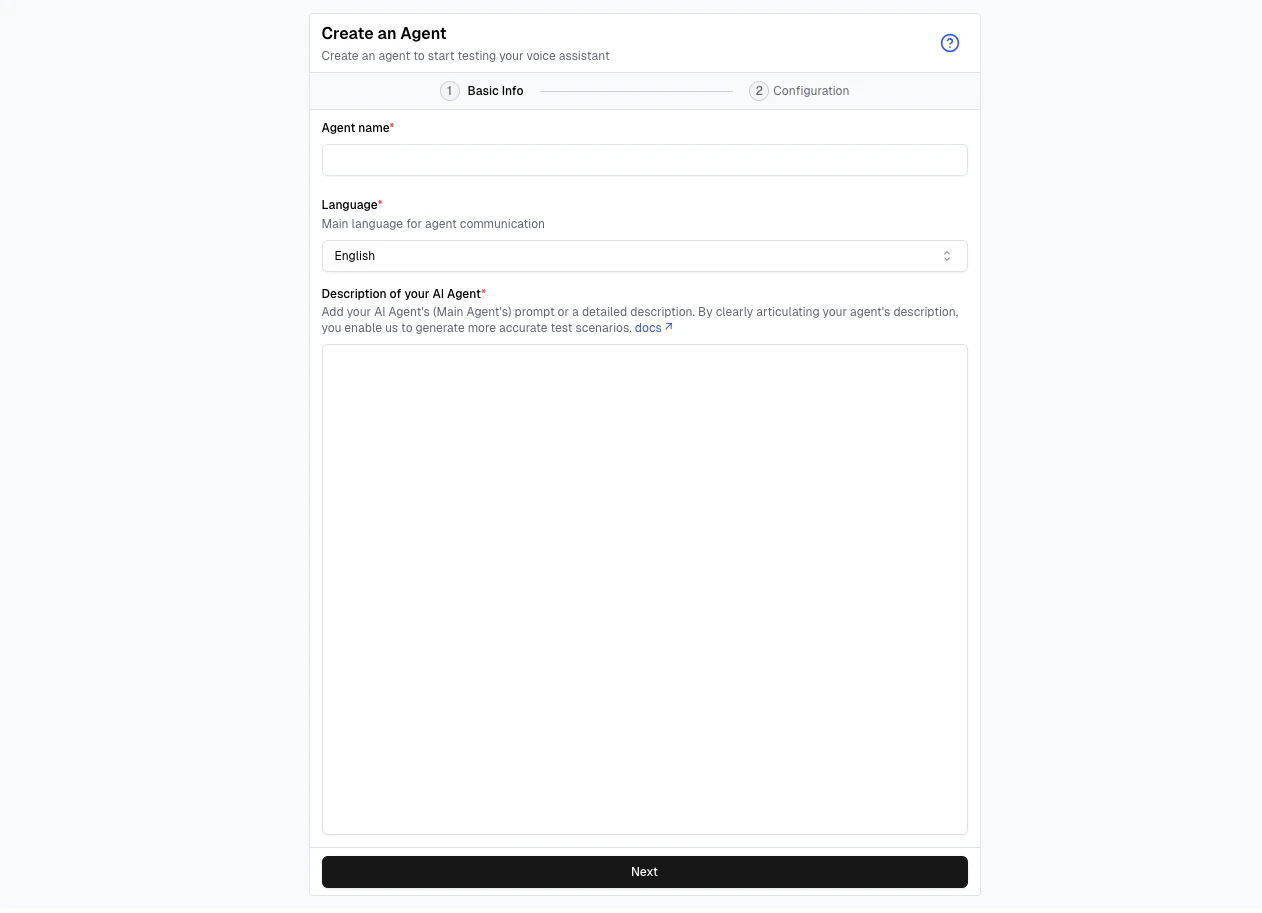
Fill in the Agent name, Language, and Description of your AI Agent, then click Next.
2
Configure Agent Settings
- In the Provider panel on the right, select Retell.
- Under Integration Settings, enter the External Assistant ID of your Retell agent.
- Enter your Retell API Key in the designated field.
-
Click Save Changes to configure the agent.
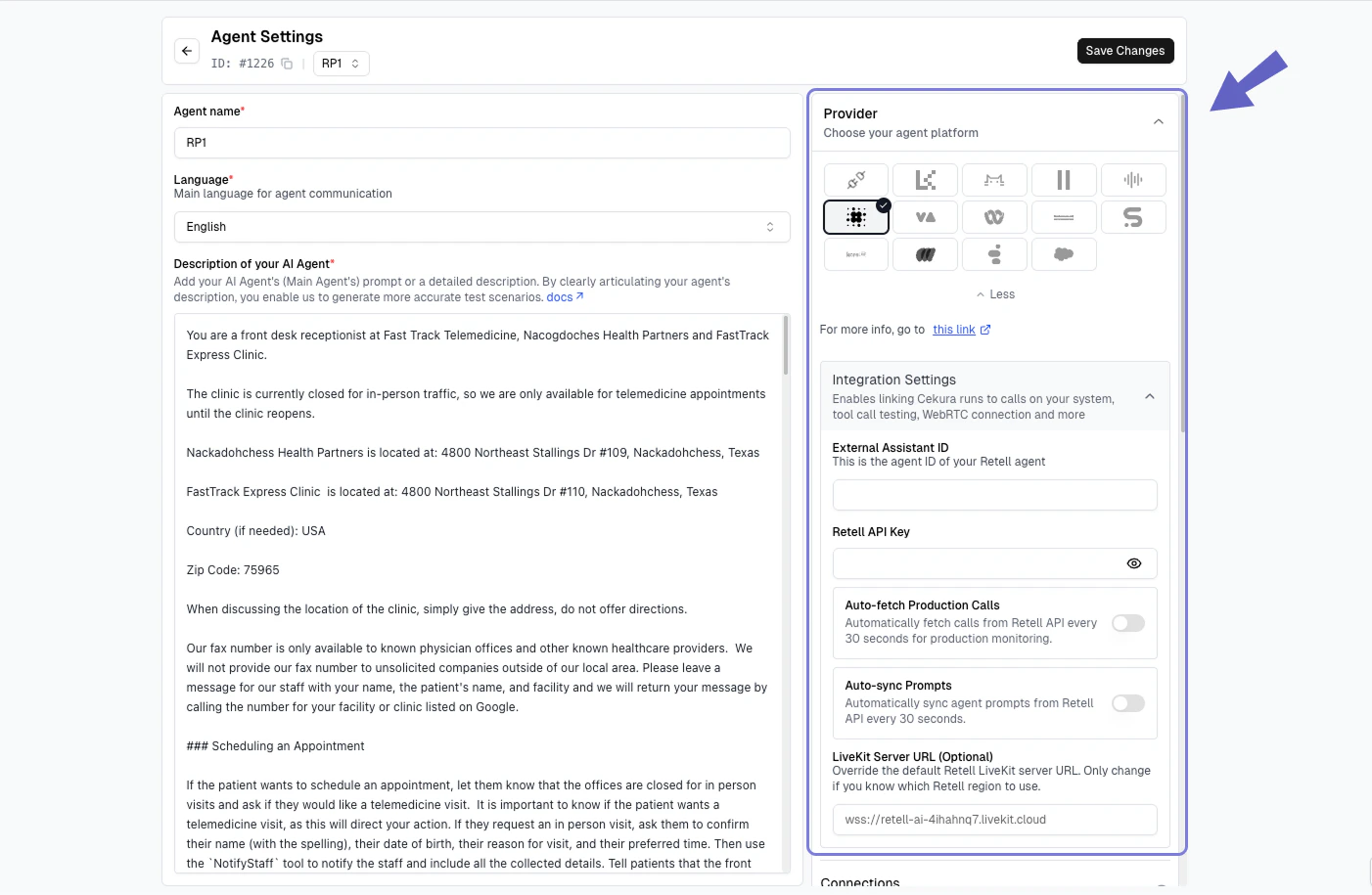
Note: The Retell Assistant ID is unique to each agent and is required for Cekura to simulate calls with the correct Retell workflow.
3
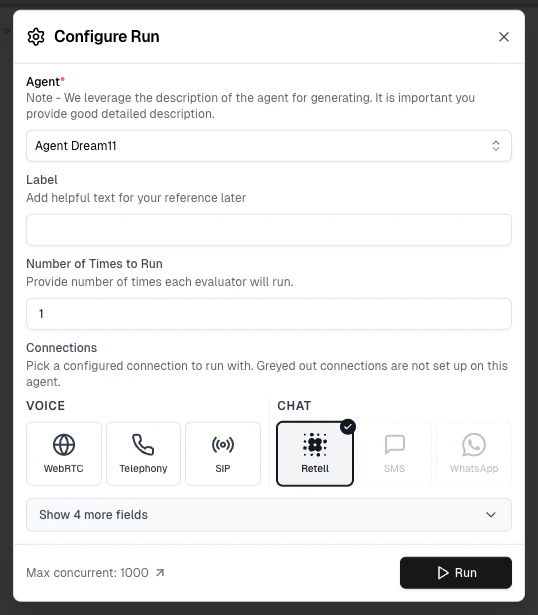
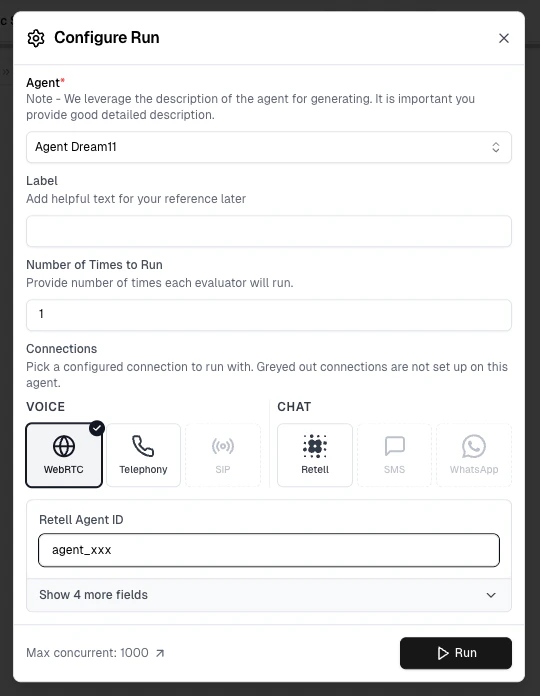
Run Your First Test
Once your Retell Agent is configured:
- Go to Simulation → Evaluator.
- Click Generate Evaluators to auto-create some scenarios (or create one). You can also use the Infrastructure Suite to instantly add 18+ pre-built test cases covering latency, audio quality, and interruption handling.
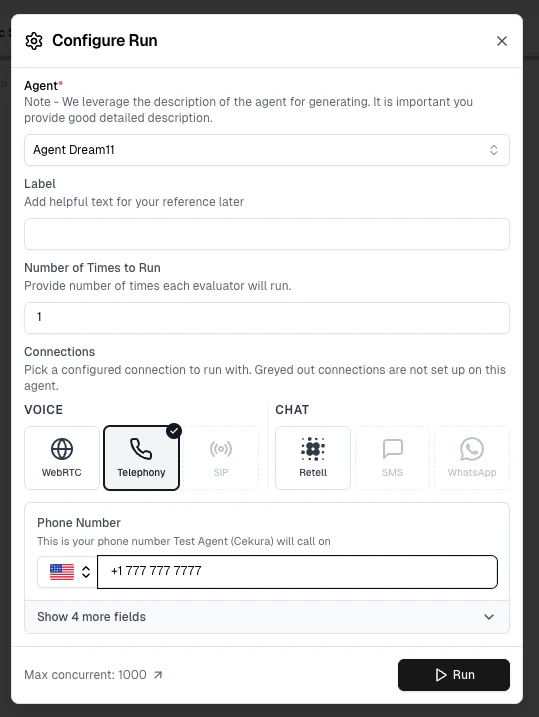
- Choose a Scenario from the list .
-
Click the Play button (▶︎) button next to it to start your first test.
4
Monitor Your Test
- Monitor the test in Simulation → Runs Overview.
- View transcripts, audio, and metrics in Results.
- Use Re-run Failed or Lab → Optimize to refine and rerun.
Value of Retell Integration
Integrating your Retell Agent with Cekura unlocks powerful testing and observability features:- Detailed Tool Call Information: Cekura is able to capture and display granular data on tool calls made by your Retell agent during a conversation, which is critical for debugging complex workflows.
- Metadata Access: Access any metadata available from Retell calls, enabling richer, context-aware evaluations of agent performance.
-
Automated Outbound Calling: Leverage Cekura’s infrastructure for automated outbound calling to run large-scale, performance-driven test campaigns.
Setting Up Retell Integration (Across Agents)
Setting Up Retell Integration (Across Agents)
This setup is recommended as it configures your Retell API Key once, making it available across all Retell agents within your project. Completing this step means you will not need to enter the API Key when creating subsequent Retell agents.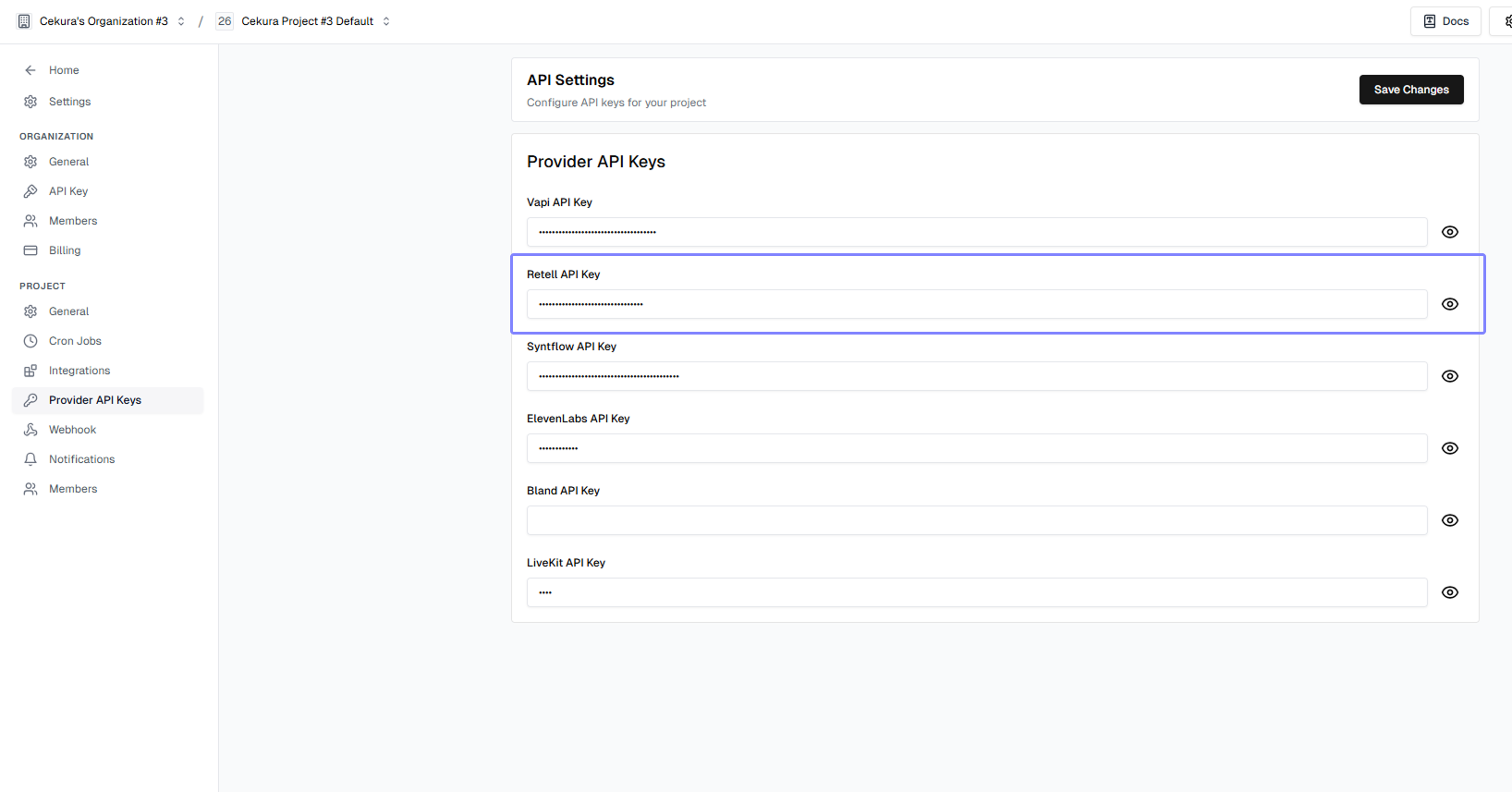
- Log in to your Cekura Dashboard.
- Click on the Settings button (usually on the top right of the navigation bar).
- Navigate to the Provider API Keys tab.
- Locate the Retell section.
- Enter your Retell API Key in the designated field.
- Click Save Changes.
Auto-Sync Prompt
With auto-sync enabled, Cekura automatically pulls your agent’s prompt from Retell every 30 seconds and updates the description field—no manual updates required. The feature supports:- Standard Retell LLM agents: Syncs the
general_promptfrom your Retell LLM configuration - Conversation Flow agents: Syncs the entire conversation flow as JSON
Auto-sync requires a valid Retell API Key and Assistant ID. If credentials become invalid or the assistant is deleted, auto-sync will automatically disable itself.
Mock Tools (optional)
If your Retell agent calls tools, you can test it without hitting live services using Mock Tools. Use Auto-Fetch to pull your Retell tools and generate mock data, then enable the Mock toggle — Cekura updates the tool URLs directly in your LLM/Flow configuration and restores the originals when you disable the toggle. Retell’s call data already includes the tool calls your agent made, and Cekura extracts those into the transcript automatically. So the Mock Tool Call Accuracy metric works out of the box — unlike a custom integration, you don’t assemble or send the transcript yourself.Next Steps
- Learn about custom metrics
- Explore predefined metrics
- Set up instruction following metric