

Before you begin
- Install a time-based one-time password (TOTP) authenticator app. See the options below.
- Sign in to the Cekura dashboard.
- You must be an organization admin to enforce 2FA for the whole organization.
Authenticator app options
Cekura works with standards-based TOTP authenticator apps, including:- Google Authenticator: Android or iPhone and iPad
- Microsoft Authenticator: Official download page
- Authy: Official download page
- 1Password: Set up one-time passwords
Enable 2FA for your account
Each user must enroll their own authenticator app.- Open Account Settings.
- Find the Two-Factor Authentication card. The MFA Status shows whether protection is enabled, disabled, or awaiting verification.
- Select Enable MFA.
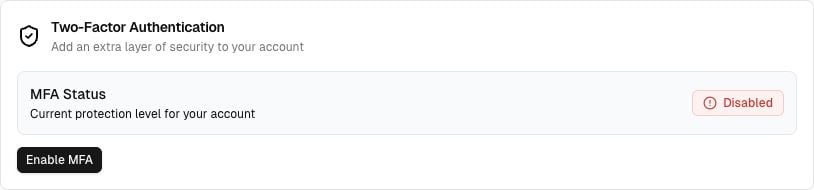
Enable MFA from the Two-Factor Authentication card in Account Settings.
- In your authenticator app, add a new account and scan the QR code shown by Cekura.
- If you cannot scan the QR code, select Unable to scan? and enter the displayed manual setup key in your authenticator app.
- Enter the current six-digit verification code generated by the authenticator app. Cekura verifies the code after all six digits are entered.
- Confirm that MFA Status changes to Enabled.
Authenticator codes expire quickly. If a code is rejected, wait for the next code and make sure your device date and time are set automatically.
Resume an incomplete setup
If the status is Unverified, the authenticator factor was created but setup was not completed. Select Reload QR Code, scan the new QR code, and enter the six-digit code to finish enrollment.Require 2FA for the organization
Only an organization admin can change this setting.- Make sure 2FA is already enabled on your own account.
- Open Organization Settings.
- Find Require 2FA for All Users.
- Turn the switch on.

Require every member of the organization to use 2FA.
- Select Save Changes at the top of the page.
- Confirm that the dashboard shows Organization settings updated successfully.
- Users who have not enrolled are directed to the 2FA setup flow.
- Enrolled users are asked for the current six-digit authenticator code when additional verification is required.
- A user cannot continue into the organization until the required 2FA step is complete.
Verify the rollout
- Ask a member to sign out and sign back in.
- Confirm that a member without 2FA is prompted to set it up.
- Confirm that a member with 2FA can enter their authenticator code and access the organization.
- Ask each member to verify that their MFA Status is Enabled in Account Settings.
Disable or reset 2FA
Users can select Disable MFA from the Two-Factor Authentication card in Account Settings. If the organization requires 2FA, the user must enroll again before continuing to use the organization. If a user loses access to their authenticator app and cannot sign in, contact Cekura Support for assistance.Troubleshooting
I cannot see the organization enforcement setting
The Require 2FA for All Users control is an organization-level setting. Confirm that you are an admin of the selected organization and that you opened Settings → Organization → General.The verification code is rejected
- Enter the newest code displayed by the authenticator app.
- Make sure the phone or device running the authenticator app uses automatic date and time.
- Check that you scanned the latest QR code if setup was restarted.
The QR code is no longer available
If the MFA status is Unverified, select Reload QR Code to generate a new code and complete enrollment.Recommended rollout checklist
- Enable 2FA for all organization admins first.
- Tell members when enforcement will begin.
- Share this guide and the Account Settings link.
- Turn on Require 2FA for All Users and save the organization settings.
- Verify the flow with both an enrolled user and a user who has not yet enrolled.