

Create an Agent
- Go to the Agents section from the left navigation bar.
- Click the Create Agent button in the top right, or if you’re a new user, click Create your first agent in the center of the page.
- Fill in basic info: agent name, language, and description.
- Configure a provider and connection type.
Basic Info
required
A label to identify this agent within Cekura. Choose something descriptive so you can easily distinguish it from other agents (e.g. “Support Bot Production” or “Sales Agent v2”).
The primary language your agent speaks. Cekura uses this to run simulations and generate evaluators in the correct language.
required
A comprehensive overview of your agent’s purpose, behaviour, and operational guidelines. See the Agent Description section below for details on what to include and how to structure it.
Agent Description
Agent Description is a comprehensive overview of your voice conversational agent’s purpose, behaviour, and operational guidelines. It encapsulates all the instructions, prompts, and rules you provide to your AI agent.By clearly articulating your agent’s description, you enable us to generate automatic, accurate evaluators.
Most customers include their
agent's main prompt here.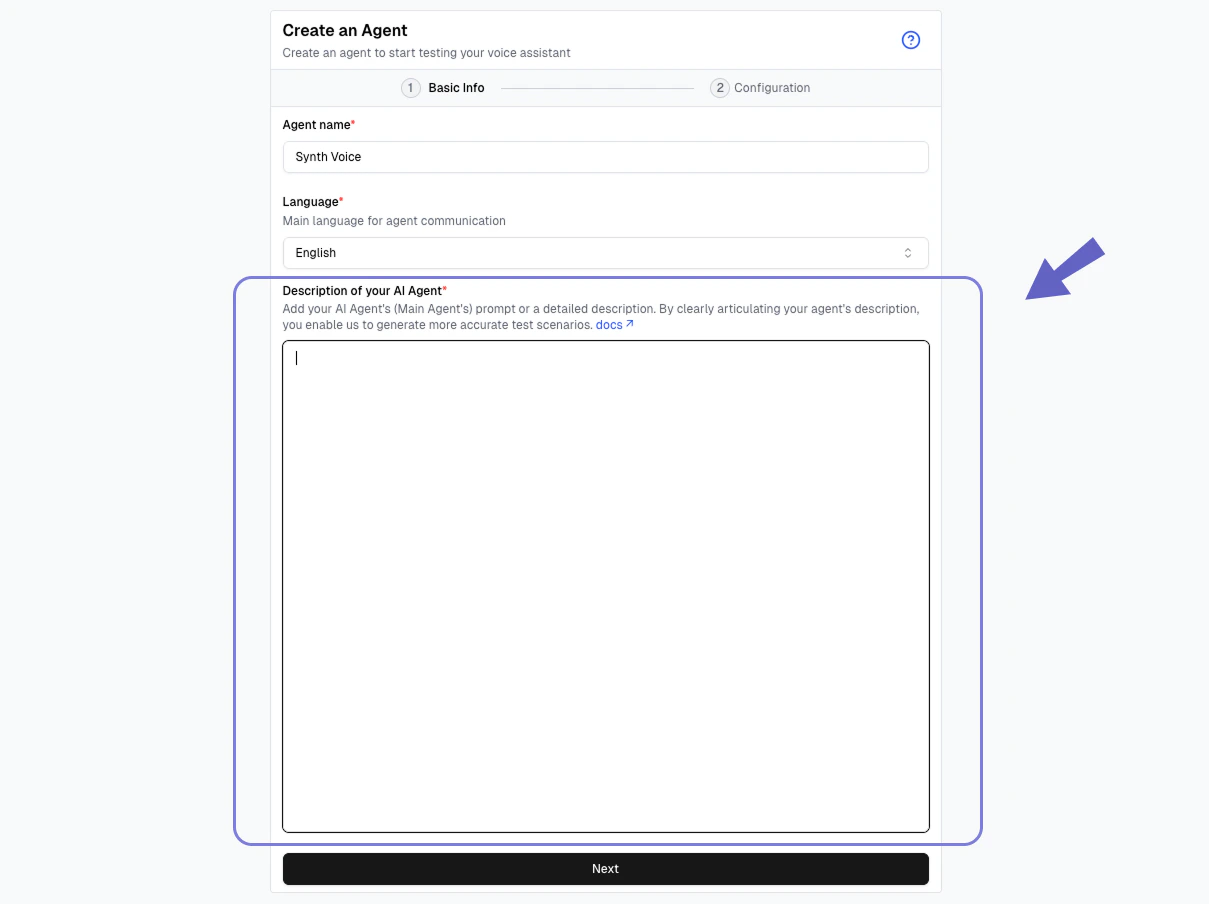
Type of Agent
Single Prompt Agent
Single Prompt Agent
For Single prompt agents, you can copy the agent’s main prompt here.
Multi State Agent
Multi State Agent
If you have multi-state agent, you can build a description in a json structure.
Note - We are very flexible with description so even if you copy paste all your prompts and paste as one huge prompt, we can process. JSON is the recommended approach.
Note - We are very flexible with description so even if you copy paste all your prompts and paste as one huge prompt, we can process. JSON is the recommended approach.
Retell Workflows
Retell Workflows
If you have an agent with Retell workflows, you can export the agent’s details as json from Retell.
Go to agents -> select the agent -> click on export button (this will download a .json file) -> copy the content of the file and paste it in agent description field.
Go to agents -> select the agent -> click on export button (this will download a .json file) -> copy the content of the file and paste it in agent description field.
Vapi Workflows
Vapi Workflows
If you have an agent with Vapi workflows, you can export the agent’s details as json from Vapi.
Go to workflows -> select the agent -> click on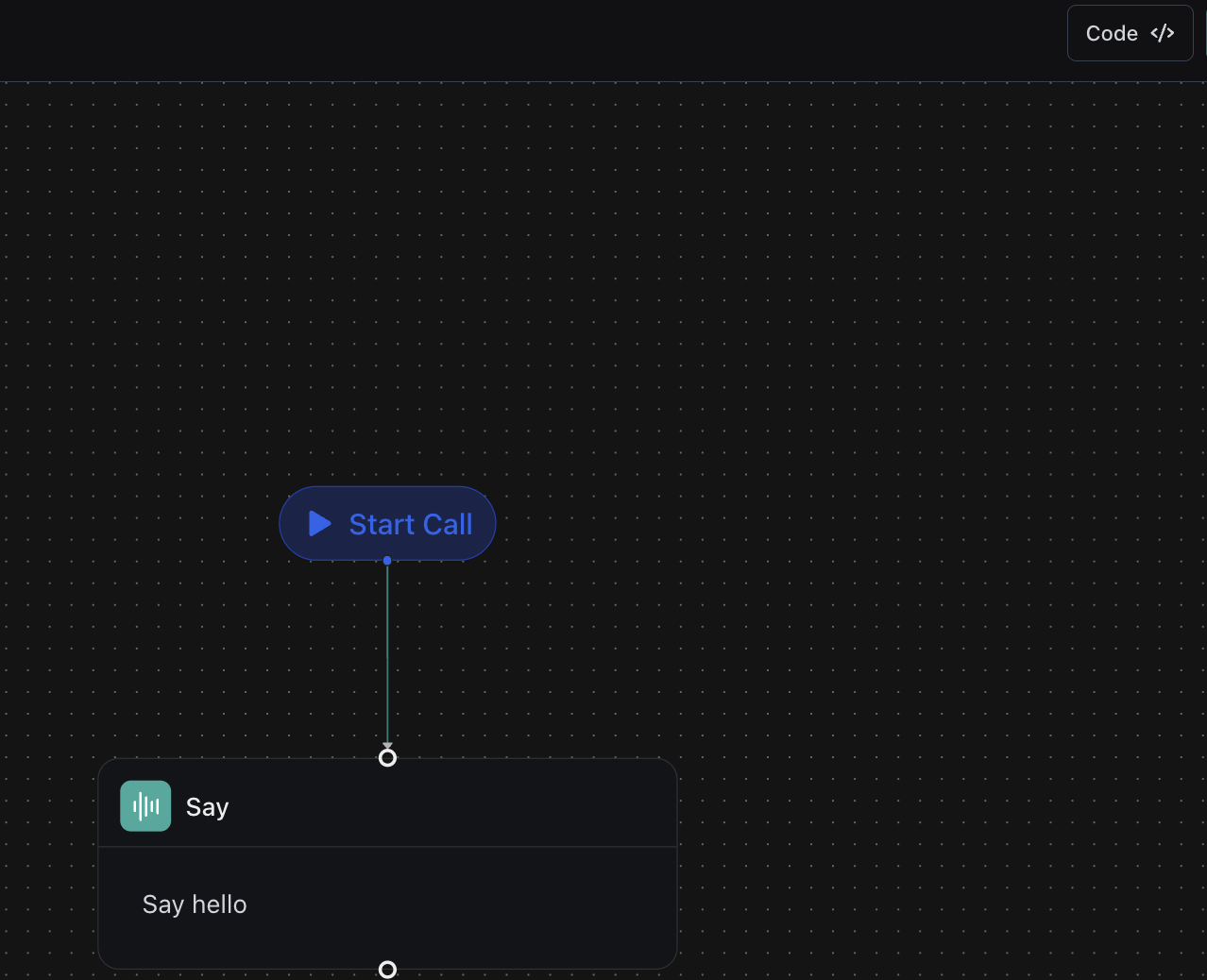
Go to workflows -> select the agent -> click on
code button on top right -> copy the content shown and paste it in agent description field.You can follow the same approach for other providers.
Configuration
The Configuration section connects your Cekura agent to the actual AI platform powering it. This is what allows Cekura to simulate calls, run evaluations, and observe live traffic against your real agent.Provider
Select the platform your agent is built on. All of the following providers are available in the provider selection screen for every Cekura account — if you don’t see a provider in your sandbox, scroll through the full list. You can explore each provider’s integration-specific docs to know more.
Custom

LiveKit

Pipecat

ElevenLabs

Chirp

Retell

VAPI

Cisco Webex

Bland AI

Synthflow

Kore.ai

Trillet

Genesys

Gemini Enterprise CX

Agentforce

Agora

Amazon Connect

AssemblyAI
All providers listed above are available across every Cekura account — including Amazon Connect, Cisco Webex, Kore.ai, Trillet, Agentforce, and Synthflow. If you don’t see a specific provider in your sandbox, scroll through the full provider list in Agent Settings. Providers without a linked guide use the same connection setup described in the Custom integration guide.
Configure automatically from your provider
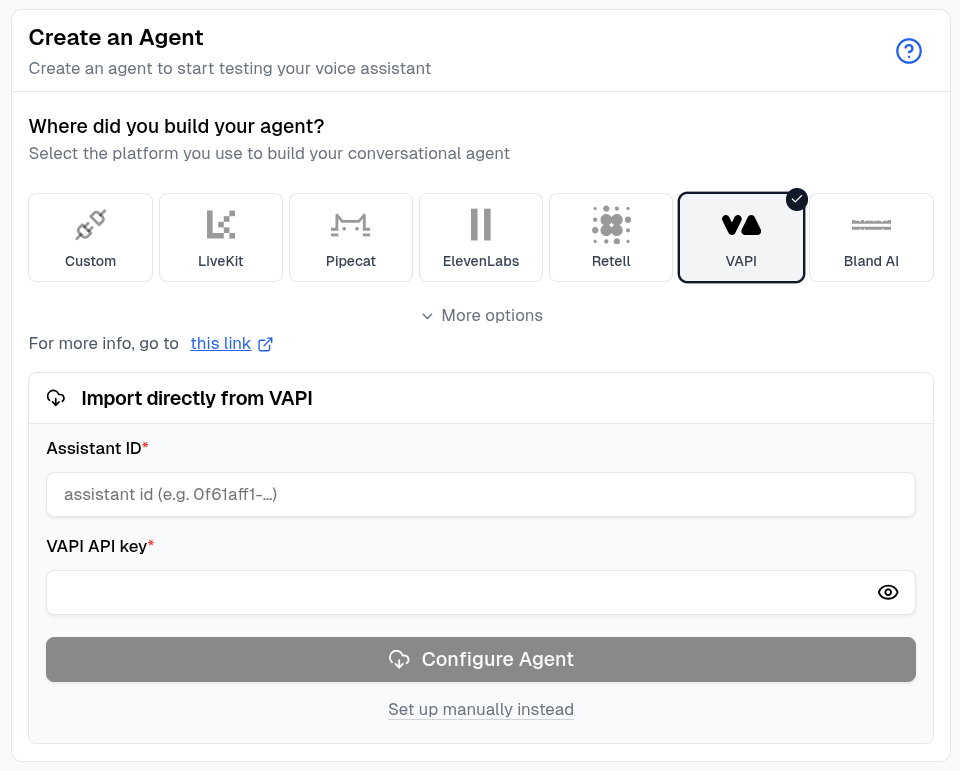
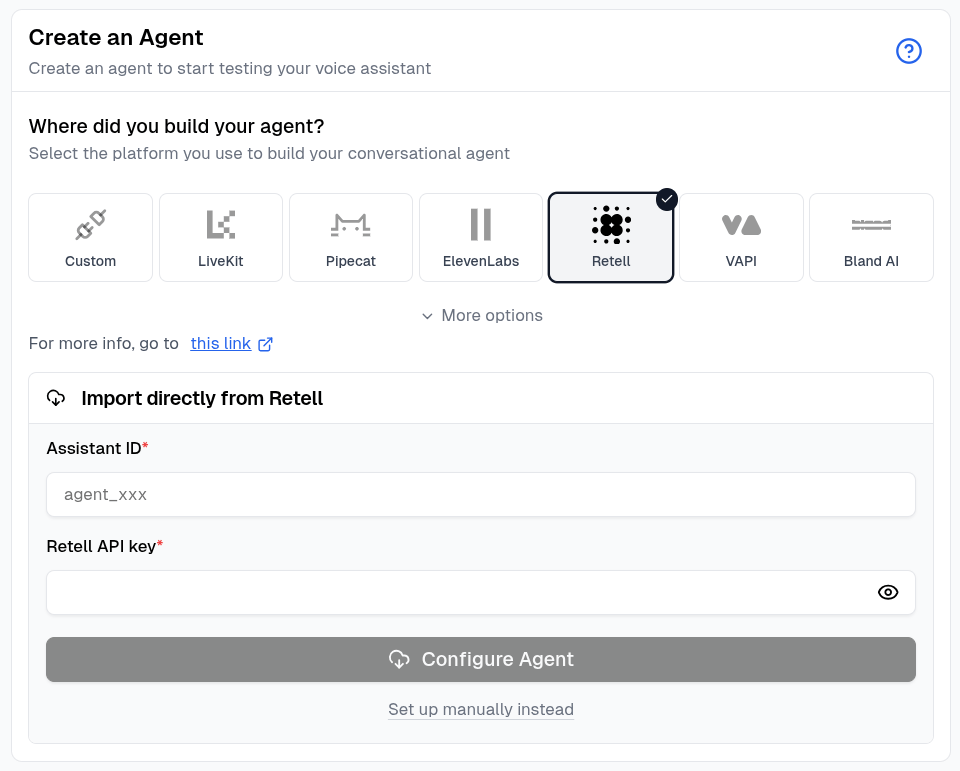
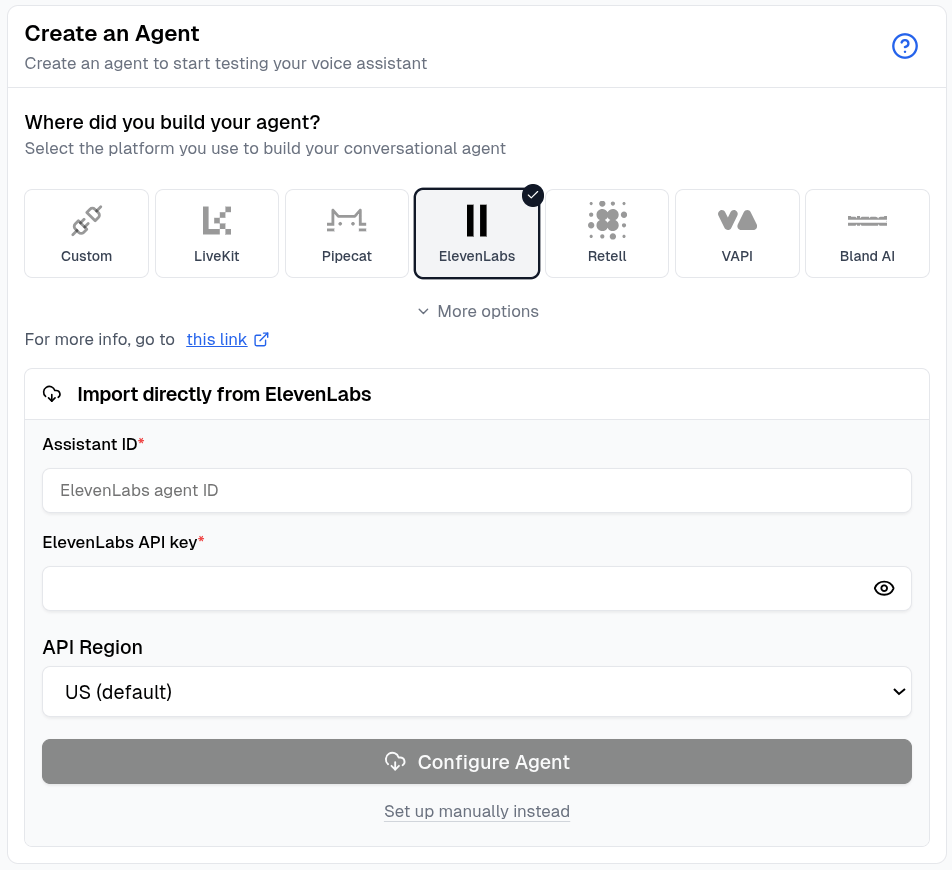
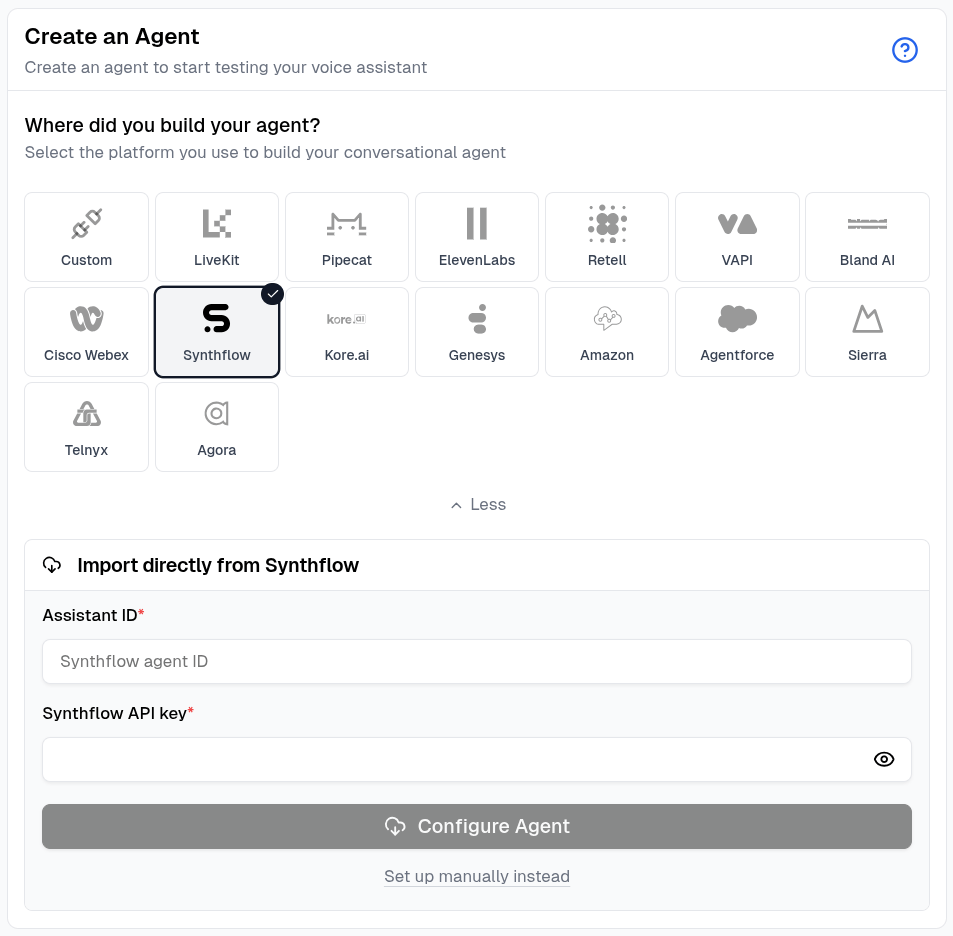
Cekura can automatically configure agents hosted on VAPI, Retell, ElevenLabs, Synthflow, and Bland AI.1
Select your provider
Create an agent, then select one of the supported providers. The Import directly from provider panel opens automatically.
2
Enter the provider credentials
Enter the agent or assistant ID and the provider API key. For ElevenLabs, also select the US or EU Residency API region.
3
Configure the agent
Click Configure Agent. Cekura imports the available name, prompt, language, call settings, phone number, tools, dynamic variables, and knowledge base while showing progress for each stage.
4
Review the imported agent
Open the agent after the import finishes and review its connections before running an evaluator.
The imported fields depend on what the provider exposes. To enter the connection details yourself, click Set up manually instead.
- VAPI
- Retell
- ElevenLabs
- Bland AI
- Synthflow

Connection
Choose how Cekura connects to your agent to run simulations and collect data. The available connection types depend on your agent’s channel — voice or chat.Voice Connection
Telephony
Telephony
Connect via a phone number. Cekura will dial your agent directly over the PSTN network, making it the simplest way to test a phone-based voice agent.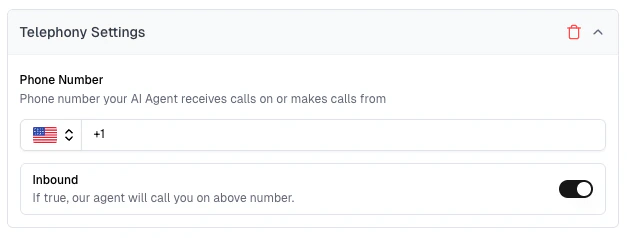
1
Enter your phone number
Add the phone number your agent receives calls on or makes calls from.
2
Choose call direction
Toggle Inbound on if you want Cekura’s agent to call you on the above number. Leave it off for outbound — Cekura will dial your agent instead.
SIP
SIP
Connect via a SIP trunk. Suited for enterprise telephony setups where your agent is reachable through a SIP endpoint rather than a regular phone number.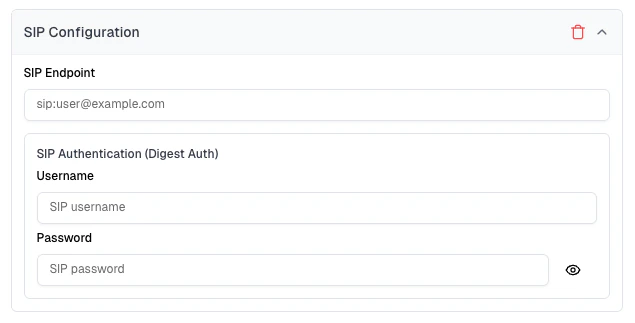
1
Enter your SIP Endpoint
Add the SIP address your agent is reachable on (e.g.
sip:user@example.com).2
Add SIP Authentication credentials
If your SIP server uses Digest Auth, enter the Username and Password to authenticate the connection.
Chat Connection
SMS
SMS
Connect via SMS. Enter the phone number your agent sends and receives chat messages on.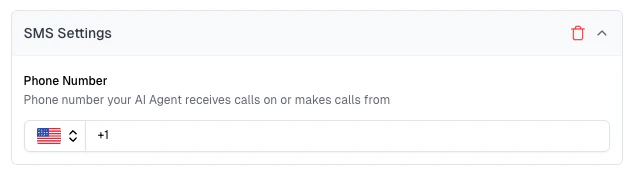
WhatsApp
Connect via WhatsApp. Enter the WhatsApp-enabled phone number your agent sends and receives chat messages on.Configure Twilio credentials in Settings → Provider API Keys for WhatsApp integration.See WhatsApp Testing Guide for detailed setup.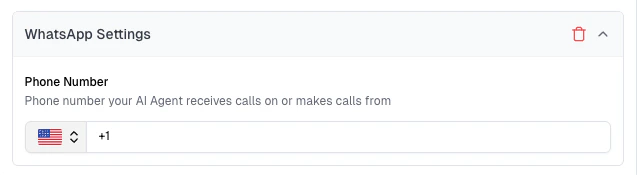
WebSocket
WebSocket
WebSocket enables real-time, two-way chat between your agent and the LLM, allowing dynamic and continuous conversation testing.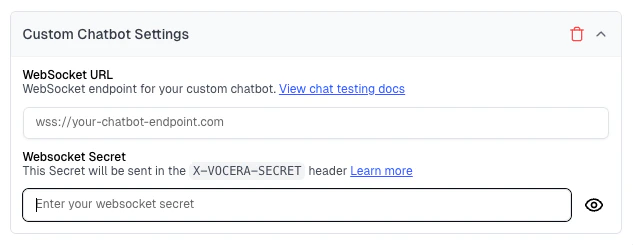
1
Enter your WebSocket URL
Add the WebSocket endpoint your chatbot is reachable on (e.g.
wss://your-chatbot-endpoint.com).2
Enter your WebSocket Secret
Add a secret that Cekura will send in the
X-VOCERA-SECRET header with every request, so your server can verify the connection.Provider Chat
Provider Chat
Connect directly through your provider’s native chat interface — no phone number or messaging service required.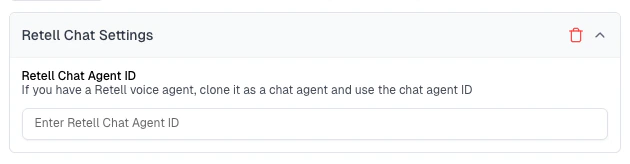
Provider chat is configured automatically using your voice agent settings. Bland AI requires a separate chat agent ID (pathway ID). Retell optionally accepts a chat agent ID — when omitted, Cekura clones a temporary chat agent from your voice agent for each run.
Additional Settings (Optional)
These settings are available when editing an existing agent. To access them, go to the Agents section in the left sidebar → click on the agent you want to configure.Knowledge Base
Knowledge Base
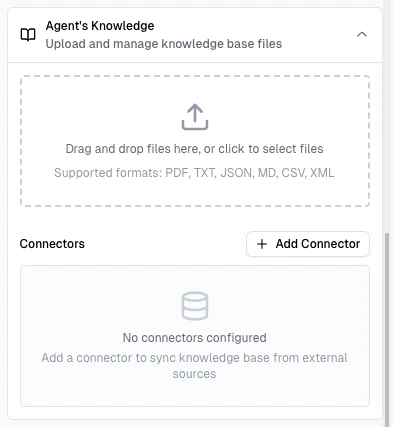
Upload reference material your agent uses, so Cekura can generate more accurate evaluators grounded in your content.We support two options for Knowledge Base:
- Upload a document — drag and drop or select a file directly. Supported formats: PDF, TXT, JSON, MD, CSV, XML.
-
Connect an external source — click Add Connector to sync knowledge base content from an external source such as Google BigQuery or a Website Scraper.
Mock Tools
Mock Tools
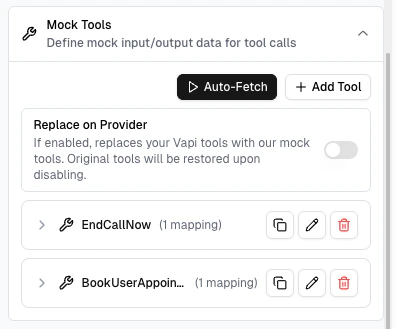
Define mock input/output data for tool calls so Cekura can simulate your agent’s tool usage during testing.There are two ways to add mock tools:
- Auto-Fetch — automatically pulls your tool definitions directly from your provider, so you don’t have to add them manually.
-
Add Tool manually — create a mock tool yourself and define its behaviour using Input/Output Mappings in JSON.
Dynamic Variables
Dynamic Variables
Dynamic variables are values injected at call time during scenario generation — letting you parameterise your test scenarios with real-world data like names, addresses, or account IDs instead of hardcoding them.Click Add Variables to define a new variable. Each variable has a name (e.g. 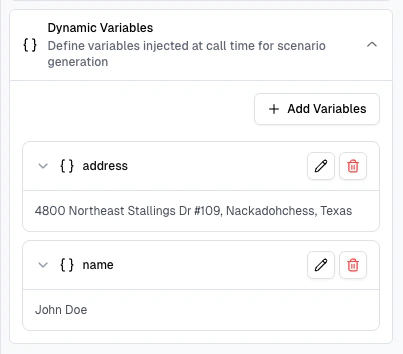
address, name) and a default value that Cekura uses when running simulations.