Overview
This guide walks you through setting up and monitoring your Retell-based voice agents using Cekura’s observability suite. Learn how to configure your integration and access powerful monitoring tools.- Auto-fetch
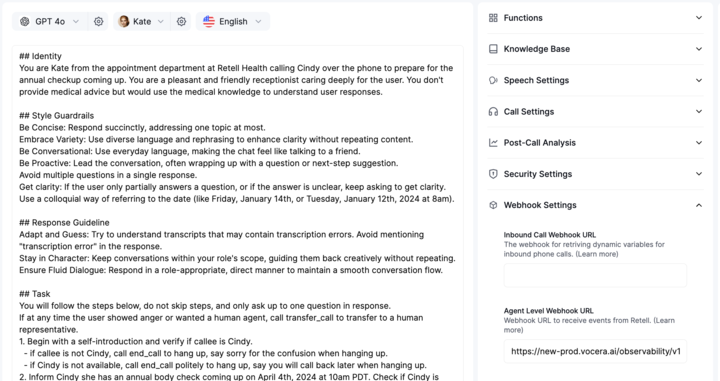
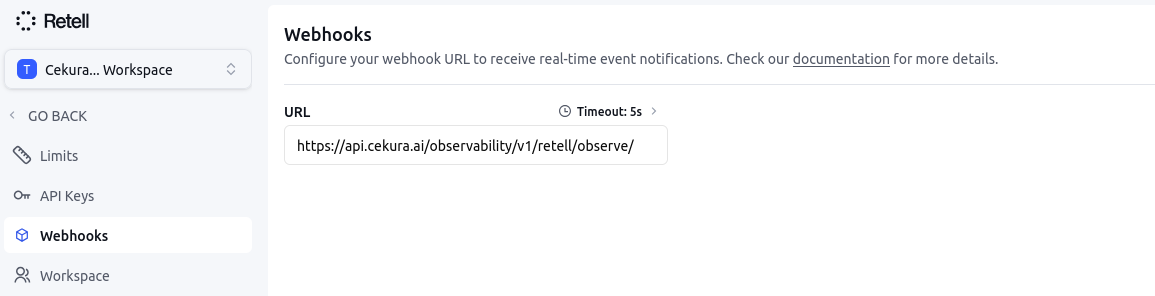
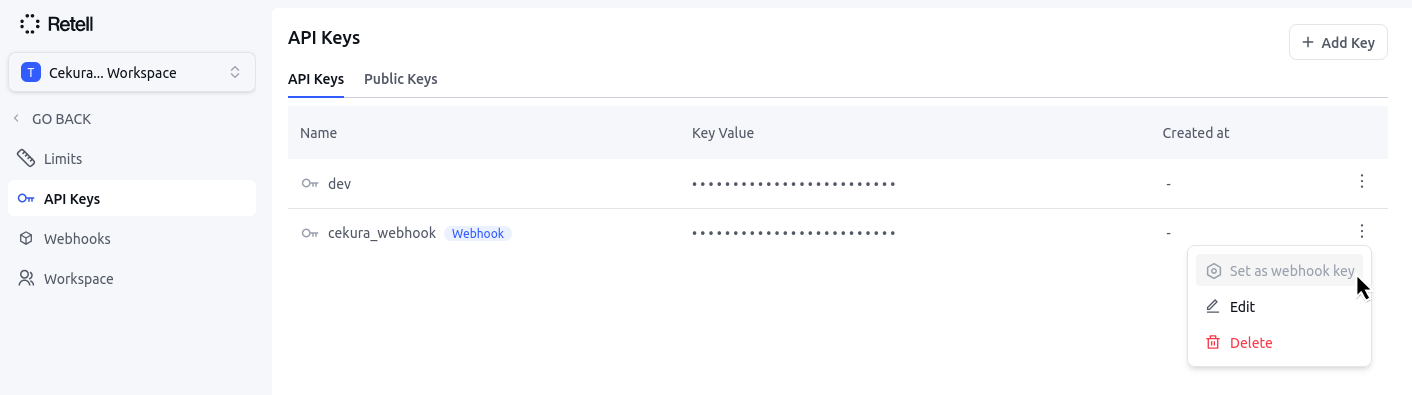
- No-code Retell Integration
- Forwarding Retell response
With auto-fetch enabled, Cekura automatically pulls your call data from Retell’s API every 30 seconds—no webhook configuration required.
1
Create or select an agent
In your Cekura dashboard, create a new agent or select an existing one with Retell as the voice provider.
2
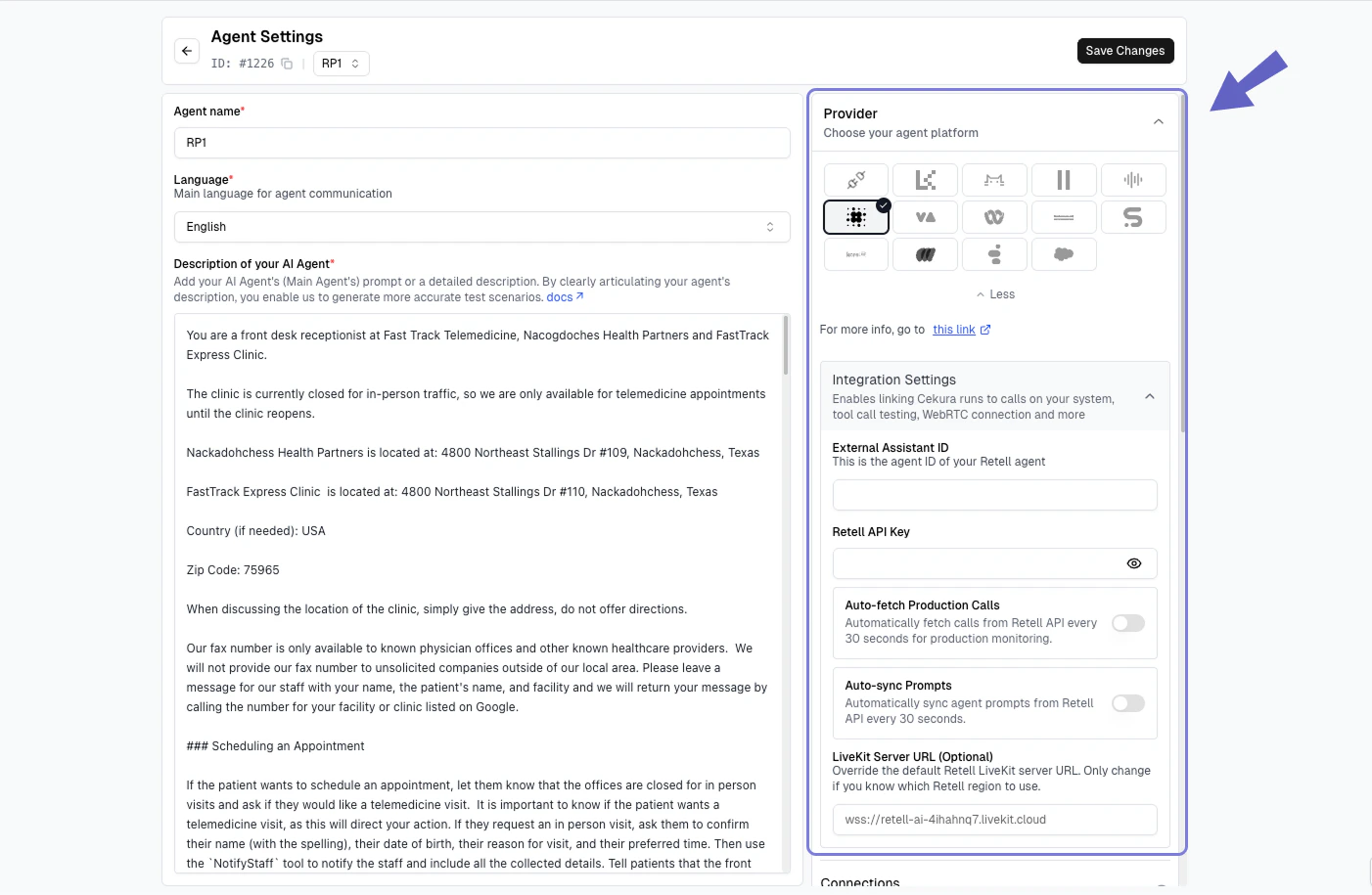
Add credentials to Cekura
In your Cekura Agent Settings page:
- Select Retell as the voice integration provider
- Add your Retell API key
- Enter your Retell
agent ID
Auto-fetch requires your Retell API key to have the History.Read scope to retrieve call history. If the key lacks this scope, Cekura will receive a 403 error from Retell and automatically disable auto-fetch to prevent a recurring error loop.
3
Enable auto-fetch
Toggle on Auto-fetch Production Calls in the voice integration settings.
4
Test your integration
Make a test call from Retell. Within 30 seconds, your call should appear in the Cekura observability
Calls section.