

Overview
Connect Agentforce to Cekura to run chat evaluations against your agent, test your Agentforce Voice agent by calling its phone number, and monitor production Agentforce Voice calls automatically.Cekura cannot start outbound calls from an Agentforce Voice agent. For voice testing, Cekura calls your agent’s inbound phone number.
Prerequisites
- An Agentforce agent and its Agent ID
- A Salesforce External Client App with the Client Credentials Flow enabled
- Your Salesforce My Domain URL, for example
https://example.my.salesforce.com - For voice: an Agentforce Voice phone number
Set up the External Client App in Salesforce
1
Add OAuth scopes
In Setup → External Client App Manager, open your app and edit its OAuth settings. Add these scopes:
- Manage user data via APIs (
api) - Perform requests at any time (
refresh_token,offline_access) - Access chatbot services (
chatbot_api) - Access the Salesforce API Platform (
sfap_api)
2
Set the Run As user
On the app’s Policies tab, enable Client Credentials Flow and set Run As to a dedicated integration user.
3
Connect the app to your agent
In Setup → Agentforce Agents, open your agent, go to Connections, add an API connection, and select the External Client App.
4
Grant voice call access
To import Agentforce Voice calls, give the Run As user read access to Voice Calls, Voice Call Recordings, and conversation entries. Turn on call recording in your Agentforce Voice setup if you want Cekura to import recordings.
Salesforce can take a few minutes to apply changes to an External Client App.
Connect Agentforce in Cekura
In Cekura, go to Agents, create an agent, and select Agentforce as the provider.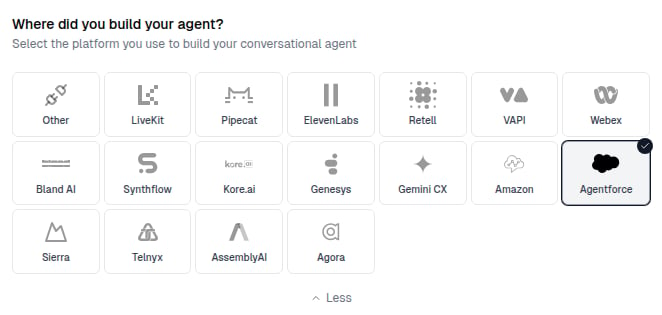
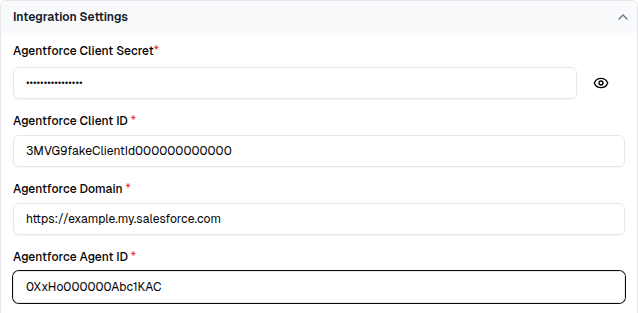
Chat testing
Open an evaluator, click Run, select Chat under Connections, and start the run. Cekura starts an Agentforce session for each conversation and records the transcript and metrics in the result.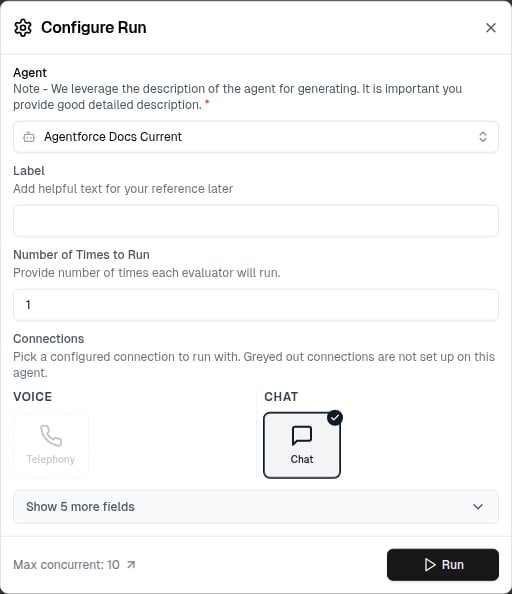
Voice testing
To test your Agentforce Voice agent, enter its phone number under Telephony Settings, keep Inbound enabled, and save the agent. Run an evaluator using the Telephony connection, and Cekura calls the agent’s number for each test.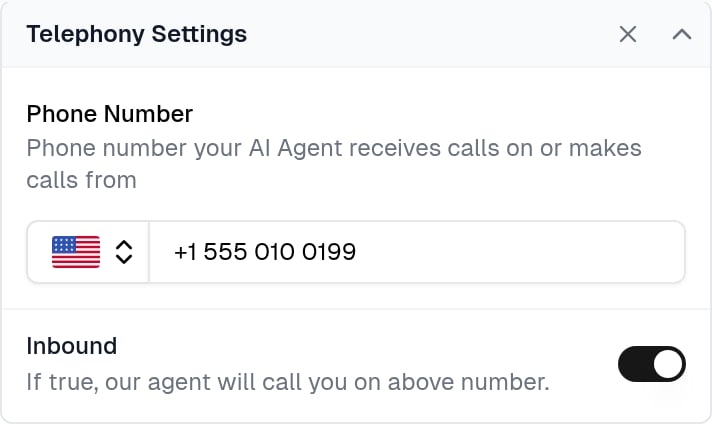
Monitor production calls
Enable Auto-fetch Calls in the Agentforce provider settings to import completed Agentforce Voice calls automatically.1
Configure the phone number
Enter the Agentforce Voice phone number under Telephony Settings. Cekura imports only calls made to or from this number.
2
Enable Auto-fetch Calls
Turn on Auto-fetch Calls and save the agent.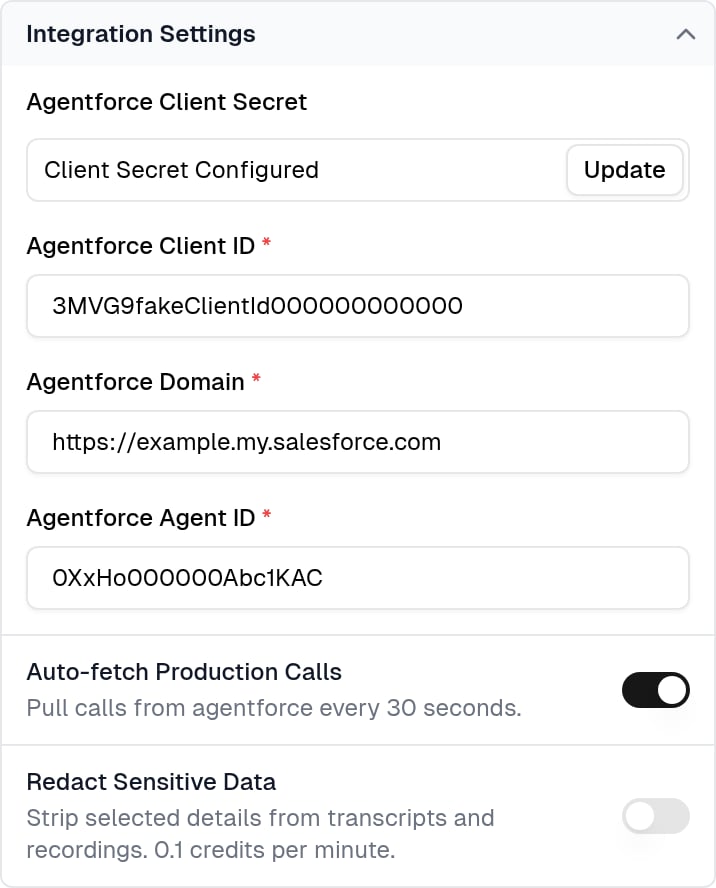
3
Review imported calls
Open Calls in Cekura to review each call’s transcript, recording, duration, end reason, and metric results.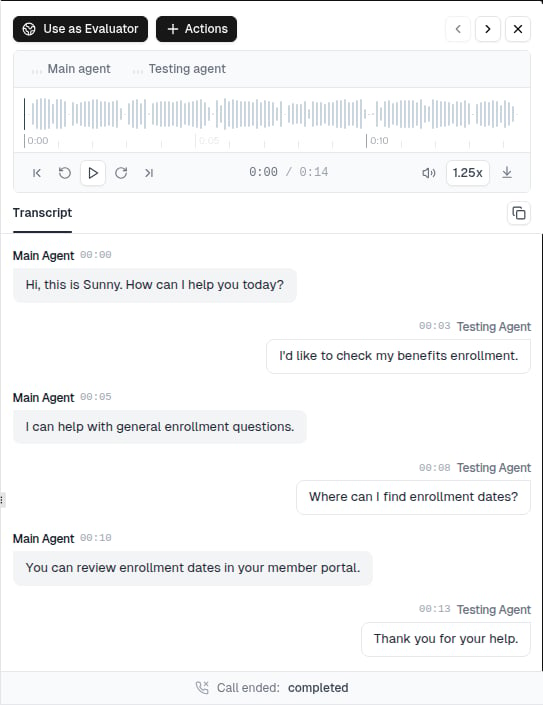
If a call has no recording in Salesforce, or the Run As user cannot read it, Cekura still imports the transcript and call details.
Troubleshooting
invalid_grant: no valid scopes defined: the External Client App has no OAuth scopes. Add the scopes listed above and enable the Client Credentials Flow.- No calls are imported: check that the phone number in Cekura matches the Agentforce Voice number, and that the Run As user can read Voice Calls.
- Calls import without recordings: turn on call recording in your Agentforce Voice setup and give the Run As user access to Voice Call Recordings.