

Overview
Cekura tests Amazon Connect in two ways:- Chat: Cekura starts a chat through one of your communications widgets, the same way a visitor on your website does, and plays the scenario as the customer. The chat reaches whatever your flow routes it to, such as an Amazon Lex bot or an AI agent.
- Voice: Cekura calls the phone number attached to your flow and plays the scenario as the caller.
Cekura does not import production contacts from Amazon Connect. Voice results show Cekura’s own recording and transcript of the call.
Prerequisites
- An Amazon Connect instance with a published flow that handles chats.
- Access to the Amazon Connect admin website, to create a communications widget.
- For voice testing: a phone number claimed in Amazon Connect and attached to the flow.
Set up a communications widget in Amazon Connect
Cekura starts each test chat through a communications widget. Create a separate widget for Cekura so the widget on your website keeps its own settings.1
Create the widget
Log in to the Amazon Connect admin website (
https://<your-instance>.my.connect.aws/), choose Customize communications widget, then Add communications widget. Give it a name such as Cekura testing. Under Communications options, add chat and select the flow that handles your chats. The widget’s styling doesn’t matter for testing.2
Allow Cekura's domain
On the domains step, choose Add domain and enter
https://api.cekura.ai. Cekura starts chats from this address, and Amazon Connect refuses chats from domains that aren’t on the list. Include https://.3
Turn off widget security
Under Add security for your communications widget, choose No, then save. With security on, every chat needs a token signed by your web server that expires within 10 minutes, and Cekura cannot sign one.
4
Copy the values from the widget code
Amazon Connect then shows the widget’s code snippet. Two of the values Cekura needs are in it:
Amazon Connect can take a few minutes to apply changes to a widget.
Connect Amazon Connect in Cekura
1
Select Amazon
In Cekura, go to Agents, create an agent, and select Amazon as the provider. If you don’t see it, click More options to expand the full provider list.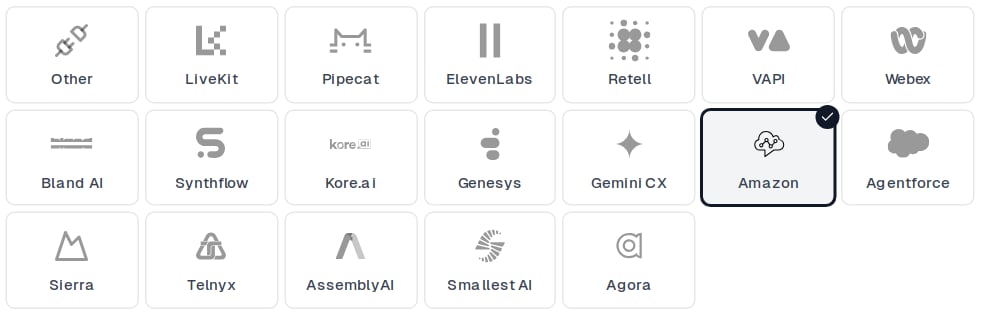
2
Enter the widget details
Under Connections → Chat, select Amazon Connect, then fill in Amazon Connect Settings: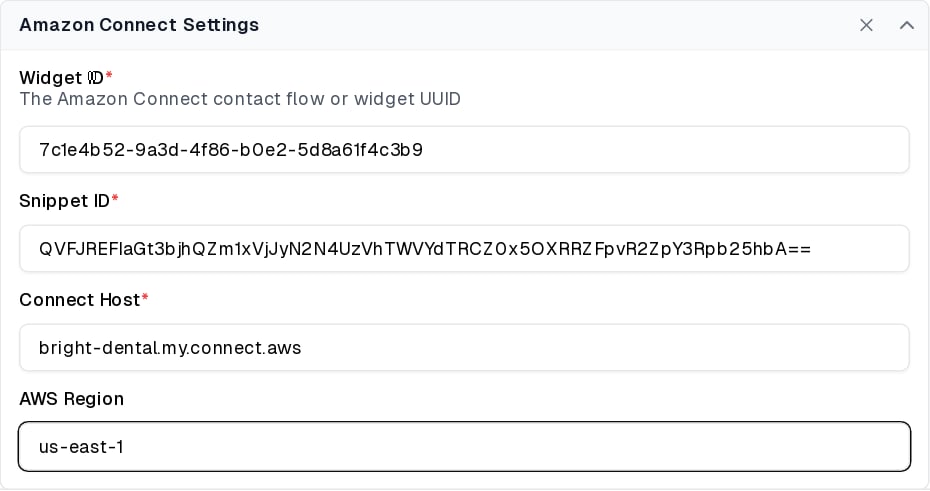
3
Add the phone number (optional)
To also test over the phone, select Telephony under Connections → Voice and enter the number attached to your flow under Telephony Settings. Leave Inbound on so Cekura calls your number.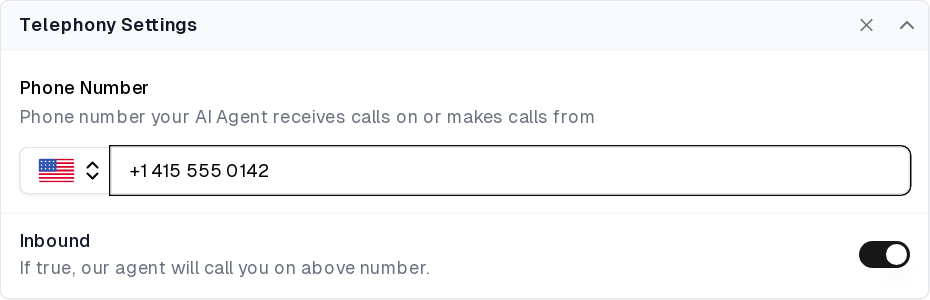
4
Create the agent and test the connection
Click Next, enter the agent’s name, language and description, and click Create. Cekura checks the configuration, saves the agent, and offers a test. Select Chat and start the test: Cekura starts a chat through your widget, sends a greeting, and waits up to 30 seconds for your flow to reply.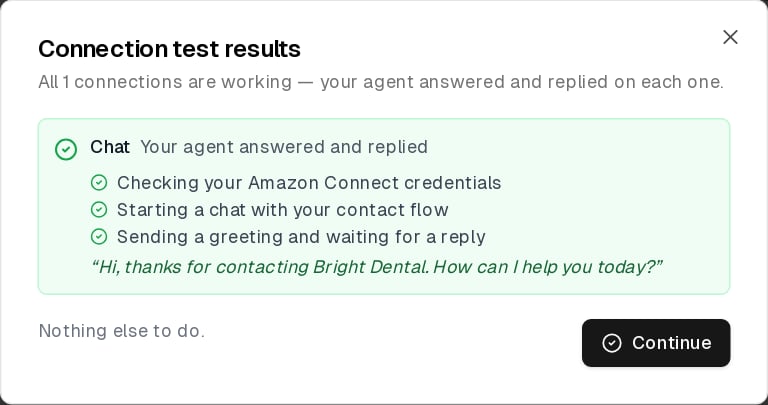
Chat testing
Open an evaluator, click Run, select Amazon Connect under Connections → Chat, and start the run. Cekura starts a new chat through your widget for each conversation and records the transcript and metric results.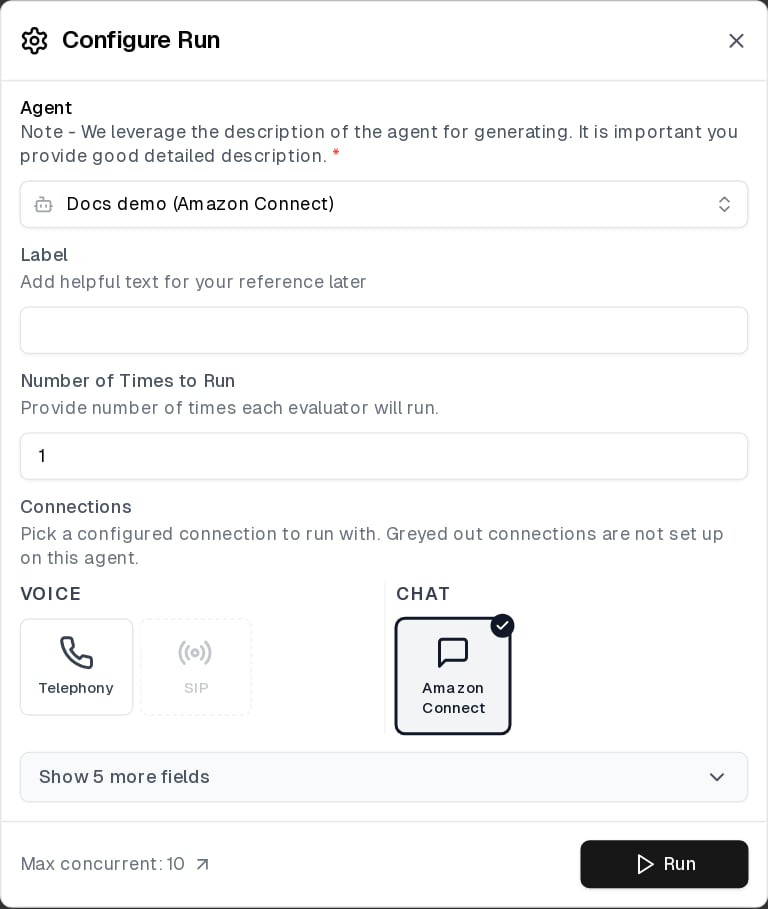
- Your flow’s messages are labeled Main Agent in the transcript, and Cekura’s are labeled Testing Agent.
- Interactive messages, such as list pickers and quick replies, appear as text: the title, then the choices after
Options:. Cekura answers with a typed message, so your flow must accept a typed answer to those prompts. - The chat ends when your flow ends it, when the scenario is complete, or after 2 minutes with no message from your flow.
Voice testing
Run an evaluator using the Telephony connection. Cekura calls the number under Telephony Settings for each test and plays the scenario as the caller.Troubleshooting
- Amazon Connect refused to start a chat through the communications widget: check that the Widget ID and Snippet ID come from the same widget, that
https://api.cekura.aiis in the widget’s allowed domains, and that the widget’s security is set to No. Also confirm that Connect Host and AWS Region match your instance, and that the widget’s flow is published. - The chat started but its message stream could not be opened: run the test again, and confirm that AWS Region matches your instance.
- The chat started but your flow sent no message: make sure the flow replies to the customer’s first message and routes the chat to your bot or AI agent.
- Changes don’t take effect: Amazon Connect can take a few minutes to apply widget changes. Wait, then run the test again.
Configure through the API
When creating or updating an agent through the API, set the provider toamazon_connect and pass the widget details in chat_agent_details:
region is optional and defaults to us-east-1. Leave out telephony if you only test over chat.