

Overview
Cekura tests Webex Contact Center voice agents over the phone: it calls your agent’s number and plays the scenario as the caller. Connect Webex with one sign-in from a Contact Center administrator, and Cekura also:- finds the Webex interaction behind each test call and shows Webex’s transcript and interaction ID on the result;
- imports your production calls automatically, with Auto-fetch Production Calls.
Webex agents are tested over the phone only. Chat testing is not available for Webex.
Prerequisites
- A Webex Contact Center voice agent reachable on a phone number.
- A Webex account with Contact Center administrator access, to connect Webex.
- For Webex transcripts and recordings: recording and transcription turned on in Webex Contact Center for the calls you test. Webex keeps a recording only where recording is enabled for the tenant or queue, and a transcript only where a transcription feature is enabled.
Connect Webex in Cekura
1
Select Webex
In Cekura, go to Agents, create an agent, and select Webex as the provider.
2
Add the phone number
Under Connections → Voice, select Telephony and enter your agent’s phone number under Telephony Settings. Leave Inbound on so Cekura calls your number.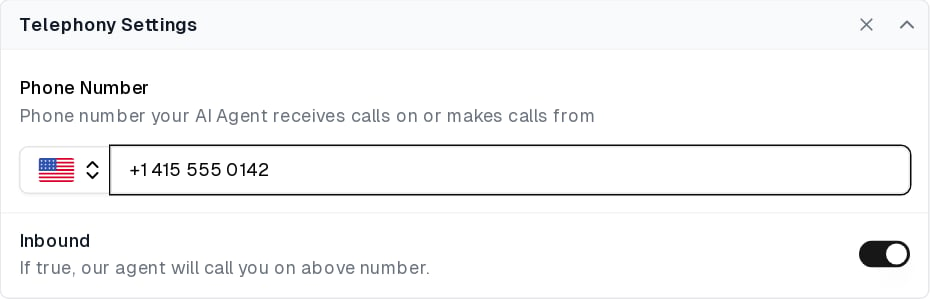
3
Create the agent and sign in to Webex
Integration Settings shows the Webex steps. Click Next, enter the agent’s name, language and description, and click Create. Cekura checks the phone connection and offers a test call, which you can skip.Cekura then takes you to Webex. Sign in with your Contact Center administrator account and accept the request. Webex sends you back to the agent in Cekura. Cekura finds your Webex organization and datacenter from the sign-in, so there is nothing to type.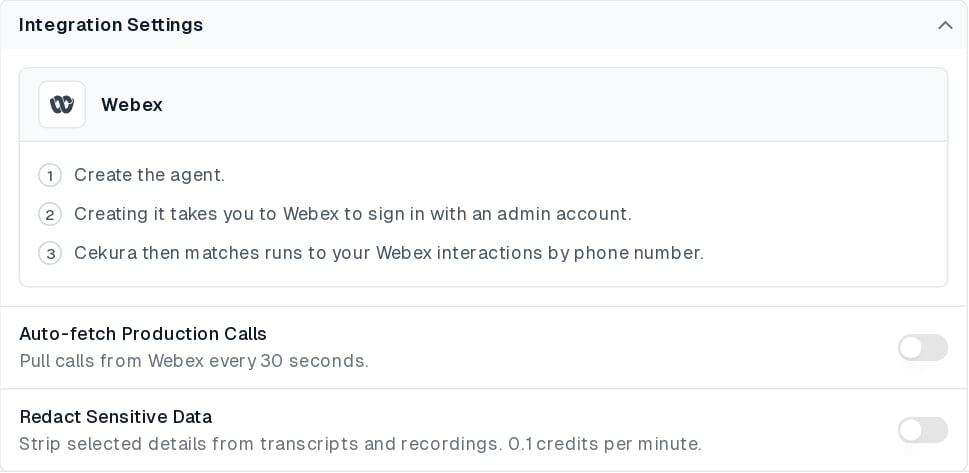
4
Check the connection
On the agent’s page, Integration Settings shows Connected with your Webex organization and the account that connected it. If the sign-in didn’t start, click Connect Webex there.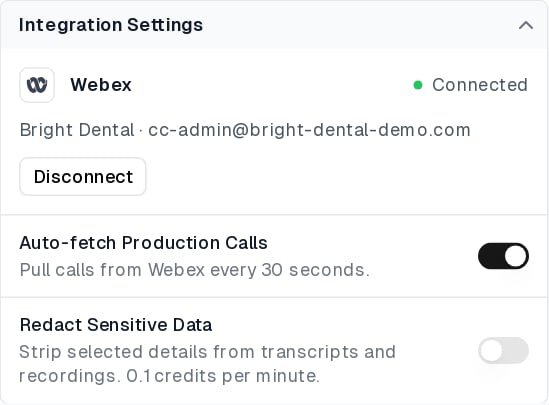
spark:people_read, spark:organizations_read and cjp:config_read.
Connection status
Click Disconnect to remove Cekura’s access to your Webex organization.
Run a test
Open an evaluator, click Run, and start the run using the Telephony connection. Cekura calls your agent’s number and plays the scenario as the caller. When Webex is connected, Cekura looks up the Webex interaction after the call ends. It searches for a call between its own number and your agent’s number that started within a minute of the test call, then compares the duration and conversation, so parallel test calls are each paired with the right interaction. Webex saves the transcript shortly after the call wraps up, so this can take a couple of minutes. The result then shows:- Provider Transcript: the conversation as Webex transcribed it. Your Webex agent is labeled Main Agent and Cekura’s caller Testing Agent. Cekura Transcript keeps Cekura’s own transcript, and Compare shows them side by side.
- Provider Call ID: the Webex interaction ID, so you can find the call in Webex.
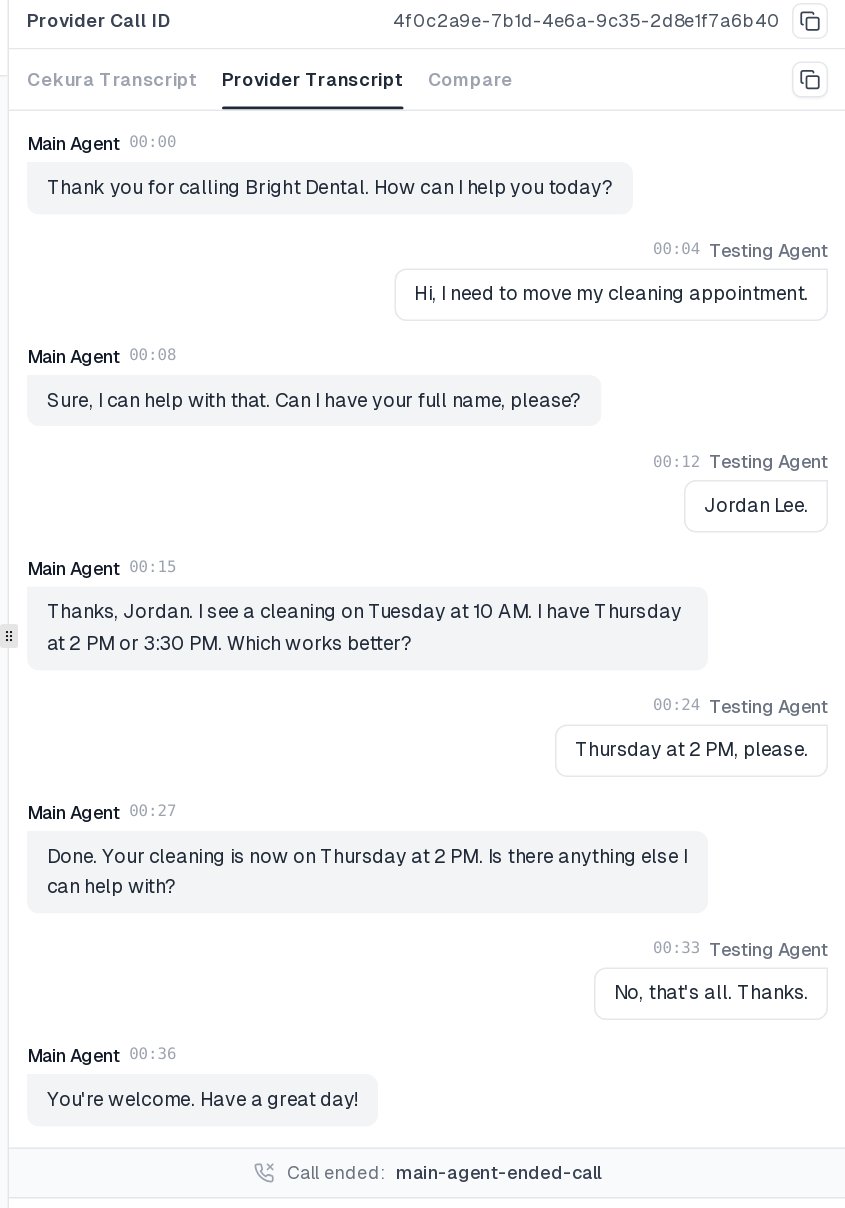
If Webex is not connected, or Webex has no transcript for the call, the result shows Cekura’s own transcript.
Monitor production calls
Turn on Auto-fetch Production Calls under Integration Settings once Webex is connected, and save the agent. Every 30 seconds, Cekura imports ended Webex Contact Center phone calls to or from the number under Telephony Settings, and runs your metrics on them.- Each imported call includes Webex’s transcript and recording when Webex has them, plus the queue, entry point and Webex agent that handled it.
- Calls between your number and Cekura’s test numbers are skipped, so test calls are not imported again.
- A call appears a few minutes after it ends.
If Webex has no recording or transcript for a call, Cekura still imports the call with its duration and details.
Troubleshooting
- Webex did not authorize the connection: sign in with an account that has Contact Center administrator access and accept the request, then click Connect Webex to try again.
- No Webex Contact Center datacenter recognises this organization: the account that signed in is not a Contact Center administrator, or the organization has no Contact Center. Sign in with a Contact Center administrator account.
- Webex rejected the authorization code: the sign-in expired or was already used. Click Connect Webex again.
- This Webex organization is already connected to a different Cekura organization: a Webex organization can be connected to one Cekura organization only. Disconnect it there, or contact Cekura support.
- No Webex transcript on a result: check that Webex shows Connected, that the number under Telephony Settings is the one Cekura called, and that Webex records and transcribes calls on that number’s queue. The transcript can take a couple of minutes after the call.
- Production calls are not imported: check that Auto-fetch Production Calls is on, Webex shows Connected, and the number under Telephony Settings matches your agent’s number in Webex.
Configure through the API
Create the agent through the API with the provider set tocisco and the agent’s phone number:
provider.credentials.connection field then reports the connection, with status, org_name, connected_by and refresh_token_expires_at. Turn on production-call import with provider.auto_import_calls: true once Webex is connected.