

Overview
Importing your Twilio phone numbers into Cekura allows you to:- Test inbound calls using your existing Twilio numbers
- Run outbound tests from your Twilio numbers
- Maintain your existing phone infrastructure while leveraging Cekura’s testing capabilities
- Access detailed call logs and metrics from your Twilio-based tests
BYOP (Bring Your Own Phone): This feature allows you to use your existing Twilio phone numbers without purchasing new numbers from Cekura.
Prerequisites
Before you begin, ensure you have:- An active Twilio account with at least one phone number
- Your Twilio Account SID
- Your Twilio Auth Token
- A phone number purchased in your Twilio account
If you don’t have a Twilio phone number, you can purchase one from the Twilio Console.
Import Your Twilio Number
1
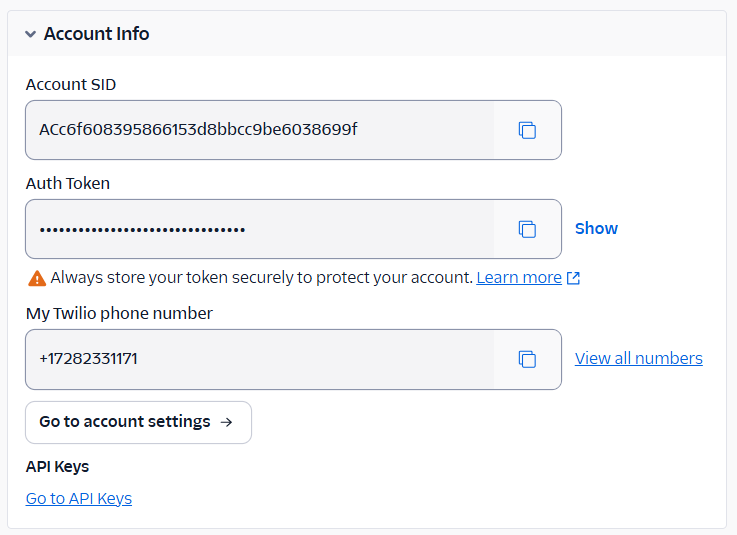
Retrieve Twilio Credentials
- Log in to your Twilio Console.
- Navigate to Account Info section on the dashboard.
-
Copy your Account SID and Auth Token.
2
Get Your Phone Number
- In the Twilio Console, go to Phone Numbers → Manage → Active numbers.
- Select the phone number you want to import.
-
Copy the phone number in E.164 format (e.g.,
+12025551234).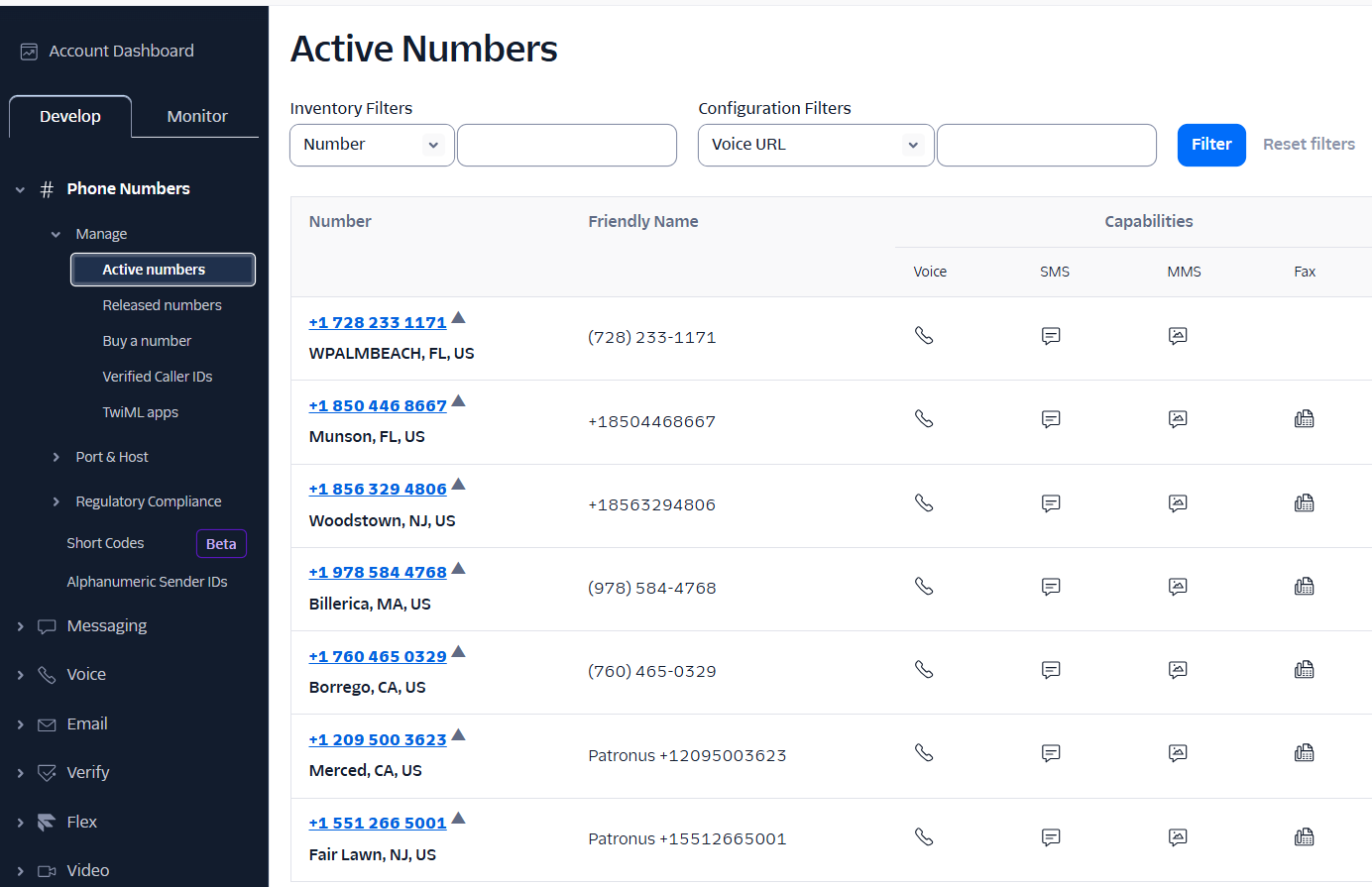
3
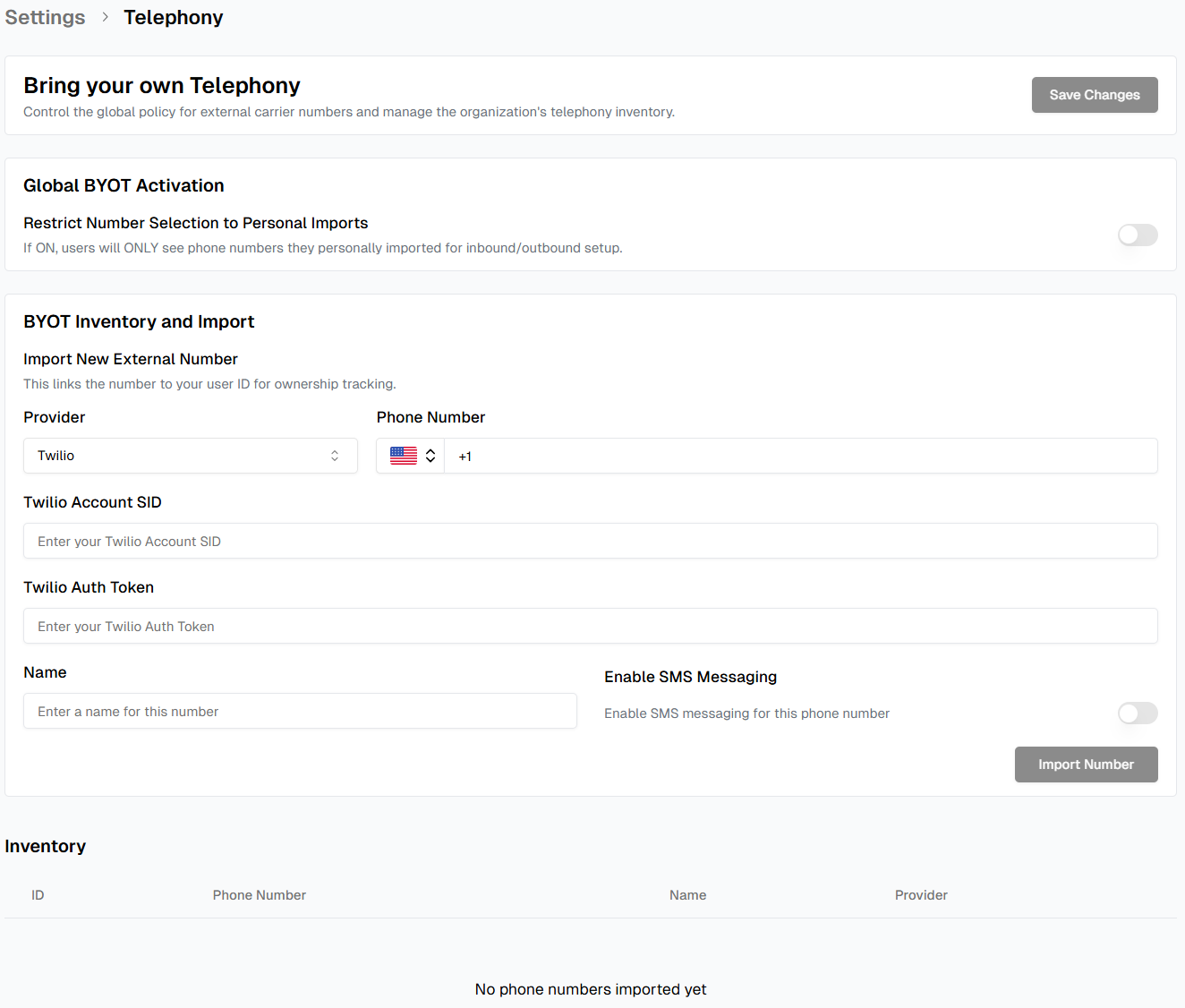
Import to Cekura
- Log in to your Cekura Dashboard.
- Navigate to Settings → Phone Numbers.
- Click Import Twilio Number.
-
Fill in the required details:
- Phone Number: Enter your Twilio number in E.164 format
- Account SID: Paste your Twilio Account SID
- Auth Token: Paste your Twilio Auth Token
- Friendly Name (Optional): Add a label for easy identification
-
Click Import Number.
4
Verify Import
Once imported, your Twilio number will appear in the Phone Numbers list with:
- Phone number
- Provider (Twilio)
- Status (Active)
-
Friendly name
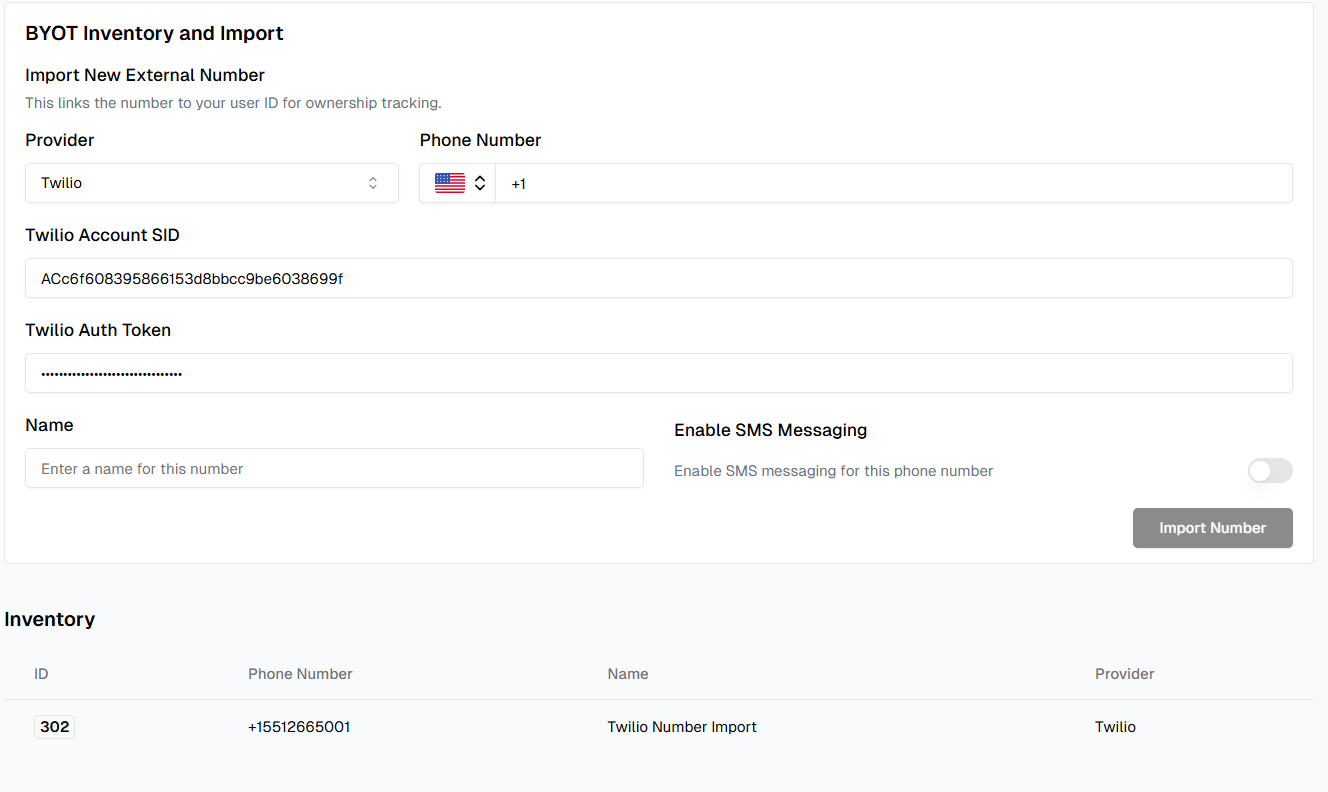
Your Twilio number is now ready to use with Cekura for testing!
Using Your Imported Number
For Inbound Testing
- Navigate to Agents → Select your agent
- In Agent Settings, set the imported Twilio number as the Contact Number
- Cekura will automatically route test calls to your agent via Twilio
For Outbound Testing
- When creating an Evaluator or running tests
- Select your imported Twilio number as the Caller ID
- Outbound test calls will originate from your Twilio number
Troubleshooting
Import Failed: Invalid Credentials
Import Failed: Invalid Credentials
Solution:
- Verify your Account SID and Auth Token are correct
- Ensure the Auth Token hasn’t expired
- Check that your Twilio account is active and in good standing
Phone Number Already Imported
Phone Number Already Imported
Solution:
- Each Twilio number can only be imported once per Cekura project
- Check if the number is already in your Phone Numbers list
- Contact support if you need to update an existing import
Calls Not Routing Correctly
Calls Not Routing Correctly
Solution:
- Ensure the phone number is in E.164 format (e.g.,
+12025551234) - Verify your Twilio number has voice capabilities enabled
- Check Twilio Console for any account restrictions or errors
Best Practices
Secure Your Credentials
Store Auth Tokens securely and rotate them periodically for enhanced security.
Use Friendly Names
Label each number descriptively to quickly identify its purpose in your testing workflows.
Monitor Twilio Usage
Keep track of your Twilio usage and billing in the Twilio Console to avoid unexpected charges.
Test Before Production
Always test your imported numbers with sample calls before using them in production test suites.
Next Steps
Create an Agent
Set up your first agent using your imported Twilio number.
Run Tests
Start testing your voice agents with automated test scenarios.
Monitor Calls
Track and analyze call performance in real-time.
Integrations
Connect other providers like Retell, VAPI, and ElevenLabs.