

Using a coding agent? Paste this prompt directly in your Pipecat agent codebase to jumpstart your Cekura integration.
Overview
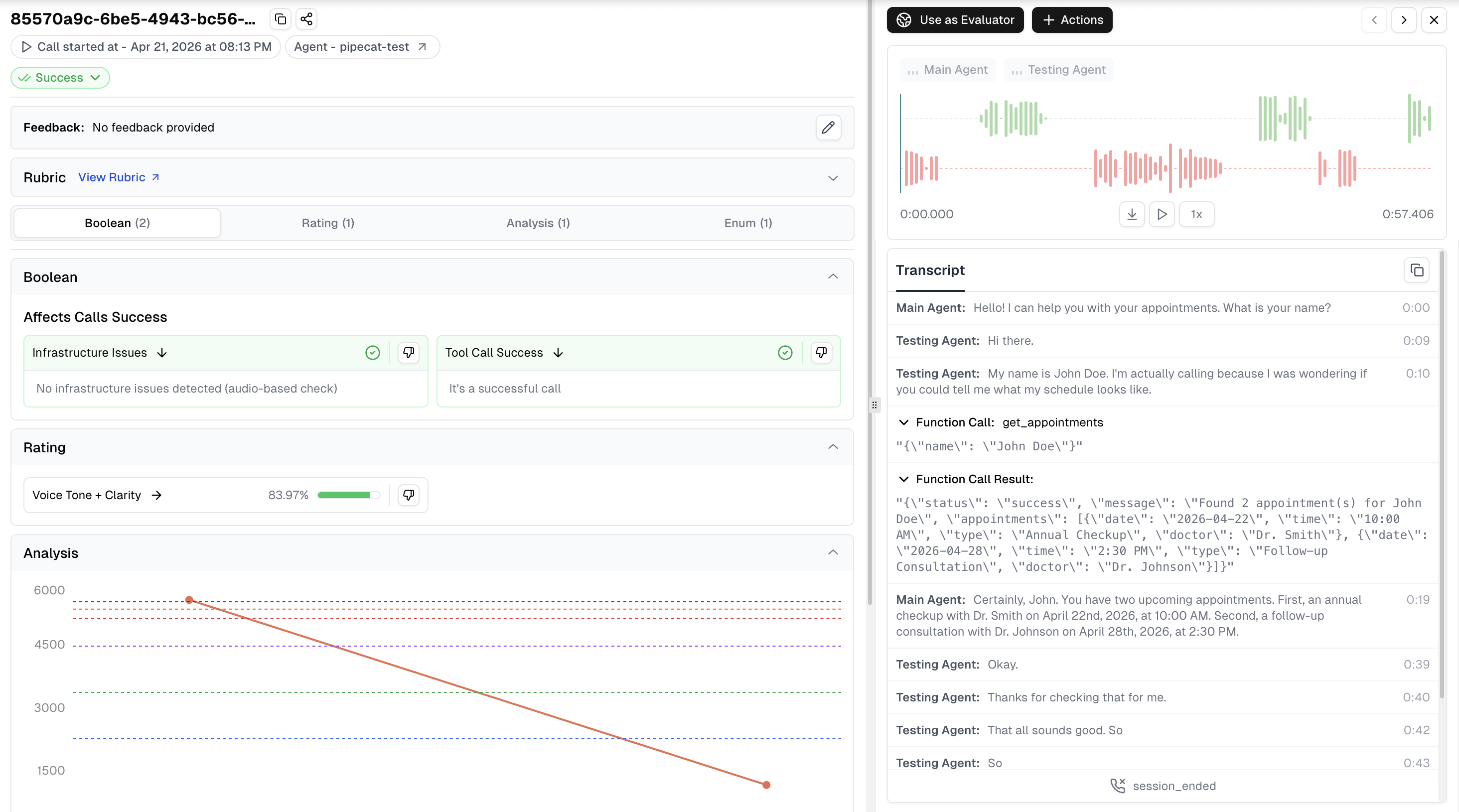
Pipecat Tracing provides deep observability into your Pipecat agent’s performance by integrating the Cekura Python SDK directly into your agent code. This integration significantly enhances the information available in the Cekura platform for end-to-end visibility over agent execution. What you get:- Complete agent-side conversation transcripts with UTC timestamps
- Tool/function calls with inputs and outputs
- Mock tools support for testing with predictable tool responses
- Dual-channel audio recording (agent + user) for production monitoring
- OpenTelemetry traces with conversation, turn, and service spans (STT, LLM, TTS)
- Session logs capture from agent
- Session metadata for correlation and debugging
Replacing an existing direct API integration? If you currently post call data to the
POST /observability/v1/observe/ endpoint directly, the Pipecat SDK is a replacement, not an add-on — these two approaches are mutually exclusive for the same session. Running both creates duplicate records with no merging. Migrate by moving your metadata to set_custom_metadata() and removing the direct API call. See Migrating from the direct API to the SDK for step-by-step instructions.Video Tutorial
Watch this video to see the Pipecat tracing integration in action:Prerequisites
- A Cekura account with an API key
- A Pipecat agent project
Setup
- Testing
- Observability
Use this setup in your test agents while running simulation calls from the Cekura platform. This mode captures transcripts, logs, and OTel traces — no audio recording.
1
Install the Cekura Python SDK
2
Integrate the SDK in your Pipecat agent
Add the Cekura tracer to your Pipecat agent:What this does:
- Initialize the tracer with your API key and agent ID
- Track your pipeline to capture transcripts, tool calls, logs, and OTel traces
- Register task handlers for automatic cleanup
- Captures transcripts and tool calls
- Replaces registered tool handlers with your mock tools during simulations
- Captures session logs (INFO+)
- Exports OpenTelemetry traces (conversation, turn, STT/LLM/TTS spans)
- Automatically configures chat/text mode when running text-based tests
- Sends data to Cekura’s simulation webhook for test analysis
- No audio recording — lightweight for testing
3
Configure Pipecat provider and enable tracing
Navigate to your agent settings in the Cekura dashboard, select Pipecat as the provider, and enable tracing:Required configuration:
- Provider: Select “Pipecat” as your voice integration provider
- Pipecat Cloud API Key: Your authentication key from Pipecat Cloud
- Pipecat Agent Name: Your agent name in Pipecat (e.g., “my-agent”)
- Tracing Enabled: Set to true to enable SDK-based tracing
- WebRTC: Direct Pipecat session connection using the credentials configured above
- Telephony: Phone-based testing if your Pipecat agent is connected to a phone system (requires Contact Number)
- Pipecat Chat: Enable Pipecat Chat under Chat connections for chat-based testing (uses the same Pipecat credentials, no additional setup required)
4
Run tests
Run tests using your preferred connection type:
- WebRTC: Select WebRTC under Voice connections in the Configure Run dialog for WebRTC-based testing
- Telephony: Select Telephony under Voice connections for phone-based testing
- Pipecat Chat: Select Pipecat Chat under Chat connections for text-based testing
Recording Startup
In observability mode, recording starts when Pipecat dispatches the pipeline-start lifecycle handler. By default, the handler waits up to four seconds for recording credentials and initialization. This gives recording a head start, but it is not a hard barrier before the conversation opens. Setasync_recording=True to return from the lifecycle handler immediately while recording starts in the background. This reduces startup waiting, but audio produced before the recorder is ready may not be captured. Asynchronous startup uses a ten-second timeout by default.
Override the startup deadline for an individual session with recording_start_timeout_seconds. The value must be a positive, finite number.
Enhanced Data in Cekura UI
With tracing enabled, you’ll see enriched information in the Cekura platform:- Complete Transcript: Full conversation history with UTC timestamps
- Tool Calls: Function call requests and responses with inputs and outputs
- OpenTelemetry Traces: Conversation, turn, and service-level spans (STT, LLM, TTS) with latency and usage metrics
- Session Logs: INFO+ logs captured during the session for debugging
- Session Metadata: Session IDs for correlating Cekura calls with your logs
- Audio Recording: Dual-channel recordings (agent + user) for quality monitoring (observability mode only)
- Custom Metadata: Additional metadata passed via
custom_metadataparameter
OpenTelemetry Tracing
The SDK automatically exports OpenTelemetry traces for every call, giving you detailed visibility into your agent’s execution pipeline. Traces are exported to the Cekura platform by default and correlated with call logs automatically.Trace Structure
Each call produces a hierarchical trace:How It Works
When using the single-step API (observe_and_create_task / track_and_create_task), OTel tracing is configured automatically — no additional code needed.
When using the multi-step API (observe_pipeline / track_pipeline), you need to enable tracing on the PipelineTask yourself:
Additional Span Attributes
You can attach custom attributes to the conversation-level span viaadditional_span_attributes on the PipelineTask. This is useful for adding your own correlation IDs or metadata to traces.
Disabling OTel Traces
To disable OTel trace export entirely:Custom Metadata
Pass custom metadata at initialization or update it anytime before the session tears down:set_custom_metadata() can be called at any point before the pipeline session finalizes — including in cleanup or post-processing handlers that execute before the session tears down. After submission, update the call log through the API instead.
Deferred Evaluation for Post-Call Metadata
Usedefer_evaluation=True when another service enriches metadata after the call. The SDK still uploads the audio, transcript, tool calls, logs, traces, and initial metadata at session end, but Cekura does not start metric evaluation immediately.
defer_evaluation is independent of defer_upload. It delays metric evaluation only; it does not delay artifact capture or upload and does not add latency to the live call.
After post-call processing finishes:
- Find the call log using the same stable
session_idpassed to the tracer. The call log’scall_idfield contains that session ID. - PATCH the call log with the enriched metadata and
reevaluate_metrics: truein the same request. Cekura applies the metadata before dispatching evaluation.
agent_id or project_id in the lookup request. Project-scoped keys can omit that extra scope.
See the Update Call Log API reference for the complete request schema.
Deferred evaluation has a five-minute fallback. Complete the metadata PATCH within five minutes of ingestion to guarantee that metrics use the enriched metadata. If no release arrives, Cekura starts evaluation automatically.
Keep ordinary metadata retries separate from the release signal. Send
reevaluate_metrics: true only with the final enrichment update. Repeated release requests are ignored while evaluation is running, but sending the flag again after evaluation completes intentionally starts another evaluation.Deferred Upload (Compliance)
For compliance scenarios where audio must not be uploaded before consent, usedefer_upload=True. The SDK records audio into an in-memory buffer while continuing to collect transcript, tool-call, log, and trace data.
await cekura.abort() only when you need to discard the entire session, including its transcript, tool calls, logs, traces, and audio.
Deferred mode controls audio upload, not when audio capture begins. Calling
start_audio_upload() uploads the audio buffered from the beginning of the call. Calling abort_recording() or allowing the call to finalize without consent permanently discards that buffered audio.Calls created with
defer_upload=True include audio_consent_granted in their observability metadata. Calls that do not use deferred upload omit this field. Audio-dependent metrics are unavailable when audio is discarded, while transcript- and trace-based analysis continues normally.If you currently send call data to
observability/v1/observe/ and want to adopt the SDK — or are wondering whether both can run simultaneously — see Can I also add the Pipecat SDK if I already post to the observability endpoint? in the FAQ.If you already capture audio in your own pipeline and want to understand how the SDK’s parallel recording works, see If I already capture and store audio in my own Pipecat pipeline, will the Cekura SDK record it again? in the FAQ.Automatic Chat Mode Support
The SDK automatically handles chat/text mode when you run scenarios with the Pipecat Chat connection — no code changes required. When you run a text-based test, the SDK switches the session to pure text, so the conversation is exchanged as typed turns with no audio processing. This provides:- Targeted testing of your agent’s conversational logic without audio overhead
- Cost savings by eliminating STT/TTS provider costs
- Faster simulations compared to voice-based tests
track_and_create_task() / observe_and_create_task() integration works seamlessly for both voice and text modes. Pass runner_args to the tracer so it can detect the run mode.
Using Mock Tools with Pipecat Tracing
The SDK supports mock tools, allowing you to test your agent with predictable tool responses. This is useful for creating reproducible test scenarios without relying on live external services. Mock tools work in voice, text, and telephony simulations. To use mock tools:- Create mock tools in Cekura: Set up your mock tool configurations in the Cekura dashboard. See the Mock Tools guide for detailed instructions. The mock tool name must exactly match the function name you register in Pipecat.
-
SDK handles the rest: Keep registering your tools with Pipecat’s normal API. When you use
track_pipeline()ortrack_and_create_task(), the SDK swaps in the mock responses during simulations — no additional code changes needed. - Test with predictable data: Your agent will receive the mock responses you configured, making it easy to test specific scenarios and edge cases.
How It Works
- Discovery:
track_pipeline()andtrack_and_create_task()find the LLM services in your pipeline, including those inside nested pipelines. - Retrieval: Before the LLM starts, the SDK fetches the agent’s mock tools from Cekura once per session, with a three-second deadline.
- Replacement: Each registered handler whose function name exactly matches a mock tool is replaced for that session. Handlers without a matching mock keep running your real code. Tool schemas, interruption settings, and per-tool timeouts stay as you configured them.
- Matching: When the LLM calls a mocked tool, the SDK returns the output of the first configured input/output pair whose input fields equal the call’s arguments. Extra arguments are ignored, matching is case-sensitive, and an empty input matches any arguments.
- No match: If a mocked tool has no matching pair, the tool returns
{"error": "No matching mock data found"}. If its mock data is missing or invalid, it returns{"error": "No mock data available"}. The real handler is never called for a mocked tool. - Fallback: If mock retrieval fails or times out, the real handlers stay active and the simulation continues.
observe_pipeline() and observe_and_create_task() never fetch mocks and leave your handlers unchanged. To keep real handlers in a simulation, set CEKURA_MOCK_TOOLS_ENABLED=false.
Best Practices
-
Use the right method for your environment: Use
track_pipeline()/track_and_create_task()in your test/UAT environments for simulation testing with mock tools. Useobserve_pipeline()/observe_and_create_task()in your production environment for monitoring live calls with audio recording. - Use environment variables for credentials: Don’t hardcode API keys in your code
-
Keep the SDK updated: Run
pip install --upgrade "cekura[pipecat]"periodically for the latest features -
Use session IDs: The SDK resolves the session ID in this order: explicit
session_idparameter >runner_args.session_id> auto-generated. Pass a custom session ID to correlate Cekura data with your application logs -
Create one
PipecatTracerinstance per call — do not share instances across concurrent sessions:PipecatTraceris not thread-safe to share. When running multiple concurrent calls in the same event loop, instantiate a freshPipecatTracerfor each call (with its ownsession_id) inside the function that handles that call. With this pattern the SDK is safe for concurrent use — each instance holds its own session state and submits data independently.
Compatibility
For the Pipecat integration, use Cekura Python SDK>=1.6.8,<2. Updates within the 1.x release line are backward compatible.
SDK Reference
PipecatTracer Initialization
observe_pipeline()
Adds observability to your pipeline — captures transcripts and records audio. For production monitoring.bot_channel or user_channel parameters are required.
track_pipeline()
Adds simulation-mode tracking to your pipeline — captures transcripts only, no audio. For testing.observe_and_create_task()
Single-step observability setup. Combinesobserve_pipeline(), PipelineTask creation, and register_task_handlers(). Automatically configures OTel tracing when enabled.
track_and_create_task()
Single-step simulation setup. Combinestrack_pipeline(), PipelineTask creation, and register_task_handlers(). Automatically configures OTel tracing when enabled.
register_task_handlers()
Registers cleanup handlers for automatic resource management when the session ends. Only needed when using the two-step approach.start_audio_upload()
Grants consent and begins uploading audio whendefer_upload=True. Flushes audio buffered since the start of the call and enables normal upload for the rest of the session. Transcript, tool-call, log, and trace collection is not gated by this method. No-op if defer_upload was not set.
abort_recording()
Stops the SDK audio recording and permanently discards buffered audio for the current session. Transcript, tool-call, log, and trace observability remains active and is submitted when the session ends. This operation is irreversible for the session.abort()
Stops all capture mid-call and prevents any session data from being sent to Cekura. Use this only for full-session discard; useabort_recording() to discard audio while retaining non-audio observability.
set_custom_metadata()
Update custom metadata at any point during the session.get_custom_metadata()
Retrieve the current custom metadata.CEKURA_TRACER_ENABLED="false": Disable the tracer entirelyCEKURA_MOCK_TOOLS_ENABLED="false": Keep real tool handlers during simulations
Troubleshooting
Missing Aggregators Warning
If you see:LLMUserAggregator and LLMAssistantAggregator for transcript capture. Add aggregators to your pipeline:
Chat runs behave like voice runs
The SDK needsrunner_args to detect a text run. If it is not passed to the tracer, the session is treated as voice. Pass it through from your bot entry point:
Real tool handlers run during a simulation
If your real tool code runs instead of the mock response:- Confirm you use
track_pipeline()ortrack_and_create_task(). Theobserve_*methods do not apply mock tools. - Confirm the mock tool name in Cekura exactly matches the name passed to
llm.register_function(). - Confirm
CEKURA_MOCK_TOOLS_ENABLEDis not set tofalse. - Check your agent logs for a warning such as
Unable to retrieve Pipecat mock tools; keeping real handlers. If retrieval fails or times out, the SDK keeps the real handlers.
Import Error
If you see:Next Steps
- Create custom metrics to evaluate your agents
- Set up automated testing for your Pipecat agents
- Explore predefined metrics