

Advanced Features of Metric Lab
Metric Lab is for refining and improving metric definitions — you annotate a sample of calls with the correct expected values, then use Auto Improve to tighten the metric prompt based on those annotations. If you need to run automated per-call comparisons between a Cekura metric score and a manually supplied ground-truth value across all your calls, write a Python metric that accesses other metric results instead. See Can I compare Cekura metric results against my own manual or ground-truth scores? in the FAQ.
Metric Optimization Workflow
Metric Lab provides a powerful workflow for defining, testing, and automatically optimizing custom metrics to ensure they accurately reflect your AI assistant’s performance.Defining Custom Metrics
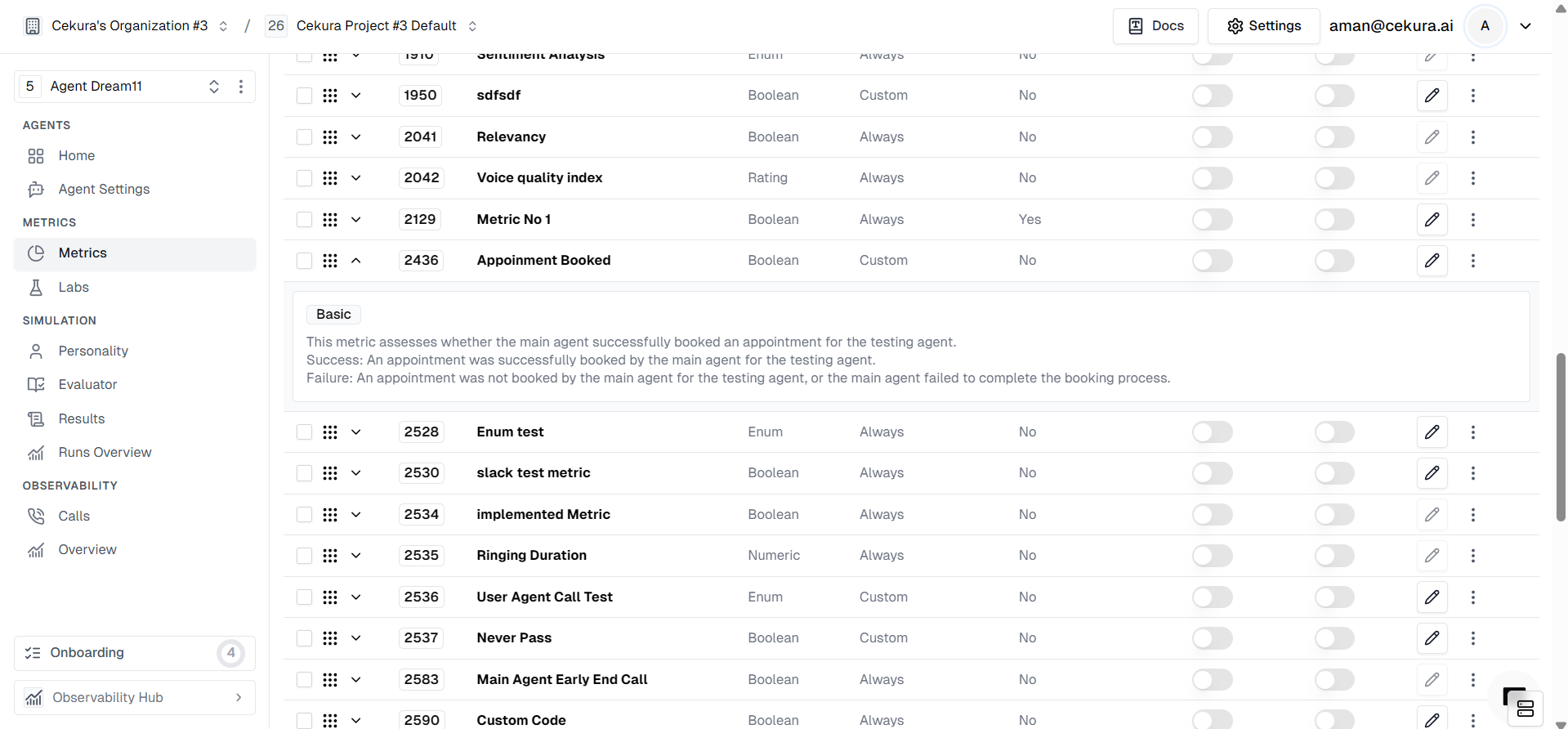
First, define a custom metric tailored to your specific business logic. In this example, we will create a metric to verify appointment bookings.- Metric Name: Appointment Booked
- Definition: Assesses whether the main agent successfully booked an appointment for the testing agent.
- Success Criteria: An appointment was successfully booked.
- Failure Criteria: No appointment was booked, or the process was incomplete.
Identifying Metric Performance Issues
After your agent runs, you might notice discrepancies where the metric result doesn’t match reality.- False Positive: The metric says “Appointment Booked” (Success), but the agent actually failed to confirm the time.
- False Negative: The metric says “Not Booked” (Failure), even though the agent successfully completed the booking.
Add to Labs
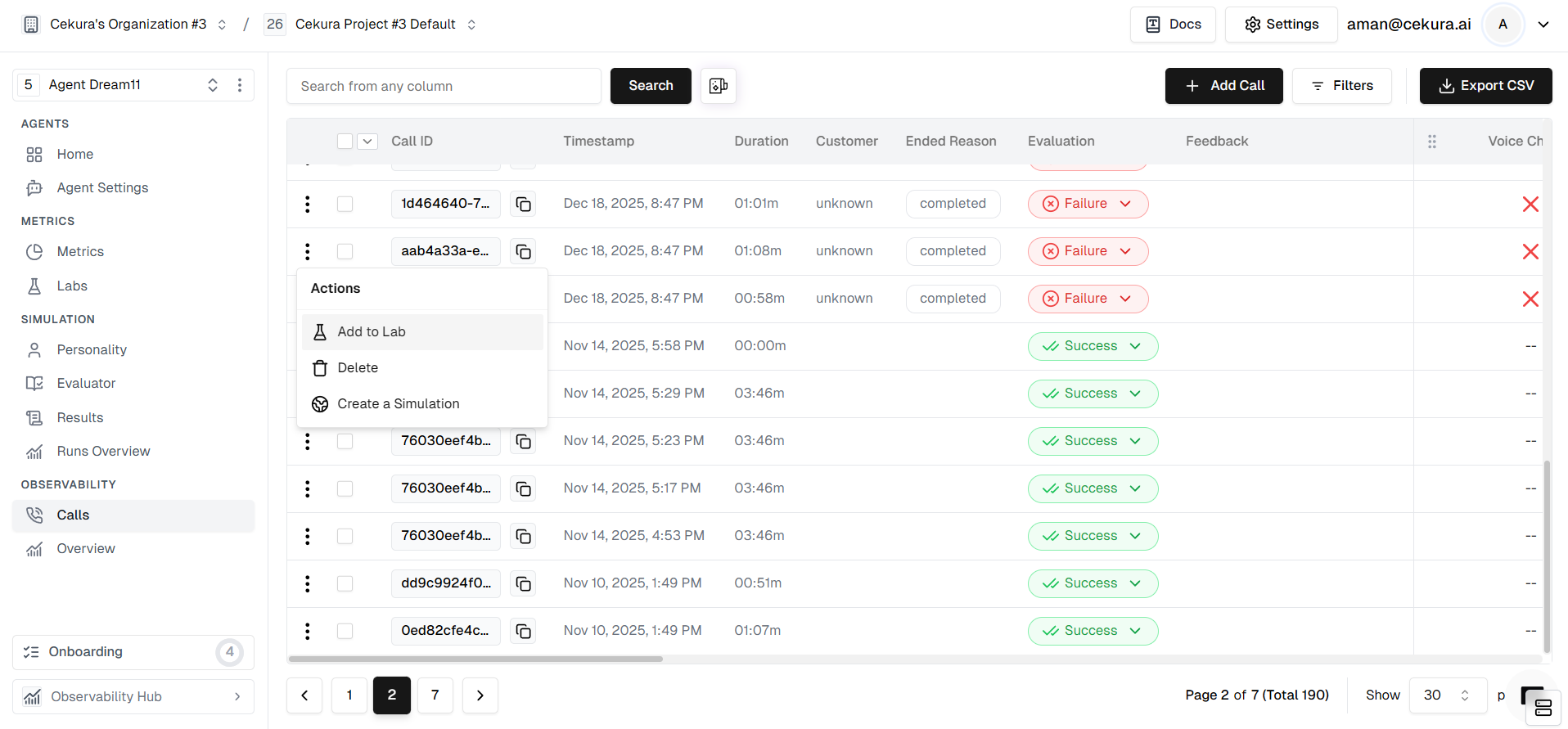
To fix these issues, you need to create a test set from these problematic calls.- Locate the specific calls in your logs where the metric failed.
- Select them and click Add to Lab.
- Assign them to the “Appointment Booked” metric lab.
Initial Run
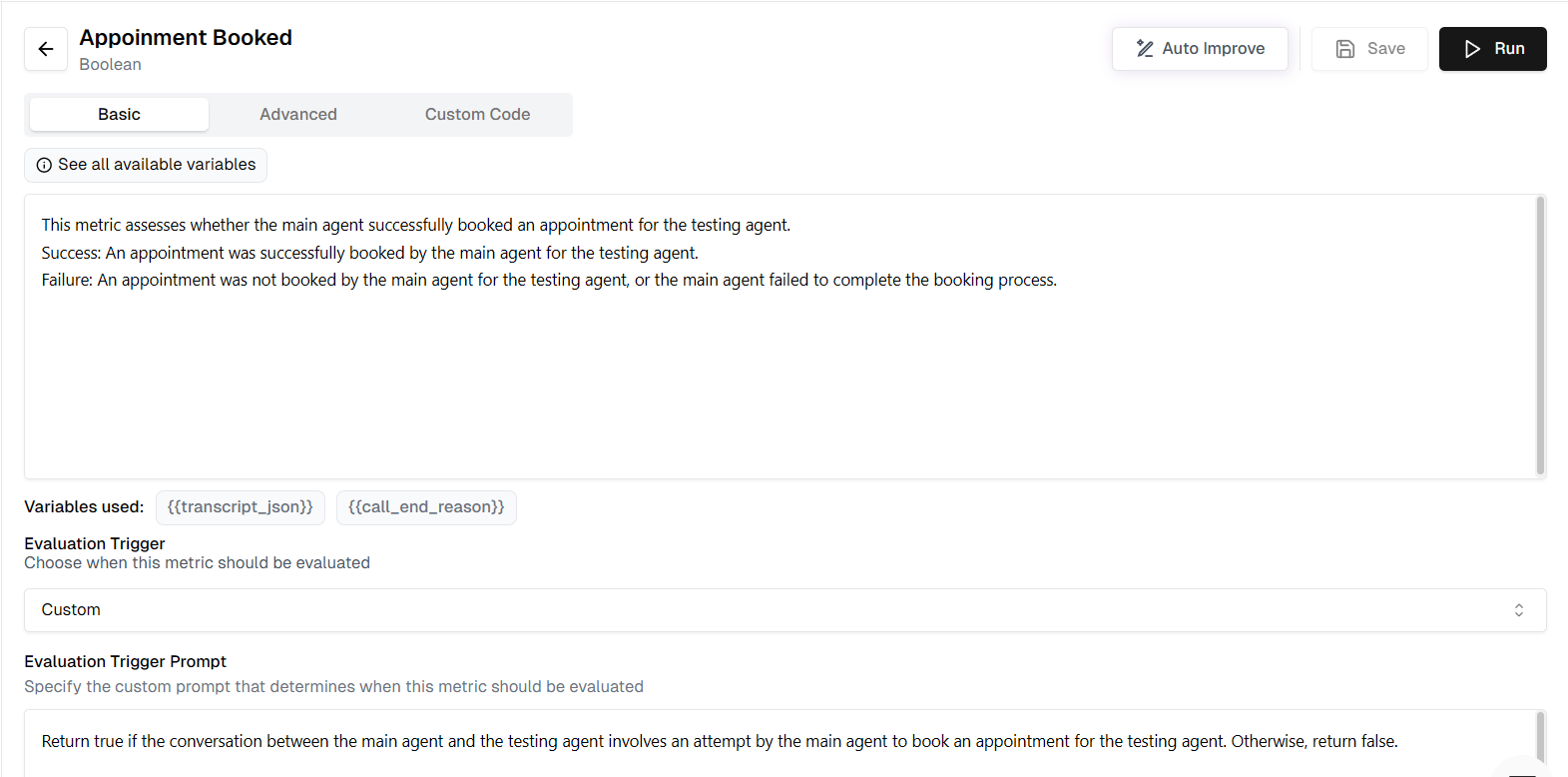
Once inside the Lab, run your current metric against the newly added test set to establish a baseline.- Click the Run button in the Metric Lab.
- The system will evaluate the “Appointment Booked” metric against all the calls in your test set.
- Review the Overall Score (e.g., 3/5) to see the current accuracy.
Annotate
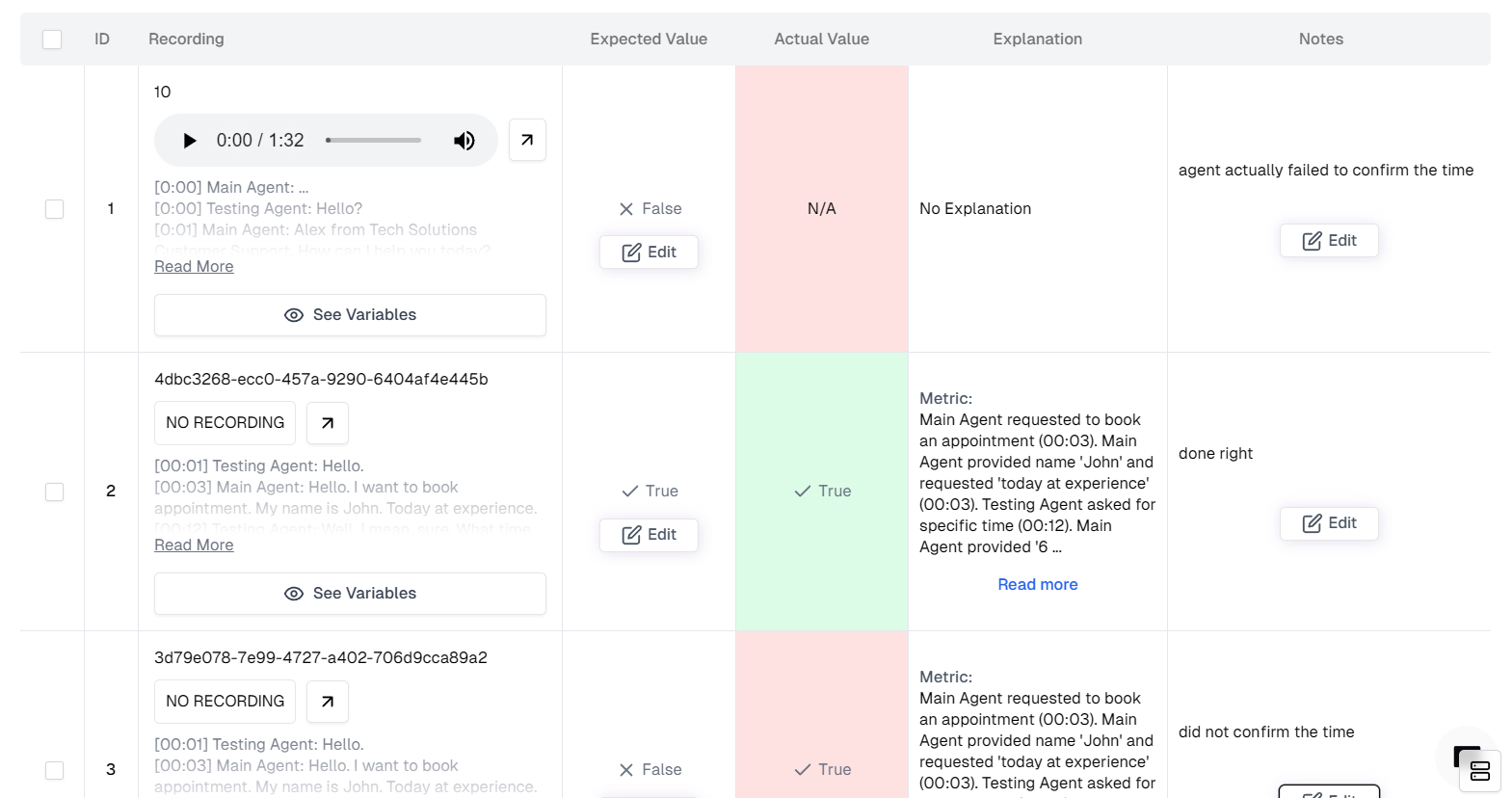
This is the most critical step. You must tell the system what the correct result should have been for each failed call.- Scroll down to the Table View.
- Look for rows where Actual Value (what the metric thought) differs from what really happened.
- Update Expected Value: Change the expected status to the correct one (e.g., change “False” to “True” if it was actually booked).
- Add Notes: Click the feedback/notes icon and explain why the metric was wrong (e.g., “The user implicitly confirmed the time by saying ‘Sounds good’, so this should count as a booking”).
Auto Improve
Instead of rewriting the prompt manually, let the Metric Lab’s optimizer do the work for you.- Ensure you have annotated the mismatches and added notes.
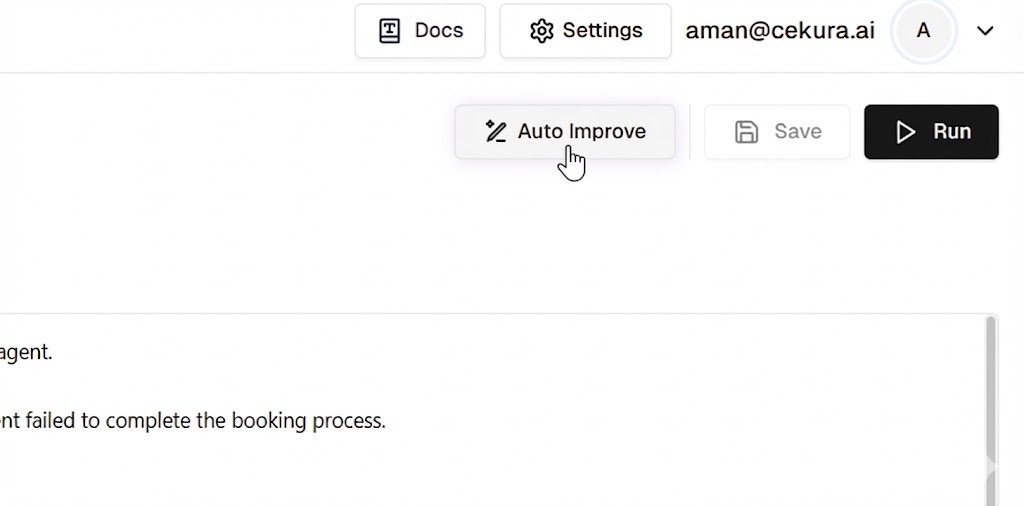
- Click the Auto Improve button at the top right.
- The system will analyze the transcripts, your notes, and the expected outcomes to generate a better metric definition.
View, Analyze and Save
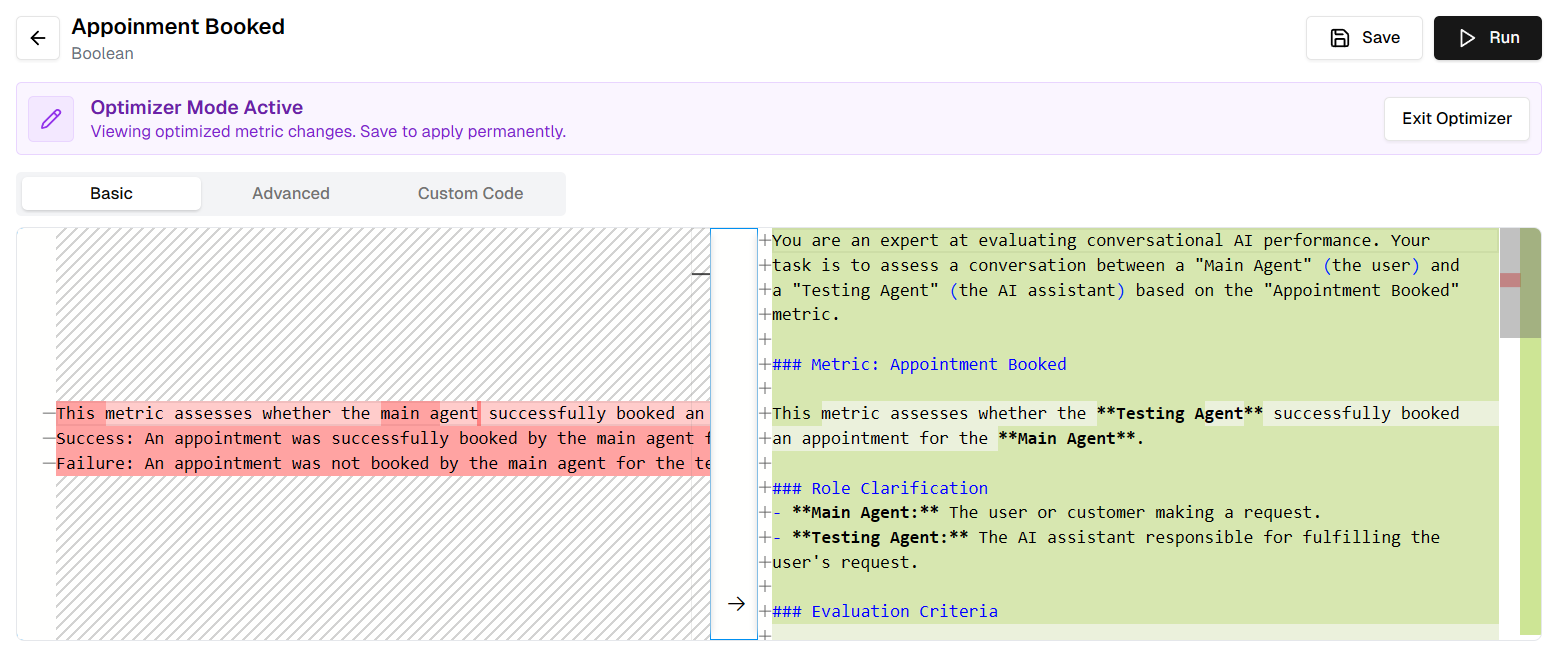
Once the Auto Improve task is complete (indicated by a green checkmark in the progress panel), you can review what the system proposes. Verify that the changes make sense and align with your meaningful definition of the metric.- Click View Changes on the completed task.
- Diff View: Inspect the highlighted changes in the Description or Prompt fields. You might see that the system added specific instructions like “Consider ‘Sounds good’ as a valid confirmation.”
- Review Table: Scan the table to ensure the new logic fixes the previous errors without breaking correct rows.
- Click Save to apply the optimized metric definition.
Review the Proposal in Chat
The proposal opens in a review chat next to the diff, so you can interrogate it before saving. Ask why a particular sample flipped, what the optimized logic does differently, or whether the proposal looks safe to apply. Your eval set is a small sample, so a proposal that scores perfectly on it can still regress calls it never saw. The chat gives you two ways to check that before you commit.Run a Regression Check
Run regression check evaluates the optimized metric against the most recent calls and runs this metric already scored in production — excluding your eval set, whose labels the optimizer has already fitted to. It then compares each new label against what production originally reported. Only changed samples are shown. For each one you decide:- New label correct — the optimizer fixed a label production previously got wrong. This is an improvement, and nothing is added to your eval set.
- Incorrect — the original label was right and the optimized metric broke it. This is a regression. Supply the correct label and, optionally, a note explaining why the new label is wrong.
Regression evaluations are billed like ordinary metric runs, since each one actually evaluates a call.
Confirm What Enters the Eval Set
After you submit your review, the optimizer groups the regressions you rejected by failure mode and proposes a representative subset to add to the eval set — adding every near-identical case teaches it the same lesson repeatedly and spends eval budget for nothing. That selection is a proposal, not an action. You get a confirmation card listing the optimizer’s picks pre-selected, alongside every other regression you marked incorrect. Add the ones it left out, remove the ones you disagree with, then choose:- Add and re-optimize — writes the selected samples to the eval set and starts a new optimization against the enlarged set.
- Add without re-optimizing — writes the samples and leaves the current proposal in place.
Answer Questions During Optimization
An optimization can pause and ask you a question when it hits something it cannot decide on its own — two of your labels implying contradictory rules, or a sample whose correct label is genuinely ambiguous. The question appears in the Auto Improve panel with the sample’s transcript and context. The run waits for your answer and resumes as soon as you submit it, so you can leave the page and come back. If it has been waiting a while it checkpoints itself and resumes automatically once you answer, rather than failing.Re-run and Observe Improvement
Finally, verify that your new metric is robust.- The metric is now updated with the optimized logic.
- Future calls will be evaluated using this smarter definition.
- You can manually Run the review again to confirm the score remains high (e.g., 5/5).
Benefits of Metric Optimization
This iterative optimization process allows you to:- Improve metric accuracy from as low as 50% to 95% or higher
- Ensure the labels you see from your AI assistant accurately reflect real performance
- Make data-driven decisions based on reliable metrics