> ## Documentation Index
> Fetch the complete documentation index at: https://docs.cekura.ai/llms.txt
> Use this file to discover all available pages before exploring further.
# Kore.ai Integration
> Connect a Kore.ai Contact Center AI app to Cekura to run phone-based simulations and pull the Kore.ai conversation history and service-call logs into every result.
export const CopyPageButton = () => {
if (typeof window !== 'undefined') {
setTimeout(function () {
if (document.getElementById('ck-tools')) return;
var anchor = document.getElementById('content-area') || document.querySelector('.mdx-content');
if (!anchor) return;
if (!document.getElementById('ck-style')) {
var s = document.createElement('style');
s.id = 'ck-style';
s.textContent = '#ck-tools{position:absolute;top:6px;right:0;z-index:100;font-family:inherit;}' + '.ck-row{display:inline-flex;align-items:stretch;border:1px solid rgba(0,0,0,0.15);border-radius:8px;overflow:hidden;background:#fff;}' + ':root.dark .ck-row{background:rgba(255,255,255,0.06);border-color:rgba(255,255,255,0.12);}' + '.ck-btn{padding:5px 12px;border:none;background:none;cursor:pointer;font-size:13px;font-weight:500;font-family:inherit;color:#374151;}' + ':root.dark .ck-btn{color:#d1d5db;}' + '.ck-btn:hover{background:rgba(0,0,0,0.04);}' + ':root.dark .ck-btn:hover{background:rgba(255,255,255,0.06);}' + '.ck-chevron{padding:5px 8px;border:none;background:none;cursor:pointer;font-size:14px;font-family:inherit;color:#374151;}' + ':root.dark .ck-chevron{color:#d1d5db;}' + '.ck-chevron:hover{background:rgba(0,0,0,0.04);}' + ':root.dark .ck-chevron:hover{background:rgba(255,255,255,0.06);}' + '.ck-divider{width:1px;background:rgba(0,0,0,0.12);flex-shrink:0;}' + ':root.dark .ck-divider{background:rgba(255,255,255,0.12);}' + '.ck-dd{position:absolute;top:calc(100% + 4px);right:0;min-width:180px;background:#fff;border:1px solid rgba(0,0,0,0.12);border-radius:8px;box-shadow:0 4px 12px rgba(0,0,0,0.1);padding:4px;display:none;z-index:200;}' + ':root.dark .ck-dd{background:#1f2937;border-color:rgba(255,255,255,0.1);box-shadow:0 4px 16px rgba(0,0,0,0.35);}' + '.ck-item{display:block;width:100%;padding:7px 12px;border:none;background:none;border-radius:6px;cursor:pointer;font-size:13px;font-family:inherit;text-align:left;color:#374151;}' + ':root.dark .ck-item{color:#d1d5db;}' + '.ck-item:hover{background:rgba(0,0,0,0.05);}' + ':root.dark .ck-item:hover{background:rgba(255,255,255,0.07);}';
document.head.appendChild(s);
}
var wrap = document.createElement('div');
wrap.id = 'ck-tools';
var row = document.createElement('div');
row.className = 'ck-row';
var mainBtn = document.createElement('button');
mainBtn.className = 'ck-btn';
mainBtn.textContent = 'Copy page';
var divider = document.createElement('span');
divider.className = 'ck-divider';
var chevron = document.createElement('button');
chevron.className = 'ck-chevron';
chevron.textContent = '▾';
var dd = document.createElement('div');
dd.className = 'ck-dd';
function closeDD() {
dd.style.display = 'none';
}
function openDD() {
dd.style.display = 'block';
}
chevron.onclick = function (e) {
e.stopPropagation();
if (dd.style.display === 'block') {
closeDD();
} else {
openDD();
}
};
document.addEventListener('click', function (e) {
if (!e.target.closest('#ck-tools')) {
closeDD();
}
});
document.addEventListener('keydown', function (e) {
if (e.key === 'Escape') {
closeDD();
}
});
function makeItem(label, fn) {
var b = document.createElement('button');
b.className = 'ck-item';
b.textContent = label;
b.onclick = function () {
fn();
closeDD();
};
return b;
}
function getMarkdown() {
var walk = function (node) {
if (!node) return '';
if (node.nodeType === 3) return node.textContent || '';
if (node.nodeType !== 1) return '';
var tag = node.tagName.toLowerCase();
var skip = ['script', 'style', 'svg', 'noscript', 'button', 'iframe'];
if (skip.indexOf(tag) !== -1) return '';
if (node.id === 'ck-tools') return '';
var ch = Array.from(node.childNodes).map(walk).join('');
if (tag === 'h1') return '\n# ' + ch.trim() + '\n\n';
if (tag === 'h2') return '\n## ' + ch.trim() + '\n\n';
if (tag === 'h3') return '\n### ' + ch.trim() + '\n\n';
if (tag === 'p') return '\n' + ch.trim() + '\n\n';
if (tag === 'pre') return '\n```\n' + node.textContent.trim() + '\n```\n\n';
if (tag === 'li') return '- ' + ch.trim() + '\n';
if (tag === 'code') return '`' + ch.trim() + '`';
return ch;
};
var content = document.querySelector('.mdx-content') || document.getElementById('content-area') || document.body;
return walk(content).replace(/\n\n\n+/g, '\n\n').trim();
}
function copyMd() {
var md = getMarkdown();
navigator.clipboard.writeText(md).then(function () {
mainBtn.textContent = 'Copied!';
setTimeout(function () {
mainBtn.textContent = 'Copy page';
}, 2000);
});
}
function viewMd() {
var md = getMarkdown();
var safe = md.split('&').join('&').split('<').join('<').split('>').join('>');
var html = '' + safe + '';
window.open(URL.createObjectURL(new Blob([html], {
type: 'text/html'
})), '_blank');
}
function openClaude() {
var prompt = 'Can you read this Cekura docs page ' + window.location.href + ' so I can ask you questions?';
window.open('https://claude.ai/new?q=' + encodeURIComponent(prompt), '_blank');
}
mainBtn.onclick = copyMd;
dd.appendChild(makeItem('Copy page', copyMd));
dd.appendChild(makeItem('View as Markdown', viewMd));
dd.appendChild(makeItem('Open in Claude', openClaude));
row.appendChild(mainBtn);
row.appendChild(divider);
row.appendChild(chevron);
wrap.appendChild(row);
wrap.appendChild(dd);
anchor.style.position = 'relative';
anchor.insertBefore(wrap, anchor.firstChild);
}, 50);
}
return null;
};
## Overview
Cekura tests Kore.ai voice agents over the phone. Cekura dials the number attached to your Kore.ai flow, runs the scenario as a simulated caller, and then uses the Kore.ai public APIs to find that session and fetch its conversation history. The result shows the transcript as recorded by Kore.ai, with every service-node (integration) call the flow made shown inline as a function call.
This guide covers **voice** testing over telephony. Kore.ai chat testing uses a separate Web Client API key under **Kore.ai Chat Settings** and is not covered here.
## Prerequisites
* A Kore.ai **Contact Center AI** app on the XO Platform, with the flow you want to test.
* A phone number added to that app and attached to the flow.
* An **API scope** mapping for the app (created below) that lets Cekura read sessions, chat history, and debug logs.
## Set up Kore.ai
In the Kore.ai XO Platform, create a **Contact Center AI** app (or open the one that already contains your voice flow).
Open [Telephony](https://platform.kore.ai/builder/app/telephony) for the app, add a phone number, and attach the flow you want to test. This is the number Cekura will dial.
Open [Dev Tools → API Scopes](https://platform.kore.ai/builder/app/devtools/apiscope) and create a new mapping for the app. Set the JWT signing algorithm to **HS256** and enable these scopes:
| Scope | Why Cekura needs it |
| ---------------- | -------------------------------------------------------------------------------------- |
| **App Sessions** | Find the Kore.ai session created by the test call. |
| **Chat History** | Read the messages of that session to build the transcript. |
| **Debug Logs** | Read the flow's service-node execution logs so integration calls appear in the result. |
Other signing algorithms are not supported. Cekura signs its requests with HS256 using the client secret from this mapping.
From the mapping, copy the **Client ID** and **Client Secret**. Also copy the **App ID** of the app (it starts with `st-`; the Client ID starts with `cs-`). Store the secret before leaving the page.
## Connect Kore.ai in Cekura
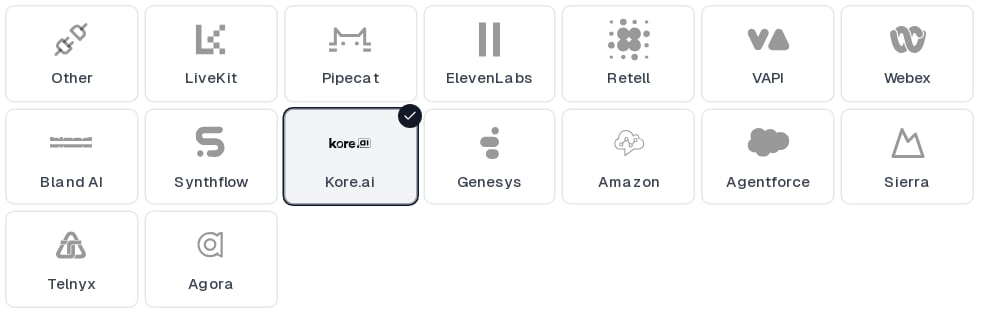
In Cekura, go to **Agents**, create an agent, and select **Kore.ai** as the provider. If you don't see it, click **More options** to expand the full provider list.
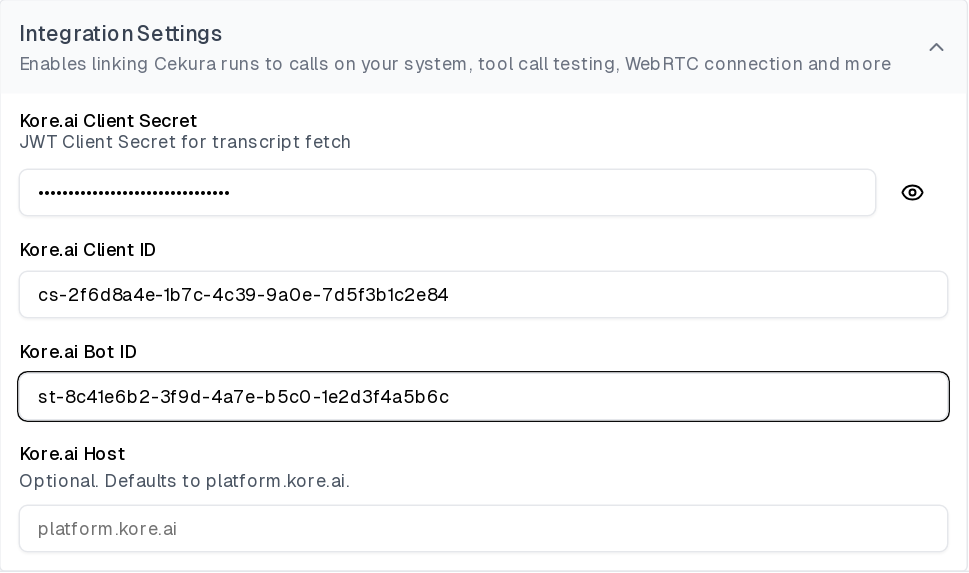
 Fill in the fields under **Integration Settings**:
| Field | Value |
| ------------------------- | -------------------------------------------------------------------------------------------------------------------------------------------------------------------------- |
| **Kore.ai Client Secret** | The Client Secret from the API scope mapping. Stored encrypted and never shown again. |
| **Kore.ai Client ID** | The Client ID from the API scope mapping (`cs-...`). |
| **Kore.ai Bot ID** | The **App ID** of your Contact Center AI app (`st-...`). |
| **Kore.ai Host** | Optional. Leave blank for the standard Kore.ai cloud. Only set it if your account runs on a dedicated or regional Kore.ai host, and enter the domain only (no `https://`). |
Fill in the fields under **Integration Settings**:
| Field | Value |
| ------------------------- | -------------------------------------------------------------------------------------------------------------------------------------------------------------------------- |
| **Kore.ai Client Secret** | The Client Secret from the API scope mapping. Stored encrypted and never shown again. |
| **Kore.ai Client ID** | The Client ID from the API scope mapping (`cs-...`). |
| **Kore.ai Bot ID** | The **App ID** of your Contact Center AI app (`st-...`). |
| **Kore.ai Host** | Optional. Leave blank for the standard Kore.ai cloud. Only set it if your account runs on a dedicated or regional Kore.ai host, and enter the domain only (no `https://`). |
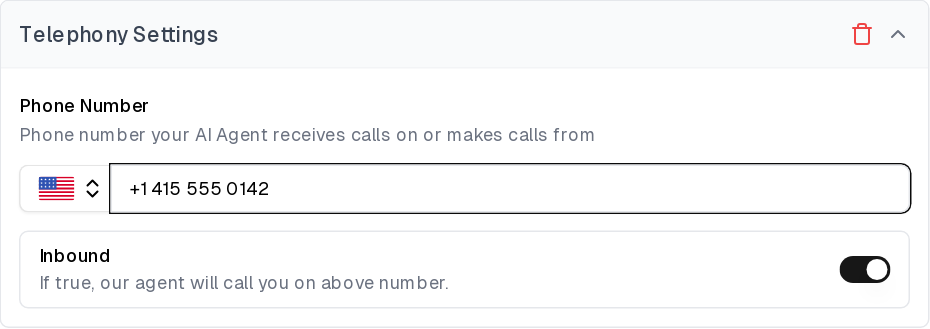
 Under **Connections**, turn on **Telephony**, then enter the Kore.ai phone number attached to your flow under **Telephony Settings**. Leave **Inbound** on so Cekura dials your number.
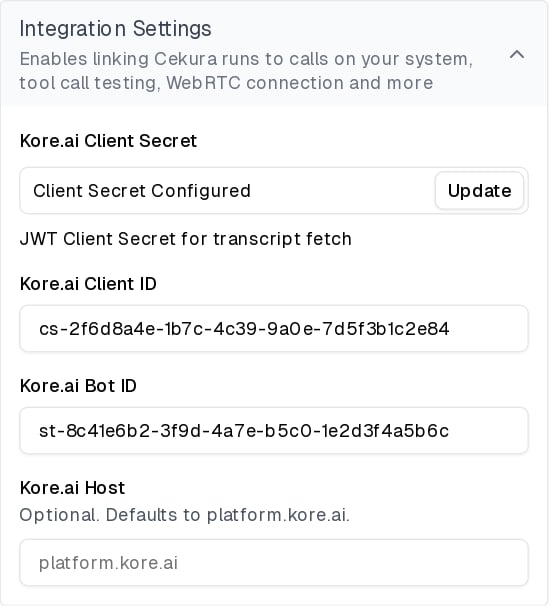
 Save the agent. The secret field shows **Client Secret Configured** once it is stored; use **Update** to rotate it later.
 ## Run a test
Open an evaluator, click **Run**, and start the run using the **Telephony** connection. Cekura dials your Kore.ai number and plays the scenario as the caller.
When the call ends, Cekura:
1. Looks up the app's sessions that started within a short window around the time Cekura placed the call.
2. Fetches the chat history of each candidate and confirms the match by comparing timing and conversation content, so parallel test calls to the same number are each paired with the right Kore.ai session.
3. Fetches the debug logs for the matched session.
4. Replaces its own transcript with the Kore.ai one and attaches the Kore.ai session ID to the result.
In the result, Kore.ai bot turns are labeled **Main Agent** and caller turns are labeled **Testing Agent**. Each service-node call the flow made appears as a **Function Call** entry in the transcript, with the request and response details from the debug logs, so you can write metrics against what the flow actually did.
If Cekura cannot find a matching session, the result keeps Cekura's own transcript of the call. See the troubleshooting section below.
## Troubleshooting
* **Authentication fails**: check that the API scope mapping uses **HS256**, and that the Client ID and Client Secret come from the same mapping. The Bot ID must be the App ID (`st-...`) of the app that owns the mapping.
* **No Kore.ai transcript on the result**: make sure the mapping has the **App Sessions** and **Chat History** scopes, and that the number under **Telephony Settings** is the one attached to the flow you tested.
* **Transcript present but no Function Call entries**: add the **Debug Logs** scope to the mapping. Without it Cekura still imports the conversation but cannot see the flow's service-node calls.
* **Host errors**: if you set **Kore.ai Host**, enter only the domain, for example `platform.kore.ai`.
## Configure through the API
When creating or updating an agent through the [API](/api-reference/test_framework/create-agent), set the provider to `koreai` and pass the credentials:
```json theme={null}
{
"assistant_provider": "koreai",
"transcript_provider": "koreai",
"koreai_client_secret": "",
"koreai_data": {
"client_id": "cs-...",
"bot_id": "st-..."
},
"contact_number": "+15551234567"
}
```
Add `"host"` to `koreai_data` only if your account runs on a dedicated Kore.ai host. The response never returns the secret. Use the read-only `koreai_client_secret_configured` field to check whether one is stored.
## Run a test
Open an evaluator, click **Run**, and start the run using the **Telephony** connection. Cekura dials your Kore.ai number and plays the scenario as the caller.
When the call ends, Cekura:
1. Looks up the app's sessions that started within a short window around the time Cekura placed the call.
2. Fetches the chat history of each candidate and confirms the match by comparing timing and conversation content, so parallel test calls to the same number are each paired with the right Kore.ai session.
3. Fetches the debug logs for the matched session.
4. Replaces its own transcript with the Kore.ai one and attaches the Kore.ai session ID to the result.
In the result, Kore.ai bot turns are labeled **Main Agent** and caller turns are labeled **Testing Agent**. Each service-node call the flow made appears as a **Function Call** entry in the transcript, with the request and response details from the debug logs, so you can write metrics against what the flow actually did.
If Cekura cannot find a matching session, the result keeps Cekura's own transcript of the call. See the troubleshooting section below.
## Troubleshooting
* **Authentication fails**: check that the API scope mapping uses **HS256**, and that the Client ID and Client Secret come from the same mapping. The Bot ID must be the App ID (`st-...`) of the app that owns the mapping.
* **No Kore.ai transcript on the result**: make sure the mapping has the **App Sessions** and **Chat History** scopes, and that the number under **Telephony Settings** is the one attached to the flow you tested.
* **Transcript present but no Function Call entries**: add the **Debug Logs** scope to the mapping. Without it Cekura still imports the conversation but cannot see the flow's service-node calls.
* **Host errors**: if you set **Kore.ai Host**, enter only the domain, for example `platform.kore.ai`.
## Configure through the API
When creating or updating an agent through the [API](/api-reference/test_framework/create-agent), set the provider to `koreai` and pass the credentials:
```json theme={null}
{
"assistant_provider": "koreai",
"transcript_provider": "koreai",
"koreai_client_secret": "",
"koreai_data": {
"client_id": "cs-...",
"bot_id": "st-..."
},
"contact_number": "+15551234567"
}
```
Add `"host"` to `koreai_data` only if your account runs on a dedicated Kore.ai host. The response never returns the secret. Use the read-only `koreai_client_secret_configured` field to check whether one is stored.