> ## Documentation Index
> Fetch the complete documentation index at: https://docs.cekura.ai/llms.txt
> Use this file to discover all available pages before exploring further.
# Gemini Enterprise CX Integration
> Connect a Google Gemini Enterprise CX (CX Agent Studio) agent to Cekura without sharing any key: grant Cekura's identity read access through Google Cloud impersonation and test phone calls to your agent.
export const CopyPageButton = () => {
if (typeof window !== 'undefined') {
setTimeout(function () {
if (document.getElementById('ck-tools')) return;
var anchor = document.getElementById('content-area') || document.querySelector('.mdx-content');
if (!anchor) return;
if (!document.getElementById('ck-style')) {
var s = document.createElement('style');
s.id = 'ck-style';
s.textContent = '#ck-tools{position:absolute;top:6px;right:0;z-index:100;font-family:inherit;}' + '.ck-row{display:inline-flex;align-items:stretch;border:1px solid rgba(0,0,0,0.15);border-radius:8px;overflow:hidden;background:#fff;}' + ':root.dark .ck-row{background:rgba(255,255,255,0.06);border-color:rgba(255,255,255,0.12);}' + '.ck-btn{padding:5px 12px;border:none;background:none;cursor:pointer;font-size:13px;font-weight:500;font-family:inherit;color:#374151;}' + ':root.dark .ck-btn{color:#d1d5db;}' + '.ck-btn:hover{background:rgba(0,0,0,0.04);}' + ':root.dark .ck-btn:hover{background:rgba(255,255,255,0.06);}' + '.ck-chevron{padding:5px 8px;border:none;background:none;cursor:pointer;font-size:14px;font-family:inherit;color:#374151;}' + ':root.dark .ck-chevron{color:#d1d5db;}' + '.ck-chevron:hover{background:rgba(0,0,0,0.04);}' + ':root.dark .ck-chevron:hover{background:rgba(255,255,255,0.06);}' + '.ck-divider{width:1px;background:rgba(0,0,0,0.12);flex-shrink:0;}' + ':root.dark .ck-divider{background:rgba(255,255,255,0.12);}' + '.ck-dd{position:absolute;top:calc(100% + 4px);right:0;min-width:180px;background:#fff;border:1px solid rgba(0,0,0,0.12);border-radius:8px;box-shadow:0 4px 12px rgba(0,0,0,0.1);padding:4px;display:none;z-index:200;}' + ':root.dark .ck-dd{background:#1f2937;border-color:rgba(255,255,255,0.1);box-shadow:0 4px 16px rgba(0,0,0,0.35);}' + '.ck-item{display:block;width:100%;padding:7px 12px;border:none;background:none;border-radius:6px;cursor:pointer;font-size:13px;font-family:inherit;text-align:left;color:#374151;}' + ':root.dark .ck-item{color:#d1d5db;}' + '.ck-item:hover{background:rgba(0,0,0,0.05);}' + ':root.dark .ck-item:hover{background:rgba(255,255,255,0.07);}';
document.head.appendChild(s);
}
var wrap = document.createElement('div');
wrap.id = 'ck-tools';
var row = document.createElement('div');
row.className = 'ck-row';
var mainBtn = document.createElement('button');
mainBtn.className = 'ck-btn';
mainBtn.textContent = 'Copy page';
var divider = document.createElement('span');
divider.className = 'ck-divider';
var chevron = document.createElement('button');
chevron.className = 'ck-chevron';
chevron.textContent = '▾';
var dd = document.createElement('div');
dd.className = 'ck-dd';
function closeDD() {
dd.style.display = 'none';
}
function openDD() {
dd.style.display = 'block';
}
chevron.onclick = function (e) {
e.stopPropagation();
if (dd.style.display === 'block') {
closeDD();
} else {
openDD();
}
};
document.addEventListener('click', function (e) {
if (!e.target.closest('#ck-tools')) {
closeDD();
}
});
document.addEventListener('keydown', function (e) {
if (e.key === 'Escape') {
closeDD();
}
});
function makeItem(label, fn) {
var b = document.createElement('button');
b.className = 'ck-item';
b.textContent = label;
b.onclick = function () {
fn();
closeDD();
};
return b;
}
function getMarkdown() {
var walk = function (node) {
if (!node) return '';
if (node.nodeType === 3) return node.textContent || '';
if (node.nodeType !== 1) return '';
var tag = node.tagName.toLowerCase();
var skip = ['script', 'style', 'svg', 'noscript', 'button', 'iframe'];
if (skip.indexOf(tag) !== -1) return '';
if (node.id === 'ck-tools') return '';
var ch = Array.from(node.childNodes).map(walk).join('');
if (tag === 'h1') return '\n# ' + ch.trim() + '\n\n';
if (tag === 'h2') return '\n## ' + ch.trim() + '\n\n';
if (tag === 'h3') return '\n### ' + ch.trim() + '\n\n';
if (tag === 'p') return '\n' + ch.trim() + '\n\n';
if (tag === 'pre') return '\n```\n' + node.textContent.trim() + '\n```\n\n';
if (tag === 'li') return '- ' + ch.trim() + '\n';
if (tag === 'code') return '`' + ch.trim() + '`';
return ch;
};
var content = document.querySelector('.mdx-content') || document.getElementById('content-area') || document.body;
return walk(content).replace(/\n\n\n+/g, '\n\n').trim();
}
function copyMd() {
var md = getMarkdown();
navigator.clipboard.writeText(md).then(function () {
mainBtn.textContent = 'Copied!';
setTimeout(function () {
mainBtn.textContent = 'Copy page';
}, 2000);
});
}
function viewMd() {
var md = getMarkdown();
var safe = md.split('&').join('&').split('<').join('<').split('>').join('>');
var html = '' + safe + '';
window.open(URL.createObjectURL(new Blob([html], {
type: 'text/html'
})), '_blank');
}
function openClaude() {
var prompt = 'Can you read this Cekura docs page ' + window.location.href + ' so I can ask you questions?';
window.open('https://claude.ai/new?q=' + encodeURIComponent(prompt), '_blank');
}
mainBtn.onclick = copyMd;
dd.appendChild(makeItem('Copy page', copyMd));
dd.appendChild(makeItem('View as Markdown', viewMd));
dd.appendChild(makeItem('Open in Claude', openClaude));
row.appendChild(mainBtn);
row.appendChild(divider);
row.appendChild(chevron);
wrap.appendChild(row);
wrap.appendChild(dd);
anchor.style.position = 'relative';
anchor.insertBefore(wrap, anchor.firstChild);
}, 50);
}
return null;
};
## Overview
Gemini Enterprise CX is Google's platform for building customer-service agents (the successor of Dialogflow CX; the agent builder is called **CX Agent Studio**). Cekura connects to it the way Google recommends: **no key file leaves your Google Cloud project**. Instead, you create a small read-only service account in your project and allow one Cekura identity to act as it. Cekura then asks Google for a short-lived token each time it needs to read your agent, and Google checks your grant every time. Removing the grant cuts Cekura off immediately.
Once connected, Cekura can dial your agent's phone number to run scenarios as a simulated caller, and can read the agent's conversation history from Google for observability.
This guide covers **voice** agents reached over telephony. Text testing of Gemini Enterprise CX agents is not supported yet.
## Prerequisites
* A Google Cloud project that contains your CX Agent Studio agent, and its **location** (region), for example `us-central1` or `global`.
* Permission in that project to create a service account and to edit its permissions (the **Service Account Admin** role, or Owner).
* A phone number attached to the agent, if you want Cekura to place test calls.
## How the connection works
| Who | What | Where |
| - | - | - |
| You | Create a **reader** service account with read access to the agent | Your Google Cloud project |
| You | Allow **Cekura's identity** to act as that reader (one permission grant) | Your Google Cloud project |
| Cekura | Mints a short-lived token as your reader and reads the agent | At call time, checked by Google |
Cekura's identity is a Google service account that Cekura owns, **one per Cekura agent**. It is created when you click **Get Cekura identity** on the agent form, and its address looks like `cek-p-@.iam.gserviceaccount.com`. Only that address can use your grant, and Cekura accepts it only for the project it was issued in, so an identity can never be reused by another customer.
## Connect the agent
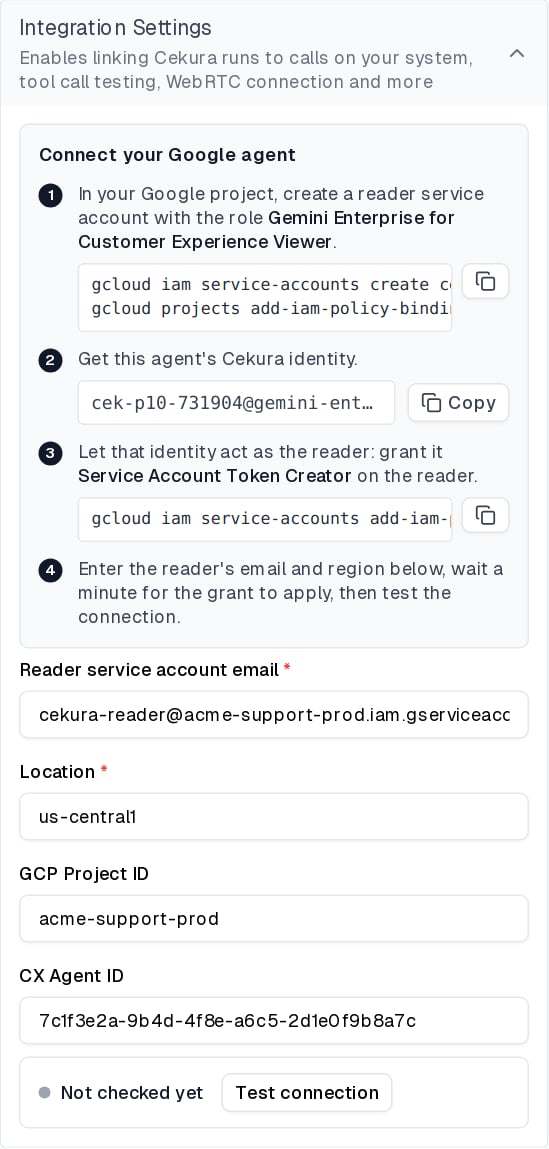
Everything happens on the agent form in Cekura and in [Cloud Shell](https://console.cloud.google.com/?cloudshell=true) (the `>_` icon in the Google Cloud console). The setup card on the form shows the same commands as below, with your values filled in as you type, and each has a copy button.
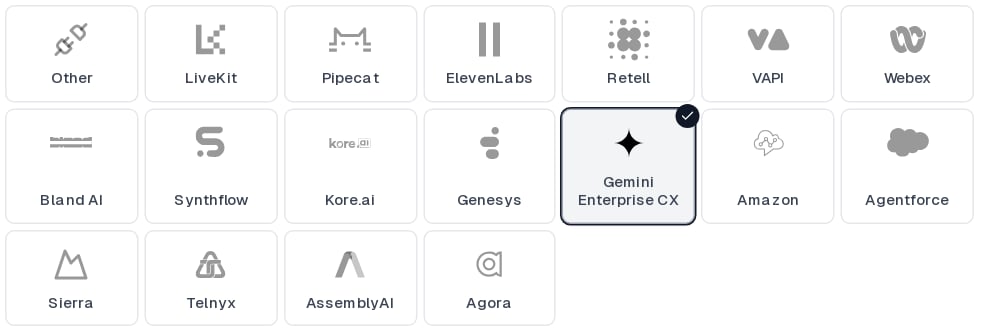
In Cekura, go to **Agents**, create an agent, and select **Gemini Enterprise CX**. If you don't see it, click **More options** to expand the full provider list.
 A small service account in the project that contains your agent, with the read-only **Gemini Enterprise for Customer Experience Viewer** role (`roles/ces.viewer`): it can read agents and their conversations, nothing else. Run this in Cloud Shell as someone who can create service accounts there:
```bash theme={null}
PROJECT=
gcloud iam service-accounts create cekura-reader --project "$PROJECT"
gcloud projects add-iam-policy-binding "$PROJECT" \
--member="serviceAccount:cekura-reader@$PROJECT.iam.gserviceaccount.com" \
--role="roles/ces.viewer"
```
Do not create a key for this account. Cekura never needs one.
Back in Cekura, click **Get Cekura identity** on the setup card and copy the address it shows. This is the Cekura account that will act as your reader.
A small service account in the project that contains your agent, with the read-only **Gemini Enterprise for Customer Experience Viewer** role (`roles/ces.viewer`): it can read agents and their conversations, nothing else. Run this in Cloud Shell as someone who can create service accounts there:
```bash theme={null}
PROJECT=
gcloud iam service-accounts create cekura-reader --project "$PROJECT"
gcloud projects add-iam-policy-binding "$PROJECT" \
--member="serviceAccount:cekura-reader@$PROJECT.iam.gserviceaccount.com" \
--role="roles/ces.viewer"
```
Do not create a key for this account. Cekura never needs one.
Back in Cekura, click **Get Cekura identity** on the setup card and copy the address it shows. This is the Cekura account that will act as your reader.
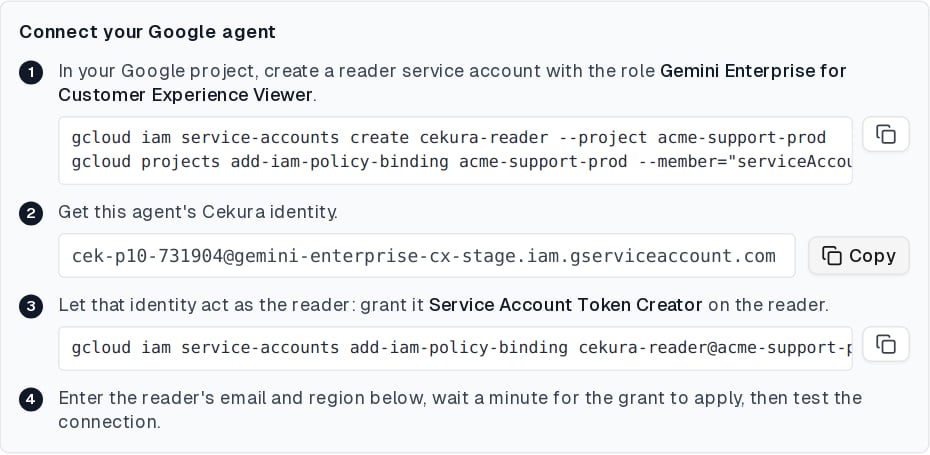 This is the only link between your project and Cekura: it lets Cekura request tokens that act as the reader, and nothing more.
```bash theme={null}
CEKURA=
gcloud iam service-accounts add-iam-policy-binding "cekura-reader@$PROJECT.iam.gserviceaccount.com" \
--member="serviceAccount:$CEKURA" \
--role="roles/iam.serviceAccountTokenCreator"
```
Prefer the console? Open **IAM & Admin → Service Accounts**, click the reader, open its **Permissions** tab, click **Grant access**, paste the Cekura identity as the principal and choose the role **Service Account Token Creator**. Note two things: the grant goes on the reader's own Permissions tab, not on the project's IAM page, and the role must be Service Account Token Creator. Service Account User or Service Account Admin do not work. New grants take up to a minute to apply.
Fill in the fields under **Integration Settings**:
| Field | Value |
| - | - |
| **Reader service account email** | The reader's address from your project, `cekura-reader@.iam.gserviceaccount.com`. |
| **Location** | The agent's region, for example `us-central1` or `global`. |
| **GCP Project ID** | Optional. Taken from the reader's address; set it only if the agent lives in a different project than the reader. |
| **CX Agent ID** | Optional. The agent's id in CX Agent Studio. |
This is the only link between your project and Cekura: it lets Cekura request tokens that act as the reader, and nothing more.
```bash theme={null}
CEKURA=
gcloud iam service-accounts add-iam-policy-binding "cekura-reader@$PROJECT.iam.gserviceaccount.com" \
--member="serviceAccount:$CEKURA" \
--role="roles/iam.serviceAccountTokenCreator"
```
Prefer the console? Open **IAM & Admin → Service Accounts**, click the reader, open its **Permissions** tab, click **Grant access**, paste the Cekura identity as the principal and choose the role **Service Account Token Creator**. Note two things: the grant goes on the reader's own Permissions tab, not on the project's IAM page, and the role must be Service Account Token Creator. Service Account User or Service Account Admin do not work. New grants take up to a minute to apply.
Fill in the fields under **Integration Settings**:
| Field | Value |
| - | - |
| **Reader service account email** | The reader's address from your project, `cekura-reader@.iam.gserviceaccount.com`. |
| **Location** | The agent's region, for example `us-central1` or `global`. |
| **GCP Project ID** | Optional. Taken from the reader's address; set it only if the agent lives in a different project than the reader. |
| **CX Agent ID** | Optional. The agent's id in CX Agent Studio. |
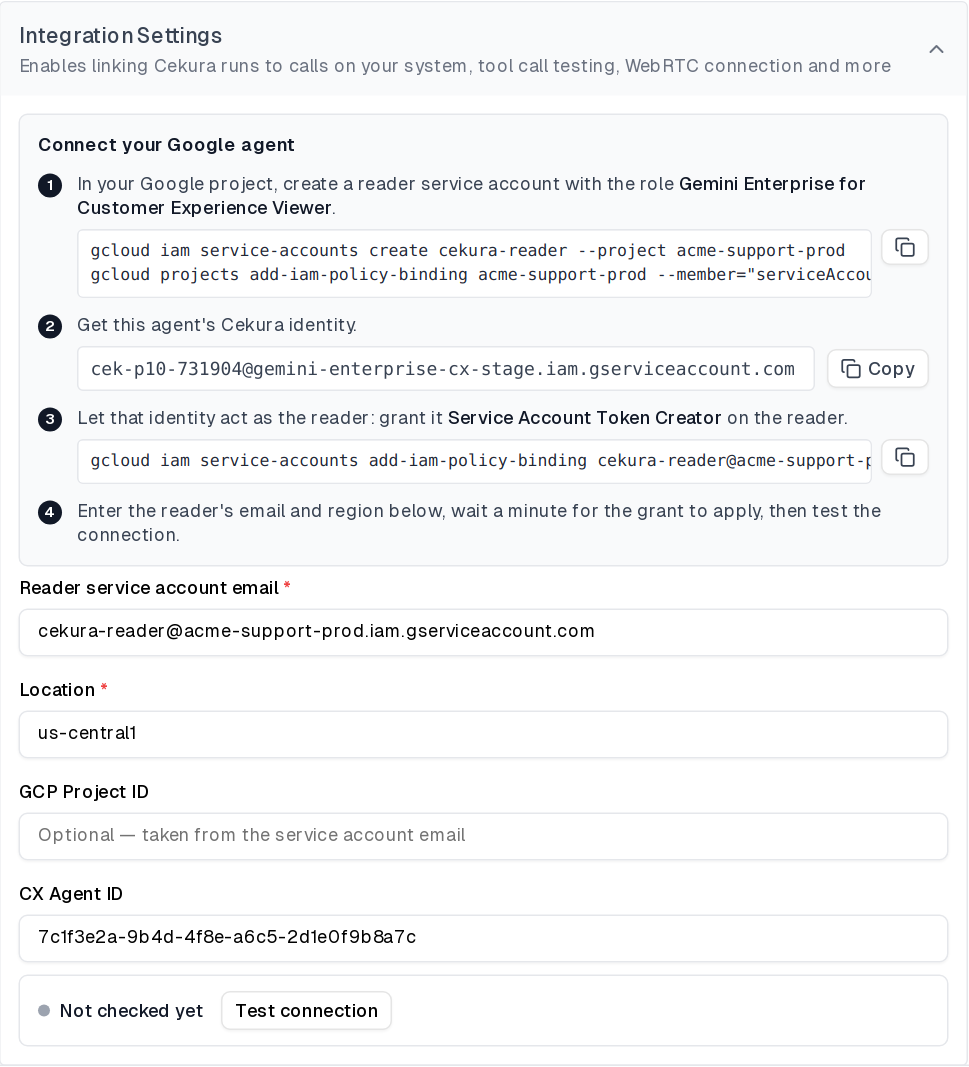 Click **Test connection**. Cekura asks Google for a token acting as your reader and shows the result. **Connected** means the grant works. **Not connected** shows Google's answer and what to check.
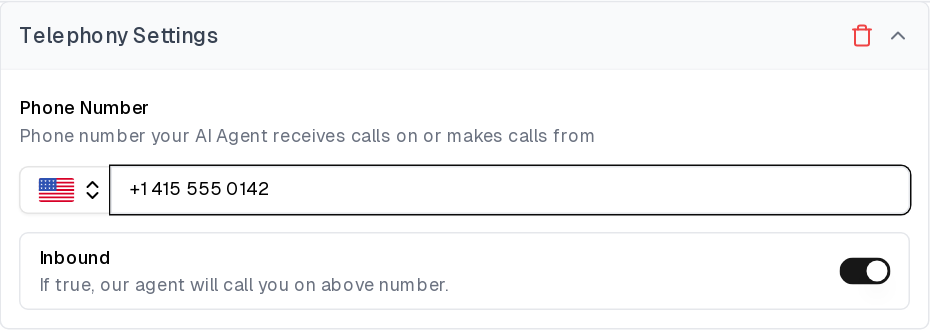
 Under **Connections**, **Telephony** is on. Enter the phone number attached to your agent under **Telephony Settings**. Leave **Inbound** on so Cekura dials your number.
 Finish the form and save. The Cekura identity and the connection status are stored with the agent, so you can see when it was last checked and re-test at any time from the agent's settings.
 Each Cekura agent has its own identity, so connecting a second agent repeats the identity and grant steps with the new address. One reader can serve all of them.
## Run a test
Open an evaluator, click **Run**, and start the run using the **Telephony** connection. Cekura dials your agent's number and plays the scenario as the caller. The result shows Cekura's transcript of the call.
## Troubleshooting
* **Not connected: Google refused to let … act as …**: the reader has not granted the Cekura identity shown on the card, the grant names a different address, or it was given a different role. Check the reader's **Permissions** tab: the Cekura identity must be listed with **Service Account Token Creator**. Wait a minute after changing it.
* **The service account belongs to project X, not Y**: the **GCP Project ID** you typed does not match the project in the reader's address. Clear the field to use the reader's project, or enter the project that actually contains the agent.
* **This Cekura identity was issued for a different project**: the address was copied from an agent in another Cekura project. Click **Get Cekura identity** on this agent's form and grant that address instead.
* **Cekura's Google identity is not available right now**: Cekura's side is not configured for Google Cloud in this environment. Contact Cekura support.
* **Revoking access**: remove the Service Account Token Creator grant from the reader, or delete the reader. Cekura's next request is refused by Google.
## Configure through the API
When creating or updating an agent through the [API](/api-reference/test_framework/create-agent), set the provider to `gemini_cx`, put the CX agent id in `assistant_id`, and pass the access details:
```json theme={null}
{
"assistant_provider": "gemini_cx",
"transcript_provider": "gemini_cx",
"assistant_id": "",
"gemini_cx_data": {
"service_account_email": "cekura-reader@your-project.iam.gserviceaccount.com",
"location": "us-central1"
},
"contact_number": "+15551234567"
}
```
`project_id` inside `gemini_cx_data` is optional and defaults to the project in the reader's address. Nothing here is secret. The Cekura identity is issued from the dashboard: open the agent's settings once after creating it to see the address to grant; it is then reported in `gemini_cx_data.cekura_identity`. The read-only `gemini_cx_connection` field on the agent reports the last connection check: `status` (`not_checked`, `connected` or `failed`), `checked_at`, `acting_as` and `error`.
Each Cekura agent has its own identity, so connecting a second agent repeats the identity and grant steps with the new address. One reader can serve all of them.
## Run a test
Open an evaluator, click **Run**, and start the run using the **Telephony** connection. Cekura dials your agent's number and plays the scenario as the caller. The result shows Cekura's transcript of the call.
## Troubleshooting
* **Not connected: Google refused to let … act as …**: the reader has not granted the Cekura identity shown on the card, the grant names a different address, or it was given a different role. Check the reader's **Permissions** tab: the Cekura identity must be listed with **Service Account Token Creator**. Wait a minute after changing it.
* **The service account belongs to project X, not Y**: the **GCP Project ID** you typed does not match the project in the reader's address. Clear the field to use the reader's project, or enter the project that actually contains the agent.
* **This Cekura identity was issued for a different project**: the address was copied from an agent in another Cekura project. Click **Get Cekura identity** on this agent's form and grant that address instead.
* **Cekura's Google identity is not available right now**: Cekura's side is not configured for Google Cloud in this environment. Contact Cekura support.
* **Revoking access**: remove the Service Account Token Creator grant from the reader, or delete the reader. Cekura's next request is refused by Google.
## Configure through the API
When creating or updating an agent through the [API](/api-reference/test_framework/create-agent), set the provider to `gemini_cx`, put the CX agent id in `assistant_id`, and pass the access details:
```json theme={null}
{
"assistant_provider": "gemini_cx",
"transcript_provider": "gemini_cx",
"assistant_id": "",
"gemini_cx_data": {
"service_account_email": "cekura-reader@your-project.iam.gserviceaccount.com",
"location": "us-central1"
},
"contact_number": "+15551234567"
}
```
`project_id` inside `gemini_cx_data` is optional and defaults to the project in the reader's address. Nothing here is secret. The Cekura identity is issued from the dashboard: open the agent's settings once after creating it to see the address to grant; it is then reported in `gemini_cx_data.cekura_identity`. The read-only `gemini_cx_connection` field on the agent reports the last connection check: `status` (`not_checked`, `connected` or `failed`), `checked_at`, `acting_as` and `error`.